
18301269
Description

Flashcards by Deleted user, updated more than 1 year ago
More

|
Created by brian gustavo triviño taborda
over 7 years ago
|
|
|
|
Copied by brian gustavo triviño taborda
over 7 years ago
|
|
| Question | Answer |
| Where do you configure Authentication? | On the Security Gateway, you can configure authentication in one of two places: ◦ In the Gateway Properties window of a gateway in Authentication. In the Authentication page, you can allow access to users who authenticate with a Check Point Password, SecurID, OS Password, RADIUS server, or TACACS server. Authentication using Client Certificates from the Internal Certificate Authority is enabled by default in addition to the selected method. ◦ Some blades have their own authentication settings. For example, configure the authentication method for IPsec VPN clients in Gateway Properties > IPsec VPN > Authentication. If you select an authentication method for the blade, that is the method that all users must use to authenticate to that blade. If you do not make a selection on the Authentication page for a specific blade, the Security Gateway takes authentication settings for the blade from the main gateway Authentication page. |
| How the Gateway Searches for Users | If you configure authentication for a blade from the main Security Gateway Legacy Authentication page, the Security Gateway searches for users in a standard way when they try to authenticate. The gateway searches: 1. The internal users database. 2. If the specified user is not defined in this database, the gateway queries the User Directory (LDAP) servers defined in the Account Unit one at a time, and according to their priority. 3. If the information still cannot be found, the gateway uses the external users template to see if there is a match against the generic profile. This generic profile has the default attributes applied to the specified user. If you configure an authentication method for a specific blade, the gateway searches for users according to the user groups that are used for authorization in that blade. |
| A search based on the authentication scheme ______ you to have users with the same user name in unrelated groups. The gateway will know which user is relevant for the blade based on the user groups | A search based on the authentication scheme allows you to have users with the same user name in unrelated groups. The gateway will know which user is relevant for the blade based on the user groups |
| Check Point Password Authentication Scheme? | The Security Gateway can store a static password in the local user database of each user configured in Security Management server |
| Operating System Password Authentication Scheme? | The Security Gateway can authenticate using the user name and password that is stored on the operating system of the machine on which the Security Gateway is installed |
| How to configure a Security Gateway to use RADIUS Authentication | Create a RADIUS Server object by selecting Manage > Server and OPSEC Applications > New > RADIUS Assign the Service by selecting either the RADIUS on port 1645 or NEW-RADIUS on port 1812 service. (The default setting is RADIUS, however the RADIUS standards group recommends using NEW-RADIUS, because port 1645 can conflict with the datametrics service running on the same port.) Select either RADIUS Ver. 1.0 Compatible, which is RFC 2138 compliant, or RADIUS Ver. 2.0 Compatible, which is RFC 2865 compliant. |
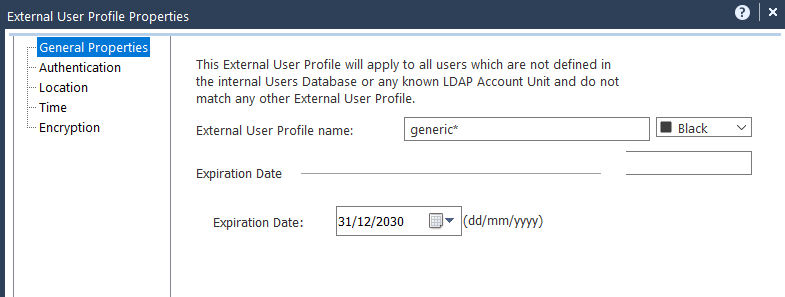
| What is an external user profile? |
An external user profile instructs the system on how to deal with external users that match the specific characteristics noted in the profile.
External user profiles are used to avoid the burden of maintaining multiple users databases, by defining a single, generic profile for all external users. you tell the system how to respond to users that are not defined in the internal or LDAP users database.
Image:
Image (binary/octet-stream)
|
| Is it possible to enable user authentication through Radius for users not stored in the local user database? | You can: - Enable RADIUS authentication for Security Gateway users by selecting Manage > Users and Administrators > New > User by Template > Default. - Enable RADIUS authentication for users without Security Gateway user accounts by creating an External User Profile. Select Manage > Users and Administrators > New > External User Profile > Match all users or Match by domain. In the General tab, type the default login name for the RADIUS server. (When configuring Match all users as an External User Profile, the name "generic*" is automatically assigned.) For all User Profiles and Templates, make sure that In the Authentication tab RADIUS is selected. |
| How can I restrict access to a group of users authenticated by Radius in reference to the Radius group to which those users belong? | The Security Gateway enables you to control access for authenticated RADIUS users, based on the administrator's assignment of users to RADIUS groups. These groups are used in the Security Rule Base to restrict or grant access to users to specific resources. Users are unaware of the groups to which they belong. To use RADIUS groups, you must define a return attribute in the RADIUS user profile of the RADIUS server. This attribute is returned to the Security Gateway and contains the group name (for example, RAD_<group to which the RADIUS users belong>) to which the users belong. Although other RADIUS attributes can be used, by default the Class attribute is used (IETF RADIUS attribute number 25). |
| How to define a Radius user group in SmartDashboard | Define the required RADIUS user groups by selecting Manage > Users & Administrators > New > User Group. The name of the group must be in the format: RAD_<group to which the RADIUS users belong>. Ensure the group is empty. |
| Is it neccesary to edit any parameter in Graphical Database Tool to work with user groups defined on a Radius server? | Run cpstop on the Security Management server. On the Security Management server, use the Graphical Database Tool (GUIdbEdit) to change the value of the add_radius_groups attribute from false to true. Run cpstart on the Security Management server and install the policy. On the RADIUS server, modify the RADIUS users to include a class RADIUS attribute on the users Return list that corresponds to the user group that they access. |
| SecurID? | SecurID requires users to both possess a token authenticator and to supply a PIN or password. Token authenticators generate one-time passwords that are synchronized to an RSA ACE/server. All tokens generate a random, one-time use access code that changes approximately every minute. When a user attempts to authenticate to a protected resource, the one-time use code must be validated by the ACE/server. Using SecurID, the Security Gateway forwards authentication requests by remote users to the ACE/server. ACE manages the database of RSA users and their assigned hard or soft tokens. The gateway acts as an ACE/Agent 5.0 and directs all access requests to the RSA ACE/server for authentication |
| How to configure a Security Gateway to use SecurID | To configure a Security Gateway to use SecurID: - Generate and copy the sdconf.rec file from the ACE/Server to: /var/ace/sdconf.rec on UNIX, Linux or IPSO - Enable SecurID authentication for Security Gateway users by selecting Manage > Users and Administrators > New > User by Template > Default. - Enable SecurID authentication for users without Security Gateway user accounts by creating an External User Profile. Select Manage > Users and Administrators > New > External User Profile > Match all users or Match by domain |
| TACACS? | TACACS is an external authentication scheme that provides verification services. Using TACACS, the Security Gateway forwards authentication requests by remote users to the TACACS server. The TACACS server, which stores user account information, authenticates users. The system supports physical card key devices or token cards and Kerberos secret key authentication. TACACS encrypts the user name, password, authentication services and accounting information of all authentication requests to ensure secure communication. |
| How to configure a Security Gateway to use TACACS+ | 3. Create a TACACS server by selecting Manage > Server and OPSEC Applications > New…> TACACS…, Select the Type of TACACS you want to run. (The default is TACACS, but TACACS+ is recommended). 4. Assign the Service. Match the TACACS service (UDP or TCP) to the Type selected in step c 7. Enable TACACS authentication for Security Gateway users by selecting Manage > Users and Administrators > New > User by Template > Default. 8. Enable TACACS authentication for users without Security Gateway user accounts by creating an External User Profile. Select either Manage > Users and Administrators > New > External User Profile > Match all users or Match by domain |
| The authentication scheme for a user can be defined as undefined. If a user with an undefined authentication scheme is matched to a Security Rule with some form of authentication, access is always _____. | The authentication scheme for a user can be defined as undefined. If a user with an undefined authentication scheme is matched to a Security Rule with some form of authentication, access is always denied. |
| Authentication Methods? | Instead of creating a security rule that simply allows or denies connections, the firewall administrator can request that clients authenticate when they try to access specific network resources. There are three authentication methods available: user, client and session. These methods differ in the services provided, the logon mechanism, and the overall user experience. Each method can be configured to connect and authenticate clients to the gateway before the connection is passed to the desired resource (a process known as nontransparent authentication). Alternatively, each method can be configured to connect clients directly to the target server (a process known as transparent authentication) |
| User Authentication? | User Authentication provides authentication for Telnet, FTP, HTTP, and rlogin services. By default, User Authentication is transparent. The user does not connect directly to the gateway, but initiates a connection to the target server |
| How to configure user authentication | - Define a user authentication access rule - Right-click in the Source column, select Add object > Add legacy user access - In the Action column, select Legacy > User Auth. |
| Importance of Rule Order in User Authentication? | When defining user authentication rules for Telnet, FTP, HTTP, and RLOGIN services, if there are other non-authentication rules that use these services, ensure that the user authentication rule is located last amongst these rules. |
| Session Authentication? | Session Authentication can be used for any service, however, a Session Authentication agent is required to retrieve a user's identity. The Session Authentication agent is normally installed on the authenticating client |
| A typical Session Authentication workflow? | 1. The user initiates a connection directly to the server. 2. The Security Gateway intercepts the connection. 3. The Session Authentication agent challenges the user for authentication data and returns this information to the gateway. 4. If the authentication is successful, the Security Gateway allows the connection to pass through the gateway |
| How to configure session authentication | - Define a Session Authentication access rule - Right-click in the Source column, select Add object > Add legacy user access - In the Action column, select Legacy > Session Auth. |
| Can I install a Client Authentication Agent on the destination machine to provide authentication? | If the Session Authentication agent is installed on the authenticating client, users who want to connect to the destination host provide the authentication credentials. If Session Authentication agent is installed on the destination machine or on some other machine in the network, the user at the machine on which the Agent is installed is prompted to provide authentication credentials. |
| Session Authentication Agent Specify how often the user is prompted to provide their password. One-time passwords (such as SecurID) cannot be cached. These are the options available: | Session Authentication Agent Specify how often the user is prompted to provide their password. One-time passwords (such as SecurID) cannot be cached. - Every request: The user is prompted for a password each time that the Security Gateway requests authentication. Each time that the user initiates a session for which a Session Authentication Rule applies, the user is prompted for the password. No password caching occurs. - Once per session: The user is prompted for the password once per Session Authentication Agent session. Once the user provides the password, the Session Authentication agent caches the password indefinitely. This option cannot be used with one-time passwords - After minutes of inactivity: Similar to the Once per session option, however, the user is prompted again for the password if there has been no authentication request over a specified time interval. |
| Can I specify to which gateway a Client authentication agent provides authentication services? | In the Configuration window of the client, select the Allowed FireWall-1 tab and specify the Security Gateways for which the Session Authentication agent can provide authentication services. - Any IP Address: The Session Authentication agent can provide authentication services for any Security Gateway. - IP Address: The Session Authentication agent can provide authentication services for only a Security Gateway running on a user-specified IP address |
| Client Authentication? | Client Authentication can authenticate any service. It enables access from a specific IP address for an unlimited number of connections. The client user performs the authentication process, but it is the client machine that is granted access. Client Authentication is less secure than user authentication because it permits access for multiple users and connections from authorized IP addresses or hosts. Authorization is performed on a per machine basis for services that do not have an initial login procedure |
| Client Authentication Sign On Methods? | Manual Partially automatic Fully automatic Agent automatic Single Sign on For sign on methods other than Manual Client Authentication, the gateway is transparent to the users and they authenticate directly to the destination host. |
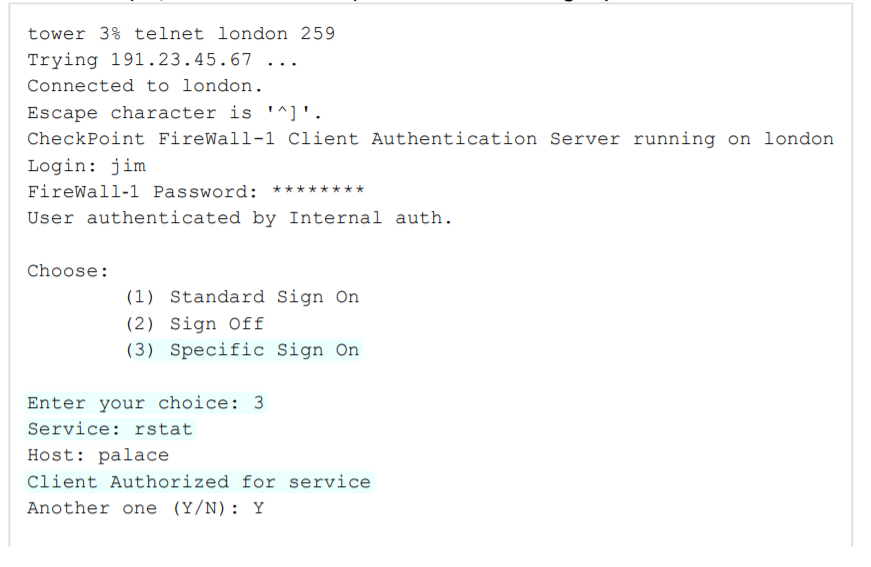
| Client Authentication sign on options? | ◦ Standard Sign on: Enables users to access all services permitted by the rule without authenticating for each service. ◦ Specific Sign on: Enables users to access only the services that they specify when they authenticate, even if the rule allows more than one service. If the user wants to use another service, they must re-authenticate for that specific service. |
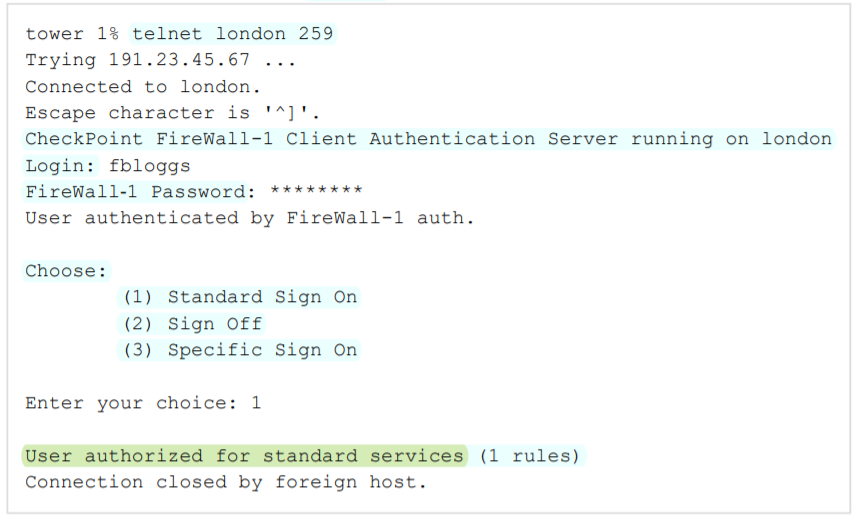
| Manual Sign On (Client Authentication Sign On Method)? | Manual Sign On is available for any service that is specified in the Client Authentication rule. The user must first connect to the gateway and authenticate in one of the following two ways: 1. Through a Telnet session to the gateway on port 259. 2. Through an HTTP connection to the gateway on port 900 and a Web browser |
|
Image:
Image (binary/octet-stream)
|
The example shows Client Authentication using a Standard Manual Sign On method. In this example, before opening a connection to the destination host, the user fbloggs first authenticates to london, the Security Gateway. |
|
Image:
Image (binary/octet-stream)
|
The example shows Client Authentication using a Specific Manual Sign On method. In this example, a services are specified: rstat for a host |
| Wait Mode (Client Authentication Sign On Method)? | Wait mode is a Client Authentication feature for Manual Sign On when the user initiates a client authenticated connection with a Telnet session on port 259 on the gateway. Wait mode eliminates the need to open a new Telnet session in order to sign off and withdraw client authentication privileges. In Wait mode, the initial Telnet session connection remains open so long as client authentication privileges remain valid. Client authentication privileges are withdrawn when the Telnet session is closed. The Security Gateway keeps the Telnet session open by pinging the authenticating client. If for some reason the client machine stops running, the gateway closes the Telnet session and client authentication privileges from the connected IP address are withdrawn. Wait mode works only with client authentication rules that specify Standard Sign On |
| Partially Automatic Sign On (Client Authentication Sign On Method)? | Partially Automatic Sign On is available for authenticated services (Telnet, FTP, HTTP and RLOGIN) only if they are specified in the client authentication rule. If the user attempts to connect to a remote host using one of the authenticated services, they must authenticate with User Authentication |
| Fully Automatic Sign On (Client Authentication Sign On Method)? | Fully Automatic Sign On is available for any service only if the required service is specified in the client authentication rule. If the user attempts to connect to a remote host using an authenticated service (Telnet, FTP, HTTP, and RLOGIN), they must authenticate with User Authentication. If the user attempts to connect to a remote host using any other service, they must authenticate through a properly installed Session Authentication agent |
| Agent Automatic Sign On (Client Authentication Sign On Method)? | Agent Automatic Sign On is available only if the required service is specified in the Client Authentication rule, and the Session Authentication agent is properly installed. If a user attempts to connect to a remote host using any service, they must authenticate through a Session Authentication agent. |
| Single Sign On (Client Authentication Sign On Method)? | Single Sign On is available for any service only if the required service is specified in the Client Authentication rule and UserAuthority is installed. Single Sign On is a Check Point address management feature that provides transparent network access. The Security Gateway consults the user IP address records to determine which users are logged on to any given IP address. When a connection matches a Single Sign On enabled rule, the gateway queries UserAuthority with the packet's source IP. UserAuthority returns the name of the user who is registered to the IP. If the user's name is uthenticated, the packet is accepted, if not, it is dropped. UserAuthority (Identity Awareness with LDAP query enabled) |
| How to configure basic client authentication | Define a Client Authentication access rule Right-click in the Source column, select Add object > Add legacy user access In the Action column, select Legacy > Client Auth. For Partially or Fully Automatic Client Authentication, ensure that port 80 is accessible on the gateway machine. Place all Client Authentication Rules above the rule that prevents direct connections to the Security Gateway (the Stealth Rule) to ensure that they have access to the Security Gateway. |
| How do the permitted locations for a user and the origins and destinations of an authentication rule interact? | When configuring users, you define those locations that they can access. However, by doing so, you disallow access to all unspecified locations, which can cause conflicts with security rules that require authentication. For example, if a rule grants authenticated access to users from Marketing_net to Finance_net, but in the user's Location tab connections are only permitted within Marketing_net, the firewall does not know whether to allow the authentication request when the user tries to connect to Finance_net. You can specify how to resolve this conflict by editing the Authentication Action Property of this rule. You can define this property for both the Source and Destination of the rule. To resolve access conflicts: - To apply the more restrictive access privileges specified in the rule and in the Location tab of each user's User Properties window, select Intersect with User Database. - To allow access according to the location specified in the rule, select Ignore User Database. |
| What does authorize all standard sign on rules mean when using Partially or Fully Automatic Sign On? | By default, the Partially or Fully Automatic sign on methods open one rule following successful authentication (the rule for which the sign on was initiated). For example, if a user successfully authenticates according an automatic sign on rule, the user can work with the services and destinations permitted only by that rule. You can configure Security Gateway to automatically open all Standard Sign On rules following successful authentication using Partially or Fully Automatic Sign On. If a user successfully authenticates according to an automatic sign on rule, then all Standard Sign On rules that define that user and source are available. The user can then work with all of the services and destinations permitted by the relevant rules; the Security Gateway knows which user is at the client, and additional authentication is not necessary. |
| How to authorize all standard sign on rules | Access the GUIdbedit Database Tool Search for the automatically_open_ca_rules field. Set the value to true. The new value takes effect after you install the security policy. |
| Can I install the database of users and objects without installing policies? | Users and groups can be installed separately from the Rule Base, meaning that you can update users and groups without reinstalling the Rule Base. To install the user database, select Policy > Install Database from the SmartDashboard menu. |
| Authentication tracking can be configured for the following types of authentication attempts: | ◦ Failed authentication attempts: Can be tracked for all forms of authentication. To track failed authentication attempts: In the Authentication page of a gateway object, set the Authentication Failure Track property to define the tracking option when authentication failures occur. ◦ Successful authentication attempts: Can be tracked for Client Authentication. |
Want to create your own Flashcards for free with GoConqr? Learn more.