
1853609
Description

Mind Map by kathrynduffy, updated more than 1 year ago

|
Created by kathrynduffy
about 11 years ago
|
|
Sum IF function
- SUMIF(range, criteria, sum_range)
Range and criteria are the same as with
CountIF - the range of cells to search,
and what you want Excel to look for. The
Sum_Range is like range, but it searches
a new range of cells.
- SUMIF(range, criteria, sum_range)
So the range of cells that we want to
check are the True and False values
in the C column
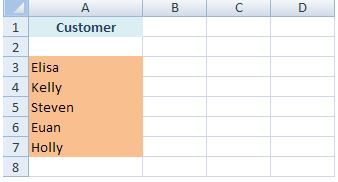
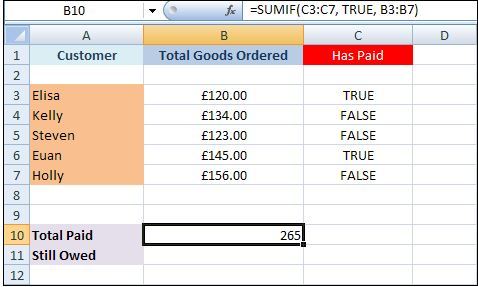
- Step 1: Five people have ordered goods from us. Some have paid us, but some
haven't. The five people are Elisa, Kelly, Steven, Euan, and Holly. We'll use
SumIF to calculate how much in total has been paid to us, and how much is still
owed., enter the names in column A
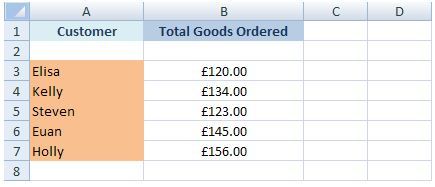
- Step 2: In Column B enter how
much each person owes
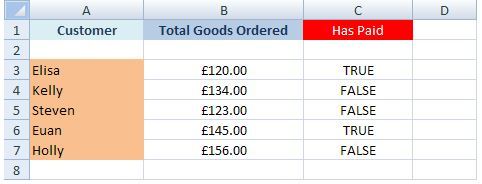
- Step 3: n Column C, enter TRUE or
FALSE values. TRUE means they have
paid up, and FALSE means they haven't
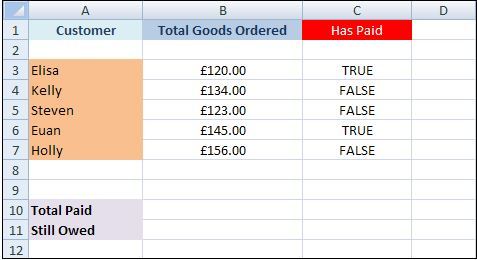
- Step 4: Add two more labels:
Total Paid, and Still Owed.
- Step 5: In cells B10 and B11, we'll use a SumIF function to work out
how much has been paid in, and how much is still owed. Here's the
SumIF function again: SUMIF(range, criteria, sum_range) So the
range of cells that we want to check are the True and False values in
the C column; the criteria is whether they have paid (True); and the
Sum_Range is what we want to add up (in the B column). In cell B10,
then, enter the following formula: =SUMIF(C3:C7, TRUE, B3:B7) When
you press the enter key, Excel should give you the answer:
- So 265 is has been paid in. But we told SumIF to first check the
values in the cells C3 to C7 (range). Then we said look for a value of
TRUE (criteria). Finally, we wanted the values in the B column adding
up, if a criteria of TRUE was indeed found (sum_range).
- So 265 is has been paid in. But we told SumIF to first check the
values in the cells C3 to C7 (range). Then we said look for a value of
TRUE (criteria). Finally, we wanted the values in the B column adding
up, if a criteria of TRUE was indeed found (sum_range).
- Step 5: In cells B10 and B11, we'll use a SumIF function to work out
how much has been paid in, and how much is still owed. Here's the
SumIF function again: SUMIF(range, criteria, sum_range) So the
range of cells that we want to check are the True and False values in
the C column; the criteria is whether they have paid (True); and the
Sum_Range is what we want to add up (in the B column). In cell B10,
then, enter the following formula: =SUMIF(C3:C7, TRUE, B3:B7) When
you press the enter key, Excel should give you the answer:
- Step 4: Add two more labels:
Total Paid, and Still Owed.
- Step 3: n Column C, enter TRUE or
FALSE values. TRUE means they have
paid up, and FALSE means they haven't
- Step 2: In Column B enter how
much each person owes
Media attachments
Want to create your own Mind Maps for free with GoConqr? Learn more.