
Quiz
Case Management Intermediate
Este quiz tem tipos de pergunta que abrem no player de sempre.
Perguntas do quiz (26)
1An assignment with an initial urgency of 10 is associated with an SLA, which is defined with a timed delay of two hours. The goal is defined as one hour, after which the urgency increases by ten. The deadline is defined as two hours, after which the urgency increases by 15.
A work item associated with this assignment is created at 8:00 AM. At 11:30 AM, what is the urgency of the assignment?- A30
- B10
- C20
- D35
2You can define the [blank_start]starting time[blank_end] for assignments that are associated with a service-level agreement by using the [blank_start]Assignment Ready field[blank_end].
On an SLA rule, the Assignment Ready field is found in the [blank_start]Start of service level[blank_end] section. The Assignment Ready field value is only applied when the SLA rule is [blank_start]associated with an assignment[blank_end].
[blank_start]Immediately[blank_end]: Assignments that are associated with this service-level agreement are immediately ready, and users can begin work immediately.
[blank_start]Dynamically defined on a property[blank_end]: Assignments associated with this service-level agreement use a DateTime property value that you define to determine when users are expected to start work on assignments.
[blank_start]Timed delay[blank_end]: Assignments associated with this service-level agreement start the assignment after a period of time. You define the delay period (in Days, Hours, and Minutes) before users are expected to begin work on assignments.
In Pega applications, assignment urgency indicates [blank_start]assignment priority[blank_end]. Urgency is a numeric value ranging from [blank_start]0 to 100[blank_end], displayed in [blank_start]worklists and cases[blank_end].
The [blank_start]GetNextWork[blank_end] selection algorithm in Pega Platform identifies the next assignment on which users can work. GetNextWork uses assignment urgency (priority) when selecting the next assignment for users. The algorithm identifies the assignment with the highest (greatest) urgency to determine the next assignment to perform. The [blank_start]initial urgency[blank_end] for assignments on a case type is [blank_start]10[blank_end]. However, you can change the default urgency to indicate that assignments for a [blank_start]specific case type[blank_end] are [blank_start]more important[blank_end] than other case types.
Configure the initial urgency for a case in [blank_start]Settings > General[blank_end].- Astarting time
- BAssignment Ready field
- CStart of service level
- Dassociated with an assignment
- EImmediately
- FDynamically defined on a property
- GTimed delay
- Hassignment priority
- I0 to 100
- Jworklists and cases
- KGetNextWork
- Linitial urgency
- M10
- NSettings > General
- Omore important
- Pspecific case type
3Drag to the right place.
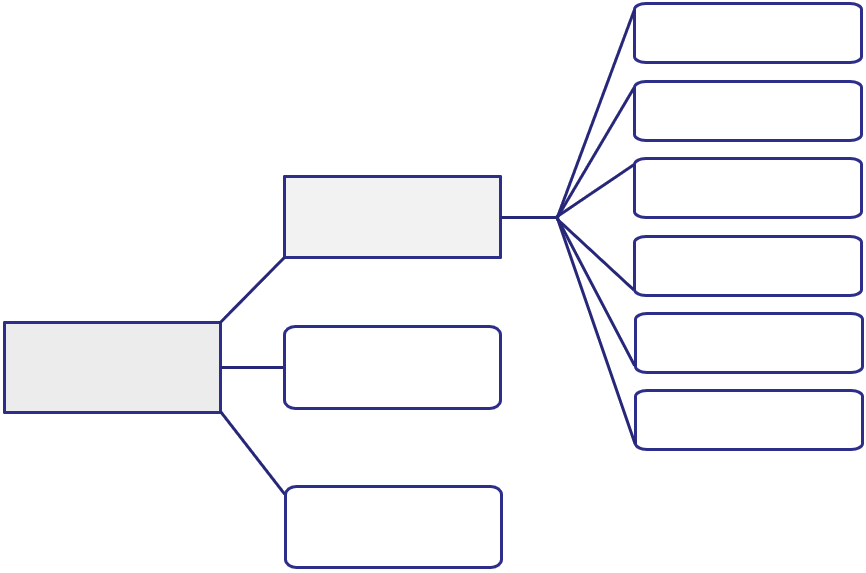
- ApxUrgencyAssign
- BpxUrgencyWork
- CpxUrgencyAssignSLA
- DpyUrgencyAssignAdjust
- EpxUrgencyWorkClass
- FpyUrgencyWorkAdjust
- GpxUrgencyWorkSLA
- HpxUrgencyPartyTotal
- IpxUrgencyWorkStageSLA
- JpxUrgencyWorkStepSLA
4The declare expression for .pxUrgencyAssign is: @min(100,@max(0, ____ + ____ + ____))
- A.pxUrgencyWorkClass
- B.pyUrgencyWorkAdjust
- C.pxUrgencyWorkSLA
- D.pxUrgencyPartyTotal
- E.pxUrgencyWorkStageSLA
- F.pxUrgencyWorkStepSLA
- G.pxUrgencyAssignSLA
- H.pxUrgencyAssignAdjust
- I.pxUrgencyAssign
- J.pxUrgencyWork
5The declare expression for .pxUrgencyWork is: @min(100,@max(0,____ + ____ + ____ + ____ + ____ + ____))
- A.pxUrgencyWorkClass
- B.pyUrgencyWorkAdjust
- C.pxUrgencyWorkSLA
- D.pxUrgencyPartyTotal
- E.pxUrgencyWorkStageSLA
- F.pxUrgencyWorkStepSLA
- G.pxUrgencyAssignSLA
- H.pxUrgencyAssignAdjust
- I.pxUrgencyAssign
- J.pxUrgencyWork
6You can configure your application to allow selected users to change the urgency calculated for a work item by using a service-level agreement or using the following standard rules:
[blank_start]Work-.UrgencyUpdate[blank_end] – A [blank_start]flow action[blank_end] that you can call [blank_start]while processing a case[blank_end]. The integer that you provide is added to the current urgency of the case.
[blank_start]Work-.pyUrgencyWorkAdjust[blank_end] – A property that you can set to [blank_start]increase or decrease[blank_end] the current urgency of [blank_start]a case[blank_end]. The value that you provide is evaluated by the Work-[blank_start].pxUrgencyWork declare expression[blank_end].
[blank_start]Assign-.pyUrgencyAssignAdjust[blank_end] – A property that you can set [blank_start]to increase or decrease[blank_end] the current urgency of [blank_start]an assignment[blank_end]. The value that you provide is evaluated by the Assign-[blank_start].pxUrgencyAssign declare expression[blank_end].- AWork-.UrgencyUpdate
- Bflow action
- Cwhile processing a case
- DWork-.pyUrgencyWorkAdjust
- Eincrease or decrease
- FAssign-.pyUrgencyAssignAdjust
- Gto increase or decrease
- Ha case
- Ian assignment
- J.pxUrgencyAssign declare expression
- K.pxUrgencyWork declare expression
7At runtime, urgency is updated each time the value of a standard property changes or when a user saves a case.
.[blank_start]pxUrgencyAssign[blank_end]: The final property that has is checked to get the urgency of the case.
.[blank_start]pxUrgencyWork[blank_end]: The urgency of the case at the time the assignment is created (Initial urgency), this is the default urgency for the case with a default value of 10. An increase to this value increases the .pxUrgencyAssign value and indicates that assignments for a specific case type are more important than assignments for other case types.
.[blank_start]pxUrgencyAssignSLA[blank_end]: Urgency from the assignment service-level agreement (SLA), this value is calculated from the service level rule. The value is the sum of the initial urgency and the urgency increments for the goal, deadline, and passed deadline intervals.
.[blank_start]pyUrgencyAssignAdjust[blank_end]: Property that you can mannualy adjust to increase or decrease the assignment urgency. This value enables a user to increase the urgency of an assignment by running a local action.
.[blank_start]pxUrgencyWorkClass[blank_end]: Urgency of the case type. The default value is 10.
.[blank_start]pyUrgencyWorkAdjust[blank_end]: A property that you adjust to increase or decrease the case urgency, this property is referenced by the UrgencyAdjust flow action.
.[blank_start]pxUrgencyWorkSLA[blank_end]: Urgency from the case service-level agreement (SLA), if the case has an SLA.
.[blank_start]pxUrgencyPartyTotal[blank_end]: Although rarely used, a work party can have an associated urgency. This is the sum of the work party urgency.
.[blank_start]pxUrgencyWorkStageSLA[blank_end]: Urgency from the current stage service-level agreement (SLA), if the stage has an SLA.
.[blank_start]pxUrgencyWorkStepSLA[blank_end]: If a service-level agreement (SLA) is configured on any of the processes in the current stage, this is the sum of the urgency from all process SLAs in the current stage.- ApxUrgencyAssign
- BpxUrgencyWork
- CpxUrgencyAssignSLA
- DpyUrgencyAssignAdjust
- EpxUrgencyWorkClass
- FpyUrgencyWorkAdjust
- GpxUrgencyWorkSLA
- HpxUrgencyPartyTotal
- IpxUrgencyWorkStageSLA
- JpxUrgencyWorkStepSLA
8For a roadside assistance case:
pxUrgencyWorkClass is 15
pyUrgencyWorkAdjust is 10
pxUrgencyWorkSLA is 15
pxUrgencyWorkStageSLA is 10
pxUrgencyAssignSLA is 20
The pxUrgencyWork is [blank_start]50[blank_end]. When the case reaches the Assign service provider assignment, the pxUrgencyAssign is [blank_start]70[blank_end].
A driver reports an issue after dark, warranting an urgent service call. The Customer Service Representative (CSR) adjusts the pyUrgencyWorkAdjust on the case from 10 to 30. The pxUrgencyWork on the case increases to [blank_start]70[blank_end].
The pxUrgencyAssign field is a snapshot of the Roadside assistance case urgency at the time the Assign service provider assignment was created. Therefore, the pxUrgencyAssign remains [blank_start]70[blank_end]- A50
- B70
- C70
- D70
9This property records case urgency: .[blank_start]pxUrgencyWork[blank_end]
This property records assignment urgency: .[blank_start]pxUrgencyAssign[blank_end]
This property allows users to manually adjust the urgency: .[blank_start]pyUrgencyAssignAdjust[blank_end]
This property responds to urgency calculated based on the service-level agreement rule: .[blank_start]pxUrgencyAssignSLA[blank_end]- ApxUrgencyWork
- BpxUrgencyAssign
- CpyUrgencyAssignAdjust
- DpxUrgencyAssignSLA
- EpxUrgencyWorkSLA
- FpxUrgencyWorkStageSLA
- GpyUrgencyWorkAdjust
10You can configure a stage to run [blank_start]multiple processes in parallel[blank_end]. This configuration allows users to perform tasks [blank_start]independently[blank_end] to complete the work in a stage. When the processes are [blank_start]completed[blank_end], the case moves to the next stage.
For more complex parallel processing requirements, Pega provides the [blank_start]Split Join shape[blank_end], [blank_start]the Split For Each shape[blank_end], [blank_start]and the spinoff option[blank_end] in the [blank_start]Subprocess shape[blank_end].
The process to which you add the shape is called the [blank_start]main process[blank_end]. The shapes call one or more subprocesses that [blank_start]proceed in parallel[blank_end].
You use the Split Join shape to call multiple [blank_start]independent processes[blank_end] that operate in [blank_start]parallel and, later, rejoin[blank_end]. This is similar to a parallel process in the case life cycle; when all the processes in a stage are completed, the case enters the next stage or is resolved. However, the Split Join shape [blank_start]gives you the flexibility[blank_end] to use [blank_start]join conditions that determine when[blank_end] the primary process can continue. The [blank_start]join condition[blank_end] may iterate over a [blank_start]when condition or a count[blank_end] to determine when to resume the flow. For instance, a Split Join may include three separate approval subprocesses. You can specify that only [blank_start]two of the three approvals[blank_end] must be completed before resuming the main flow.
A Split For Each shape allows you to run [blank_start]one subprocess multiple times[blank_end] by [blank_start]iterating through a set of records[blank_end] stored in [blank_start]a page list or page group[blank_end]. When the items [blank_start]on the list[blank_end] have been processed, the main flow continues. For example, you can use a Split For Each to iterate over a list of vendors and send a quote request from each vendor on the list. Like the Split Join, you can use [blank_start]a join condition to control when[blank_end] the primary process resumes. If you use an [blank_start]iterate join condition[blank_end], you can start flows for elements of the Page Group or Page List property [blank_start]one by one[blank_end], and configure testing conditions to determine whether to continue.
The spinoff option in the Subprocess shape allows you to run the subprocess in [blank_start]parallel with the main flow[blank_end]. The main process [blank_start]does not wait[blank_end] for the subprocess to complete before proceeding. The subprocess [blank_start]does not rejoin[blank_end] the main process. The main process is unaffected by the subprocess and continues.- Amultiple processes in parallel
- Bindependently
- Ccompleted
- DSplit Join shape
- Ethe Split For Each shape
- Fand the spinoff option
- GSubprocess shape
- Hmain process
- Iproceed in parallel
- Jindependent processes
- Kparallel and, later, rejoin
- Lgives you the flexibility
- Mjoin conditions that determine when
- Njoin condition
- Owhen condition or a count
- Ptwo of the three approvals
- Qone subprocess multiple times
- Riterating through a set of records
- Sa page list or page group
- Ton the list
- Ua join condition to control when
- Viterate join condition
- Wone by one
- Xparallel with the main flow
- Ydoes not wait
- Zdoes not rejoin
11In a Prepare job offer process, you configure a Split For Each shape. The shape runs a compensation approval subprocess to a list containing four managers. The prepare job offer process resumes as soon as one manager completes the approval process.
Which join condition in the Split For Each shape supports this requirement?- AAn Iterate join condition
- BAn Any join condition
- CA Some join condition
- DAn All join condition
12When the workflow in your case is _____, you can use _____ to run one or more _____ in the same stage _____ to allow users to perform tasks independently to complete the work in the stage.
- Acomplex, parallel processing, subprocesses, simultaneously
- Bcomplex, pre-processing, spinoffs, simultaneously
- Ccomplex, typical processing, subprocesses, simultaneously
- Dcomplex, post-processing, subprocesses, simultaneously
13An Order fulfillment process includes a request for quotes from multiple shippers. You want the system to automatically call a quote request subprocess for each vendor. How do you configure your process?
- AAdd a Subprocess shape for the request subprocess and specify the Spinoff option.
- BAdd a Split Join shape and run the request subprocess for each vendor on a page list.
- CAdd a Split For Each shape and run the request subprocess for each vendor on a page list.
- DAdd a Split For Each step to the case life cycle and run the subprocess for each vendor on a page list.
14When two or more actions attempt to update a case, the last-performed action may [blank_start]overwrite data[blank_end] written by a previous action. To [blank_start]avoid data corruption or loss[blank_end] due to overwrites, configure an appropriate [blank_start]locking strategy[blank_end] for each case type. Pega supports two strategies to balance user access with the need for data protection: [blank_start]Allow one user locking and[blank_end] [blank_start]Allow multiple users locking[blank_end].
With an Allow [blank_start]one user[blank_end] locking strategy, an application applies an [blank_start]exclusive lock[blank_end] when opening an item, such as a case. A user or the system that opens the object gains exclusive access to the object [blank_start]until the application releases the lock[blank_end]. This is the [blank_start]default option[blank_end].
With an Allow [blank_start]multiple users[blank_end] locking strategy, an application [blank_start]does not apply an exclusive lock[blank_end] when opening an item. Instead, any user — or the system itself — can open and edit the case [blank_start]at any time[blank_end]. When the user attempts to save, the application [blank_start]checks whether the case has changed[blank_end] before committing any changes. If there were updates to the case, the system would [blank_start]prompt the user[blank_end] to either [blank_start]reload the case[blank_end] or [blank_start]close the case without saving[blank_end].
If a case includes [blank_start]one or more child cases[blank_end], the [blank_start]child cases inherit[blank_end] the locking strategy from the parent case. Pega Platform identifies the locking strategy in effect for the child case on the [blank_start]Settings[blank_end] tab.
By default, if Allow one user is selected for the parent case, Pega Platform locks the [blank_start]parent case[blank_end] whenever a user opens a [blank_start]child case[blank_end]. To [blank_start]override this behavior[blank_end] and allow a second user to [blank_start]update the parent case[blank_end] while [blank_start]the child case is open[blank_end], select the Allow other users to [blank_start]access parent case when the child case[blank_end] is opened check box. If Allow multiple users is selected for the parent case, Pega Platform [blank_start]prohibits case locking configuration[blank_end] on any child case.
When you update a case with an automated action, such as an activity, [blank_start]check for a lock[blank_end] as part of the operation, and include steps to address a locked case. In addition, lock a case when using the [blank_start]Obj-Open or Obj-Open-By-Handle[blank_end] methods, and remember to [blank_start]release the lock[blank_end] upon completing the action.
On parent cases, when you select Allow one user, you can set a [blank_start]time-out value[blank_end] for the lock. After the [blank_start]time-out period lapses[blank_end], another user can open and update the case. The default time-out period is [blank_start]30 minutes[blank_end].If you configure a child case to override the locking strategy of the parent case, configure the time-out value of the child case to be [blank_start]less than the time-out value[blank_end] of the parent.- Aoverwrite data
- Bavoid data corruption or loss
- Clocking strategy
- DAllow one user locking and
- EAllow multiple users locking
- Fone user
- Gexclusive lock
- Huntil the application releases the lock
- Idefault option
- Jmultiple users
- Kdoes not apply an exclusive lock
- Lat any time
- Mchecks whether the case has changed
- Nprompt the user
- Oreload the case
- Pclose the case without saving
- Qone or more child cases
- Rchild cases inherit
- SSettings
- Tparent case
- Uchild case
- Voverride this behavior
- Wupdate the parent case
- Xthe child case is open
- Yaccess parent case when the child case
- Zprohibits case locking configuration
- AAcheck for a lock
- ABObj-Open or Obj-Open-By-Handle
- ACrelease the lock
- ADtime-out value
- AEtime-out period lapses
- AF30 minutes
- AGless than the time-out value
15Your application has a top-level Purchase Request case type and a Purchaser Order child case type. The company determines that only one user at a time may open and work on a case. However, users working on purchase orders should not lock out users working on purchase requests. How do you configure the lock settings for both case types?
- ASelect the Allow multiple users locking option on the Purchase Request case type and select the Allow access for the parent case when the child case is opened option on the Purchase Order case type.
- BSelect the Allow one user locking option on the Purchase Order case type and the Allow access for the parent case when the child case is opened option on the Purchase Request case type.
- CSelect the Allow one user locking option on the Purchase Request case type and select the Allow access for the parent case when the child case is opened option on the Purchase Order case type.
- DSelect the Allow one user locking option on the Purchase Order case type and the Allow access for the parent case when the child case is opened option on the Purchase Order case type.
16In an events managing application, customers register for a Customer Relationship Management conference. During that event, you plan to offer lunches to seat eight customers within the same industry together at the same table. An Industry Lunches case type facilitates this offering. An assignment in the workflow displays a proposed seating arrangement based on attendee registration data that the events specialist can review and adjust.
To support this, you should configure a pre-processing action to call a data transform that processes customer registration data.- AVerdadeiro
- BFalso
17Which two of the following statements are true about configuring pre- and post-processing for flow actions? (Choose Two)
- AYou can commit one data page for each post-processing action.
- BYou can reference savable data pages in pre-processing for flow actions.
- CYou can configure data transforms, activities, and robotic automations as both pre and post-processing actions.
- DYou can either reference the data page or a property that is auto-populated by the data page.
18Sometimes you need to perform a [blank_start]set-up or wrap-up action[blank_end] in [blank_start]conjunction with a flow action[blank_end]. To do this, you can add [blank_start]pre-processing[blank_end] and [blank_start]post-processing actions[blank_end] to a flow action. Verify that adding an action to the flow action is the best way to perform the action. With a [blank_start]declare expression[blank_end], an action is performed only when necessary. With a pre- or post-processing on the flow action, the action is performed every time. In most cases, you can use [blank_start]connectors and data pages[blank_end] [blank_start]instead of a pre-processing action[blank_end]. In some cases, you can configure an optional action in App Studio instead of a post-processing action.
You can use a data transform to [blank_start]pre-populate a form[blank_end] as a pre-processing action. The first time a user opens the form, the data transform populates the default values on the form. Creation of the default values occurs when the user selects the flow action or occurs automatically if the flow action is the default action for the assignment. Add logic to a pre-processing data transform or activity to [blank_start]test whether to perform the action[blank_end].
A use case for post-processing is to copy the property values from the billing address page to the shipping address page when a box is selected. You add the data transform to the flow action as a post-processing action. When the user submits the form, the application copies the contents of the billing address page to the shipping address page.
You can specify a [blank_start]data transform[blank_end] [blank_start]or activity[blank_end] as a pre- or post-processing action. Additionally, if you are using robotic desktop automation (RDA), you can specify [blank_start]a robotic automation[blank_end] as a pre- or post-processing action. You can also reference a [blank_start]savable data page[blank_end] as a [blank_start]post-processing action[blank_end] on a flow action, either by [blank_start]referencing the data page[blank_end] or [blank_start]a property auto-populated by[blank_end] the data page. When a user submits the flow action, the system accesses the [blank_start]save plan for the data page[blank_end] to update the data source. You provide values for parameters passed to the data page in the Parameters section and can commit data to the SOR conditionally by specifying a [blank_start]When condition[blank_end] in the flow action. Unlike a Save data plan step, which only references one savable data page, you can add [blank_start]multiple data pages[blank_end] to commit as post-processing actions.
Analyze the requirement and case type to determine which type of pre- or post-processing action is appropriate and the appropriate location. Use a robotic automation to receive or send data that users enter in a case form to all the applications that are running on a user's desktop. If you decide to use multiple pre- or post-processing actions, consider the sequence in which the system runs different actions. For pre-processing, the system first applies [blank_start]a data transform[blank_end], [blank_start]runs an activity[blank_end], and then [blank_start]runs an automation[blank_end]. For post-processing, the system first invokes [blank_start]an automation[blank_end], [blank_start]applies a data transform[blank_end], and then runs [blank_start]an activity.[blank_end]
For a pre-processing action, another consideration is the [blank_start]flow action likelihood value[blank_end]. Pega loads the flow action with the highest likelihood by default, so a pre-processing action on the flow action automatically executes when the user reaches an assignment.
Consider the possibility of reuse. If a pre- or post-processing action applies to only one case type, then [blank_start]specialize the flow action[blank_end] for the case type instead of adding the pre-or post-processing action.- Aset-up or wrap-up action
- Bconjunction with a flow action
- Cpre-processing
- Dpost-processing actions
- Edeclare expression
- Fconnectors and data pages
- Ginstead of a pre-processing action
- Hpre-populate a form
- Itest whether to perform the action
- Jdata transform
- Kor activity
- La robotic automation
- Msavable data page
- Npost-processing action
- Oreferencing the data page
- Pa property auto-populated by
- Qsave plan for the data page
- RWhen condition
- Smultiple data pages
- Ta data transform
- Uruns an activity
- Vruns an automation
- Wan automation
- Xapplies a data transform
- Yan activity.
- Zflow action likelihood value
- AAspecialize the flow action
19You created a data transform to concatenate the first and last name values of a user name. You add the concatenate data transform to a flow action as a post-processing action.
What occurs when the flow runs?- AThe data transform runs after the flow action runs if the user enters data in the first and last name fields.
- BThe data transform runs before every flow action run.
- CThe data transform runs every time the user performs the flow action run.
- DThe data transform runs after the user enters data in the first name and last name fields.
20Which two statements about adding a pre-processing action to a flow action are true? (Choose Two)
- AThe user can opt to skip the pre-processing action.
- BThe action runs only the first time the flow action is performed on an assignment.
- CThe action automatically runs if the flow action has the highest likelihood for the assignment in the process flow.
- DThe action runs each time the user returns to the assignment.
21The Pega organizational structure is a three-level hierarchy. The top level is known as the [blank_start]organization[blank_end], the middle level contains [blank_start]divisions[blank_end], and the lowest level contains organization [blank_start]units[blank_end].
- Aorganization
- Bdivisions
- Cunits
22Which two of the following statements are true about organizational records? (Choose Two)
- AA division belongs to an organization and has one or more organization units.
- BAn operator can report to more than one manager.
- CAn organization unit can have one manager.
- DAn organization record can have one manager.
- EA division belongs to an organization and has one organization unit only
23A Pega application uses an [blank_start]organizational structure[blank_end] to direct assignments to the right [blank_start]operator or work queue[blank_end], determine the [blank_start]access rights of operators[blank_end], and [blank_start]report on activity[blank_end] in various [blank_start]company departments[blank_end]. The structure is built with standard data instances called [blank_start]organization records[blank_end]. You can find these records in the Records Explorer in the Organization category.
[blank_start]Operators and work queues[blank_end] are associated with [blank_start]business units[blank_end] in the organization. You can create work groups to [blank_start]share resources[blank_end] across [blank_start]the entire organization[blank_end], regardless of the business [blank_start]with which the operator is associated[blank_end]. The operator [blank_start]must always[blank_end] be configured with a [blank_start]default workgroup[blank_end]. If the operator receives work from other departments with their own work queues, the operator [blank_start]must be configured[blank_end] with [blank_start]more than one work group[blank_end]. When you create a work queue, you [blank_start]must also define[blank_end] a default workgroup. Similarly, when you create a work group, you [blank_start]must specify[blank_end] the default work queue with the associated [blank_start]work group manager[blank_end].
Note: Creating a team in App Studio creates a work group and work queue that [blank_start]reference each other[blank_end] in Dev Studio.
A [blank_start]calendar[blank_end] is used to [blank_start]define schedules, closed days[blank_end], and [blank_start]the time zone[blank_end]. It is possible to [blank_start]associate calendars to a work queue[blank_end], [blank_start]an operator ID,[blank_end] [blank_start]and organization records[blank_end].- Aorganizational structure
- Boperator or work queue
- Caccess rights of operators
- Dreport on activity
- Ecompany departments
- Forganization records
- GOperators and work queues
- Hbusiness units
- Ishare resources
- Jthe entire organization
- Kwith which the operator is associated
- Lmust always
- Mdefault workgroup
- Nmust be configured
- Omore than one work group
- Pmust also define
- Qmust specify
- Rwork group manager
- Sreference each other
- Tcalendar
- Udefine schedules, closed days
- Vthe time zone
- Wassociate calendars to a work queue
- Xan operator ID,
- Yand organization records
24An [blank_start]organization[blank_end] is linked to a [blank_start]calendar[blank_end] that defines the business days
An [blank_start]organization[blank_end] can have several [blank_start]divisions[blank_end]
A [blank_start]division[blank_end] belongs to an [blank_start]organization[blank_end] and reports to the [blank_start]organization[blank_end] tier
A [blank_start]division[blank_end] can have several [blank_start]units[blank_end]
A [blank_start]unit[blank_end] belongs to a [blank_start]division[blank_end]
A [blank_start]unit[blank_end] can report to one or more other [blank_start]units[blank_end]
A [blank_start]unit[blank_end] has a [blank_start]manager[blank_end] operator
An [blank_start]operator[blank_end] belongs to a [blank_start]unit[blank_end]
An [blank_start]operator[blank_end]’s availability is defined by a [blank_start]calendar[blank_end]
An [blank_start]operator[blank_end] belongs to a [blank_start]work group[blank_end]
An [blank_start]operator[blank_end] can report to either a [blank_start]manager[blank_end] or no [blank_start]manager[blank_end]
A [blank_start]work queue[blank_end] belongs to a [blank_start]unit[blank_end]
A [blank_start]work queue[blank_end]'s availability is defined by a [blank_start]calendar[blank_end]
A [blank_start]work queue[blank_end] belongs to a [blank_start]work group[blank_end]
A [blank_start]work queue[blank_end] uses a [blank_start]calendar[blank_end] (Data-Admin-Calendar) preference that defines [blank_start]work[blank_end] week and scheduled [blank_start]holidays[blank_end] for the work queue
A [blank_start]work group[blank_end] has a [blank_start]manager[blank_end]
A [blank_start]work group[blank_end] has a [blank_start]default[blank_end] work queue- Aorganization
- Borganization
- Cdivision
- Ddivision
- Eunit
- Funit
- Gunit
- Hoperator
- Ioperator
- Joperator
- Kwork queue
- Lwork queue
- Moperator
- Nwork queue
- Owork queue
- Pwork group
- Qwork group
- Rcalendar
- Sdivisions
- Tunits
- Uorganization
- Vorganization
- Wmanager
- Xdivision
- Yunits
- Zunit
- AAcalendar
- ABwork group
- ACmanager
- ADmanager
- AEunit
- AFcalendar
- AGwork group
- AHcalendar
- AIwork
- AJholidays
- AKmanager
- ALdefault
25You add a new work group to an application. Which two organization rules do you need to update? (Choose Two)
- AOperator ID
- BClass groups
- CWork queue
- DUnit
26The TGB organization structure has a Sales unit, and it belongs to a Marketing division. TGB plans to add new units for the East, Central, and West geographical sales regions. These regional units report to the Sales unit.
How do you configure the organizational hierarchy to support the new structure?- AAdd the regional units to a Marketing division.
- BAdd the regional units as sub-units to the Sales unit.
- CAdd a new Regional unit to the Marketing division and add the East, Central, and West regional units as child units to the Regional unit.
- DAdd the regional units to the TGB organization.
Informações
- Descrição
- O usuário eliminou as informações de disciplina Quiz sobre Case Management Intermediate, criado por Usuário eliminado em 14-09-2022.
- Autor
- Usuário eliminado
- Idioma
- English
- Visualizações
- 22
- Histórico
- Criado em 14 set 2022 · atualizado em 15 set 2022
- Etiquetas