
Mindmap
Unit 1 - Digital Technology
Inhalt der Mindmap
Unit 1 - Digital Technology
Chapter 1 - Digital Data
- Data Compression
- The need = To reduce size of file, use less storage space and make it easier to upload
- Lossless Compression
- The file is the same as the original, no data has been removed, typically used for text files as you need to be able to read all the words
- Lossy Compression
- When you compress the file you loose data, For example, JPEG is a compression format, you lose pixels in the image
- Data Portability
- JPEG
- Bitmap web images
- Format
- USES:
- TIFF
- Store raster graphics
- PNG
- Display high quality digital images
- PICT
- allows the interchange of graphics (both bitmapped and vector), and some limited text support, between Mac applications
- GIF
- Low quality image that has some movement- animated gif
- TXT
- To Store Text Documents
- CSV
- allows data to be saved in a tabular format
- RTF
- lets you exchange text files between different word processors in different operating systems (OSes)
- MP3
- a way to compress audio to use much less data and still sound good.
- MP4
- share, download, and stream video content.
- MIDI
- to transmit and store music,
- MPEG
- allows streaming high quality video on platforms like the Internet.
- AVI
- produces videos with high-quality audio fidelity.
- PDF
- keeps all page components intact and retains image quality when enlarged.
- WAV
- helps protect web applications by filtering and monitoring HTTP traffic between a web application and the Internet.
- WMA
- Widely used for voice content and audio recordings
- Portable network graphic
- Joint Photographic Experts Group
- JPEG
- Images/ Sound
- Analogue to digital conversion
- The need for it = Computers can only process digital data. So analogue needs to be converted so that the computer can do so.
- How it happens - Sound captured by input device - Then converted to digital using a ADC -
- Digital = Sound represented as 1s and 0s, in binary
- Analogue = Continuous Variable waves
- The need for it = Computers can only process digital data. So analogue needs to be converted so that the computer can do so.
- Factors that affect sound quality when recording sound
- Bit rate = The amount of bits per second. More bits per second means better quality sound
- Bit depth = Number of bits used to store each sound sample. The higher the sound quality the higher the bit depth it requires
- Sample Rate = The number of audio sound samples captured every second, measured in Hertz
- Image Resolution
- = Number of Pixels
- Higher Quality = Bigger File Size
- Representing Images
- Pixel = Smallest element in an image
- Bitmap image = Is stored as a grid of pixels
- Bit Depth = Number of Bits for each pixel
- Example - If a pixel has a bit depth of 4, it can store 16 different colours
- Bit Depth = Number of Bits for each pixel
- Bitmap image = Is stored as a grid of pixels
- Pixel = Smallest element in an image
- Vector Graphics
- image is deconstructed into individual shaped. Each shape object can be described in terms of its:
- Geometric form (square circle triangle)
- Centre/corner point and position coordinates
- Dimensions
- Edge and centre colours
- image is deconstructed into individual shaped. Each shape object can be described in terms of its:
- Difference between Vector and Bitmap Images
- Bitmap images are made up of individual pixels while vector images store components
- Users can edit individual pixels in bitmap
- Vector quality does not depend of resolution, can be resized without loss of quality
- Bitmap images take up more storage than vector
- Buffering - Downloaded to memory on computer. More is downloaded while video is being watched
- The difference - Streaming is watching the video in real time, and if the internet connection breaks then you are unable to stream. Buffering is when a video is store in memory when you are watching it and if the internet connection is broken then you can stil watch the video afterwards
- Streaming - Can watch a video straight away in real time
- Analogue to digital conversion
- Data Types
- Integer = Whole Number
- Real/float = Decimal
- Date/TIme
- Char = Single Character
- String = multiple sequences of any char
- Boolean = One of two options
- String = multiple sequences of any char
- Char = Single Character
- Date/TIme
- Real/float = Decimal
- Integer = Whole Number
- Data Units
- 1 bit
- Nibble = 4 bits
- Byte = 8 bits
- Stores 1 character
- Kb = 1024 bytes
- Small text document/ low quality image
- MB = 1024 kb
- 1 good qual. img/ small book/ 1 min of mp3 audio
- GB = 1024 MB
- Decent Quality Videos/ lots of imgs
- TB = 1024 GB
- Multiple high qual. videos, multiple high quality video games
- Byte = 8 bits
- Nibble = 4 bits
- 1 bit
- Data and Information
- Information is data with meaning
- Data is raw facts and figuires without meaning or context
- Data Compression
Chapter 3 - Data Applications
- Key Terms/ Concepts
- Table = Has rows and columns, stores records
- Record = A row that stores information
- Field = A thing about which data is stored
- Primary Key/ Key Field = Ensures each record is unique. For example, each artist must ahve a different artist ID
- Query = A way of searching and extracting data from a database to find the answer to a question
- Report = To represent the results in a more professional manner
- Form = A common way to collect data from people, can be used to enter a new record, modify an existing one or view records that are already recorded in a table
- Macro = A small program written to perform a repetitive database task automatically
- Relationship = A connection between 2 tables in a database.
- Importing Data = Spreadsheets are useful for importing data as they allow easy manipulation and analysis of numerical data
- Data Types for database structures
- For example if you want to input the name of an artist you will use the data type - Short Text
- Number = Numeric data that requires a mathematical calculation
- Date/Time is used for dates and times in a database
- Currency = Monetary data such as item price (This data type includes 2 decimal places)
- Autonumber = To computer generate sequencial numbers for each new record created - For example, An artistiD where each iD needs to be different
- Yes/No = 1 of 2 possibilities, a boolean value
- Data Validation
- When a computer automatically checks data at the input stage to ensure it is reasonable, sensible and within acceptable limits
- Guarantees that data is present and the correct type, range or length
- Presence Check
- Ensures that data is present, the area cannot be left blank
- Mainly used when filling out an online form
- Length Check
- Ensures that data ebtered is the correct number of characters.
- Type Check
- Is used to ensure that the data entered is of the correct type.
- Range Check
- To input a value within a range of numbers, for example between 10 and 20
- Format Check
- Ensures that data entered matches a predetermined pattern. E.g Postcodes, BTxx xxx
- Logical Operators
- <
- Less than
- <=
- Less than or equal to
- >
- More than
- >=
- More than or equal to
- =
- Equal to
- <>
- Not equal to
- Used to compare data
- <
- Key Terms/ Concepts
Chapter 4 - Spreadsheet applications
- Basic spreadsheet structures
- Cells = Store data and have a cell address, e.g. B2
- Row = Identified by numbers
- Column = Identified by letters
- Features of spreadsheet
- Data Types
- e.g a cell can be set to a currency
- Templates
- A pre-designed spreadsheet, that you can modify to suit your needs. Only requires data to be inputed.
- Headers & Footers
- Header - Placed at top
- Used to improve the presentation of worksheets
- Footer - Placed at bottom
- Can be used to add page numbers, filenames or dates
- Conditional Formatting
- Means cell formatting can be changed based on a condition. For example, if a value in a cell is greater than 10 then it will turn a certain colour, etc...
- Data Validation
- A range check to ensure a sensible amount of pocket money is input
- Importing Data
- Data can be imported into a spreadsheet from other software sources using a wizard, which guides the user though a set of steps
- Formatting
- Allows the user to control the contents and appearance of a cell, row or column. For example, changing the font, adding a border or adding background colour
- Formulae
- Starts with an equal sign
- The replication tool can be used to copy a formulae into adjacent cells. The formulae is the same but the cell addresses may change
- Allow a spreadsheet to perform calculations and automatic recalculations if values in the associated cells change
- Simple formulas calculate totals for rows or columns
- Entering text, numbers and formulae
- Double click the cell, and then type whatever you need to into the cell and click enter
- Simple Functions
- SUM
- =SUM(C3:C10)
- The cells in the range C3 to C10 are added together and total calculated
- =SUM(C3:C10)
- AVERAGE
- =AVERAGE(C3:C10)
- The cells in the range C3 to C10 are added and the average calculated
- =AVERAGE(C3:C10)
- MAX
- =MAX(C3:C10)
- The highest value in the cell range C3 to C10 is returned
- =MAX(C3:C10)
- MIN
- =MIN(C3:C10)
- The lowest value in the cell range from C3 to C10 is returned
- =MIN(C3:C10)
- SUM
- Relative and absolute cell referencing
- Absolute cells are fixed when copied using the replication tool, whereas relative cells can change when being replicated
- IF Statements
- This function allows a condition to be examined resulting in one of two actions being carried out.
- For example, IF <Condition is true>, then <action 1 is carried out>, else <action 2 is carried out>
- VLOOKUP
- The VLookup function uses the value in a selected cell to ‘lookup’ a match in a column of a lookup table (vertical lookup). It then returns a value from a specified column from the same row of the lookup table.
- Data Types
- Data Modelling
- What's it used for?
- Company's use it to answer 'what if' questions, Such as "what if we increased the number of employees by 10 per cent; will it decrease our profits
- Model is controlled by a set of rules defined by formulas
- We used the spreadsheet to make predictions about the future impact of high inflation
- What's it used for?
- Select areas for printing
- Highlight the part of the spreadsheet you want to print, and click file then print
- Using Charts to display results
- Using charts can help visualise the data from a selected worksheet.
- Once data has been selected, users can choose their preferred chart from the charting tool to enable data to be displayed graphically
- Common types of charts can be, (pie chart, bar chart, line chart, etc..)
- Create simple macros
- A macro allows you to record actions on ms excel and these are converted to visual basic code
- Give a name to a new macro. Record the macro. Press stop recording. Create a button. Assign a macro to the button
- Basic spreadsheet structures
Chapter 5 - Computer Hardware
- CPU
- Control Unit - manages how data is processed by the CPU, it manages how the CPU and other components communicate, for example comunicating with a printer or USB device. It executes all instructions provided by programs. It informs the ALU, IAS along with input and output devices how to respond to instructions from a program.
- Cache - Temporary Storage, Frequently used instruction, 1mb
- Cache Size - Cache memory has extremely fast access, so sections of a program and its associated data are copied there to take advantage of its short fetch-execute cycle. The use of cache memory can greatly reduce processing time therefore the greater the Cache size the quicker the processing time.
- Effect of CPU on performance - Slow processor = poor performance / faster processor = better performance
- Purpose - Is the brain of the computer. Its job is to process all data and complete instructions given by the user.
- ALU - Processes all data inside the CPU. As its name suggests it handles both Arithmetic (mathematical) operations and Logical operations
- Immediate access store - The Central Processing Unit must have access to data as fast as possible. Each piece of data is stored in the random access memory chip so that the CPU can retrieve data immediately. Each memory location has a unique address assigned to it.
- Register - Is normally used for a specific purpose, where data or control information is temporarily stored. Some registers are used in the fetch-execute cycle while others may be used by the program being executed. Registers are much faster to access because they have to be accessed so often.
- Fetch Execute Cycle - Explains the basic steps the CPU takes to process an instruction.
- There are 5 stages the fetch-execute cycle goes through:
- Program Counter - There can be many instructions loaded in the computer memory, each one has its own unique number or starting address. It is the program counters job to have the address of the first instruction of the fetch-execute cycle.
- Memory Address Register (MAR) - it stores the current instruction or data being executed.
- Memory Data Register (MDR) - When the instruction is fetched the memory data register temporarily holds it. All data from memory to CPU goes via MDR.
- Instruction Address Register (IAR) - Holds the current instruction to be executed
- Arithmetic Logic Unit - This is a vital part and end of the fetch-execute cycle. The ALU will carry out the logical part of the instruction for example a calculation.
- There are 5 stages the fetch-execute cycle goes through:
- Clock Speed - The CPU clock speed is measured in cycles per second. 1 cycle per second = 1 Hertz. A typical desktop computer is extremely quick, running at 3000 million times per second or 3GHz. It is this speed that makes it look as though the computer is completing multiple tasks at once. The faster the clock speed of a computer the more powerful the computer is, the quicker the CPU will work
- Number of cores - Modern computers speed up their clock speed/ processing power by containing more than one processor. Some companies call these CPU's 'core'. Therefore a 'dual core' device means the computer contains 2 processors, a 'quad core' device means the computer contains 4 processors
- Input, Output and Storage Devices
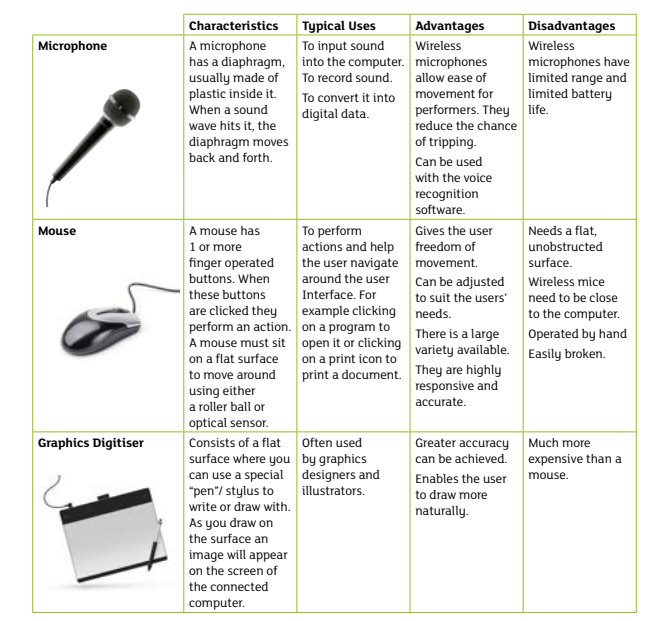
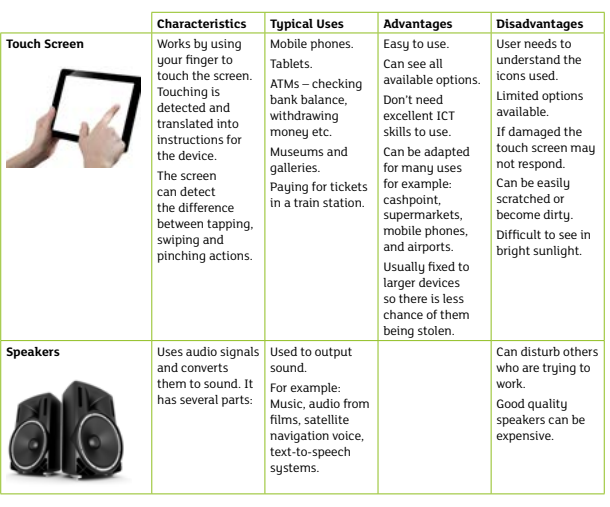
- Input Devices - These are used to enter data into a computer system. They can be manual or automated. A manual device requires the user to complete a task such as typing on a keyboard. An automated device is already encoded to transfer data directly to the computer for example a scanner
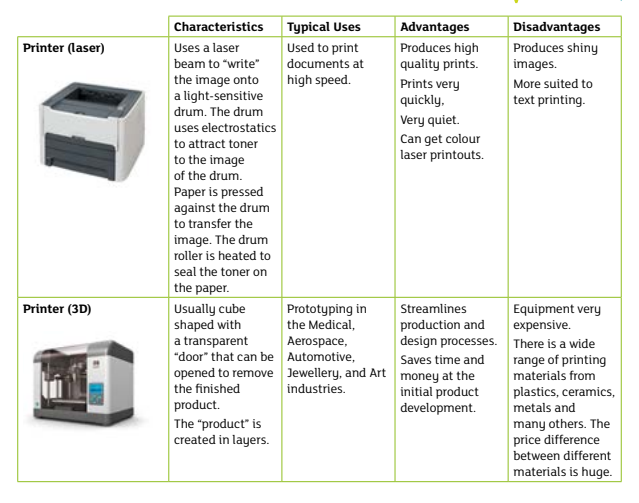
- Output Devices - Once the input data is processed the computer produces results. This is known as output. There are many devices that can be used to view this output. For example a monitor will show the results on screen, a printer will produce a hard copy/paper copy of the results.
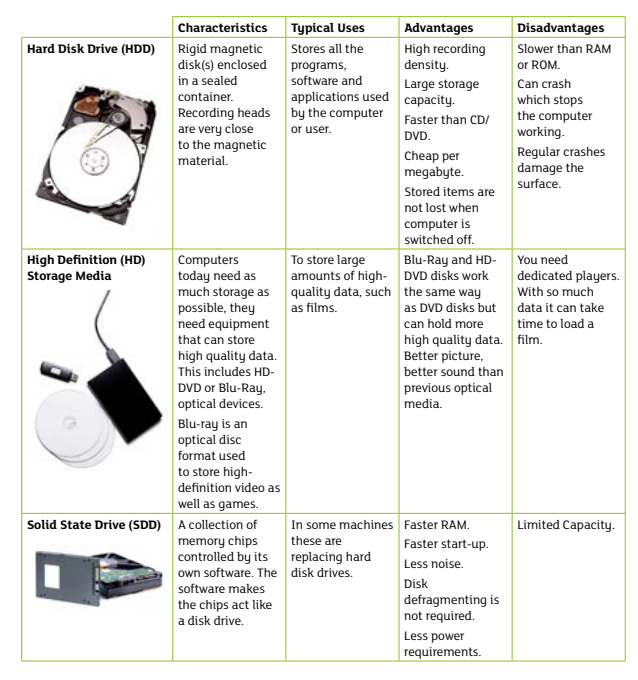
- Storage Devices - These are pieces of equipment that store all the programs and data used by the computer or the computer user
- Random Access Memory (RAM) - This memory has the same access time for all locations. RAM can be static or dynamic. Static memory is held as long as the computer is turned on. Static memory is therefore temporary. Dynamic memory has to be refreshed by reading and writing the contents frequently. As the computer boots, parts of the operating system and drivers are loaded into memory, which allows the CPU to process the instructions faster and speeds up the boot process. After the operating system has loaded, each program you open, such as the browser you’re using to view this page, is loaded into memory while it is running. If too many programs are open the computer will swap the data in the memory between the RAM and the hard disk drive.
- Read-Only Memory (ROM) - This memory can only be read from, the computer system cannot write any new data to it. ROM is used for both data and programs. ROM is non-volatile memory which means that when the computer is switched off the data is permanently stored. ROM holds the instructions used to “boot-up” the computer (BIOS = Basic Input Output System).
- Cache - A cache (pronounced CASH) is a place to store something temporarily in a computing environment. It has extremely fast access and is temporary storage between the CPU and rest of the main store. Using cache memory can greatly reduce processing time therefore the larger the amount of cache memory, the quicker processing time will be. Cache memory: memory that a computer microprocessor can access more quickly than it can access regular RAM.
- Cache Memory: memory that a computer microprocessor can access more quickly than it can access regular RAM. Cache memory is usually tied directly to the CPU and is used to cache instructions that are frequently accessed by the processes that are currently running.
- Cache server: A dedicated network server, or service acting as a server, that saves webpages or other Internet content locally.
- CPU
Chapter 6 - Network Technologies
- LAN (Local Access Network) - Network in a small geographical area.
- WAN (Wide Access Network) - Large geographical area, on a global scale and requires a telecommunications link to allow computers on their network to communicate
- Difference between WWW, the internet of things, and intranet - You can use the internet without the web, sending an email doesn't require the web
- Network Communications Technologies
- Wi-Fi - Made possible through radio waves and a wireless router, this means there is no need for cabling. The effectiveness of Wi-Fi is that you are able to set up networks without cabling.
- Bluetooth - Uses short-range wireless technology to connect two devices together allowing data to be transferred between them. It is effective because there is hand free phone calls, you can use wireless technology.
- Optical Fibre - is a technology that uses thin glass strands to send data at very high transmission speeds. It is effective because hackers can't interfere with it.
- 4G/5G - 4G mobile phone technology is capable of high-speed data access and high-quality video streaming using wireless technology, however it uses more battery life,but it is reliable.
- Network Resources
- NIC (Network Interface Card) - is an electronic circuit board that needs to be installed in a computer to enable it to be connected to a network.
- Network Cable - connects a computer to a network.
- Switch - is a hardware device which is a single connection point for computers on a network.
- Router - is a hardware device which connects a number of networks together either by cable or wirelessly.
- Network Topologies
- Bus - all computers are connected to a main cable known as a backbone. Data travels through the backbone and terminators are placed at each end of the backbone to stop signals bouncing back.
- Star - all computers are connected to thier own cable to a central powerful computer known as a file server. If a cable fails it only affects that computer not the rest of them
- In a ring network there is no central or controlling computer. Each computer is directly connected to two other ajacent computers to form a ring. All data travels in one direction. If the cable fails it affects the whole network.
- Advantages and disadvantages of using a network in an organisation
- Advantages - sharing devices such as printers save money, files can easily be shared between users, data is easy to back up
- Disadvantages - purchasing the network cables are expensive, viruses can spread through different computers through the network, there is a danger of hacking.
Chapter 7 - Cyberspace, network security and data transfer
- Cybercrime - Using a computer to commit a crime
- Hacking - A person who gains unauthorised access to a computer with the intention of corrupting data stored on a hard drive/file server to steal data.
- Pornography - when an employee dowloads adult content they are increasing the risk of organisation data being corrupted by a virus
- Cyber Stalking- when individuals use technology to harass others, for example by sending inappropriate emails or making inappropriate comments on social media.
- Data theft- the theft of customer records to obtain personal details which are used to commit identify fraud such as credit card or passport applications.
- Denial of service- a malicious attack on a network, for example disrupting connections to a web server, preventing users from logging on or accessing their data.
- Digital Forgery- Intentionally and falsely altering digital content, such as pictures or documents, for example changing someones passport photo so they can't leave the country
- Cyber defamation- using the internet with the intention to damage the reputation of a person or organisation by posting slanderous messages
- Spamming- sending bulk junk emails such as adverts for products as a result the persons inbox will become overloaded and time is wasted.
- Phishing- sending emails that appear to be from a reliable source, these emails often ask the user to update their personal information and then they will use this.
- Malware - malicious software that is downloaded onto a computer unintentionally via the internet or from a USB
- Virus - a computer program which is designed to deliberately damage or make a computer system unreliable by slowing down the processor.
- Trojan Horse - gains entry to a user's computer by disguise. They tell them their is a helpful program and then once installed the trojan can do serious damage and delete files.
- Worm - is designed to spread from computer to computer around a network without the need to be attached to any document or program.
- Key Logger - is a piece of software that is designed to record users keystrokes
- Spyware - is a malicious software which is secretly installed on a user's computer. It uses an internet connection to collect information about user activity, such as websites they visit.
- Data Protection
- Encryption - uses special software to encode data before it is transmitted to make the data unreadable or meaningless if intercepted.
- Passwords - Generally passwords should be 8 characters long, be a mix of numbers and letters and include one upper-case character. This guidance helps the security of the network. They are forced to change their password regularly for security purposes
- Access Levels - You could create access levels where you need the correct access level to change anything for example read only so if another person tries to get in they will be denied.
- Backup - If data on a network is lost the data can be collected or restored through backup.
- Firewall - can be a hardware device or a software program. It monitors and filters data entering or leaving the network. It prevents hackers from entering the network, viruses and pam from entering the network.
- Protocols
- Role of a protocol in data transfer - is computers on a network need to communicate with eachother to allow data to be sent or received.
- FTP ( File transfer protocol) - allows users to send and receive files over the internet. Users access a file server to download or upload files. To ensure that data is sent in a secure way, data is encrypted and passwords are used to prevent unauthorised access to the file server.
- HTTP (HyperText Transfer Protocol) - HTTP is a protocol used by the WWW to identify and transfer webpages using the internet. When a user enters URL into the browser, this protocol sends a command to the web server to request the required webpage. If a webpage cannot be located an error will be sent.
- HTTPS (HyperText Transfer Protocol Secure) - is similar to HTTP but uses a secure socket layer to ensure data is transmitted securely. It is designed to allow access to a secure website server for secure data communication. It uses encryption for sending data. The main use is for banking.
- Cybercrime - Using a computer to commit a crime
Chapter 8 - Cloud Computing
- The term cloud computing refers to the cloud whereby a number of computing resources, including data storage and software applications, are offered and delivered on demand to an organisation using the internet.
- Advantages - Cost effective, Unlimited storage,Software updates, Backup and recovery, greater accessibility and reduction in carbon footprint
- Disadvantages - Bandwidth limitations- you only get a limit and if an organisation uses more they have to pay additional charges which is expensive, potential downtime, security and customer support which is time consuming.
- Impacts of Cloud Computing on:
- Gaming - The impacts of cloud computing on gaming is that game discs can be illegally copied and then sold to others. Game producers are able to reduce their costs as they don't pay high street shops to sell their games. Modern games are produced with higher resolution graphics which require faster and more powerful gaming hardware. Game producers have the advantage of access to a much larger global customer base. This can lead to higher sales and more profit.
- File Storage - The impact of cloud gaming on storage is the facility to store data files on very powerful high capacity cloud servers. When users are working with their data files, automatic saving to the cloud takes place in seconds. Cloud providers also ensure that user files are permanently online without the need for a local hard drive. They can also recover lost files
- Sharing - The impact of cloud computing on file sharing is that it allows employees to collaborate and share folders and files from anywhere in the world. A user can upload files to the cloud and share these users who can edit them themselves. This allows people in different countries can still collab. It allows users to create online documents and others can access it at the same time.
Chapter 9 - Ethical, legal and environmental impact of digital technology on wider society
- Acts and Contracts
- Consumer contracts regulations 2013 - specify the rights of the customers when shopping online. They require online traders to give customers a full decription of the product, product prices, delivery charges, methods of payment and information on how products can be returned
- Data Protection Act 1998 - controls the personal information. It protects the rights of individuals whose data is being held.
- 8 Principles - are be processed fairly and lawfully with the consent of the data subject, be used for the specified purpose only, be adequate and relevant for its intended purpose, be accurate and up to date, not be kept for longer than necessary, be held safely and securely, be processed in accordance with the rights of the data subject and not be transferred outside the European union without adequate protection. Organisations are encouraged to have policies in place to ensure that any such data they hold is accurate and up to date. Ensuring that data is up to date may involve regular contact with data subjects, asking them to verify currently held details. Organisations must employ a data controller who is responsible for controlling the way in which personal data is processed. The goverment employs an information comissioner who is responsible for enforcing the act and promoting good practice to organistaions responsible for processing personal data, as well as making the general p
- Copyright, Designs and patents Act 1988 - is designed to protect the proprerty rights of those individuals and organisations that create and produce material based products. The act prevents an illegal copying of a product and distribution of software without permission.
- Breaches -Many organisations use computer networks to carry out their business activities. When they purchase a software package to install on their network, they must also purchase a software license to cover the number of users using the sofware. Any organisation distributing software without a proper license is breaking that law. The act helps to deter piracy- the illegal copying and distribution of software without permission.
- Computer Misuse Act 1990 - is designed to protect users against computer misuse, including unauthorisedaccess to computer systems and the deliberate hacking of computers to plant viruses or install malicous software such as spyware. It also says that you can't change passwords or modify software.
- The consumer misuse act 1990 is designed to protect users against computer misuse, including unauthorised access to computer systems and the deliberate hacking of computers to plant viruses or install malicous software such as spyware.
- Acts and Contracts
Bilder und Dateien der Mindmap
Informationen
- Beschreibung
- GCSE IT Mindmap am Unit 1 - Digital Technology, erstellt von Jack Reville am 22/11/2023.
- Erstellt von
- Jack Reville
- Aufrufe
- 87
- Bewertung