
Notizen
Drag and Drop Questions in Quizzes
Inhalt der Notizen (6)
Seite 1
Select Question Type
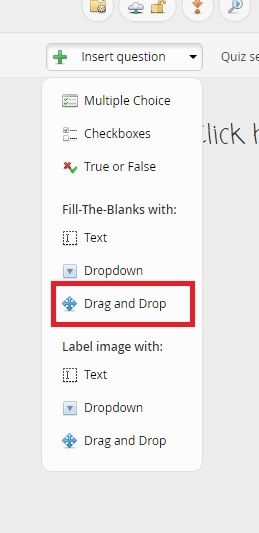
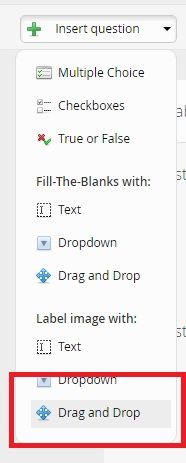
Choose 'Fill in the Blanks: Drag and Drop' or 'Label image: Drag and Drop' from question types under insert question dropdown menu.
Seite 2
Fill-The-Blanks Drag and Drop
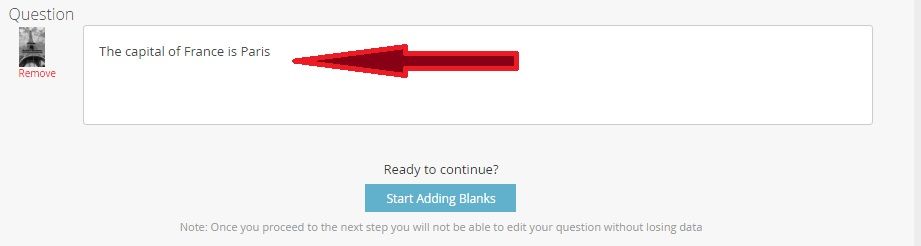
Write out the whole question INCLUDING the word where you want the user to fill the blank. Then click 'Start Adding Blanks'.
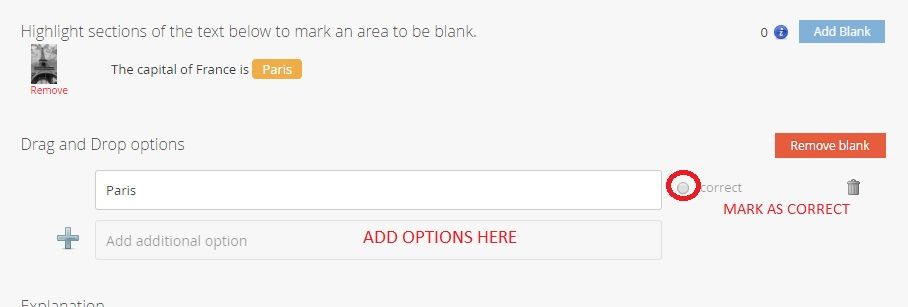
Highlight the word you want to be blank and click 'Add Blank'.

The text you have highlighted will automatically be filled in as an answer. You may add additional answers and mark the correct answer as correct.
Seite 3
End Result and Extras
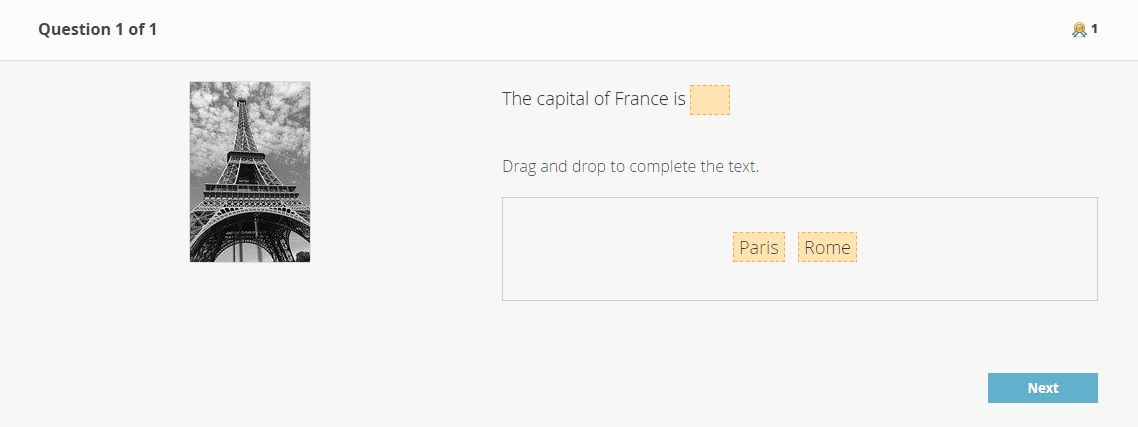
The user will see as many possibilities as you have added as answers.
You may add more than one blank to a question but the responses are all presented together in a question - i.e. the user could try to put any of the answers in any of the blanks.
As with all question types, you can add an explanation.
Seite 4
Label an Image Drag and Drop
Choose Label an Image Drag and Drop from the Insert Question Drop Down
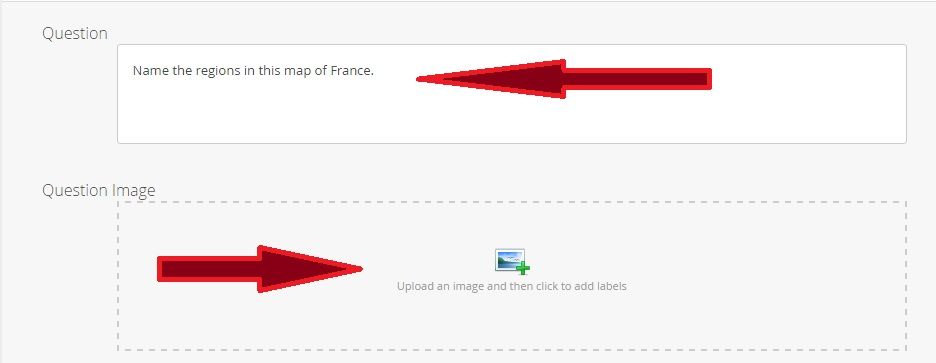
Write your question (instruction) and click to upload your image.
Seite 5
Add Blanks to Image
Click anywhere on the image and a yellow circle hotspot will appear. You must add at least one correct answer. Then click Save.
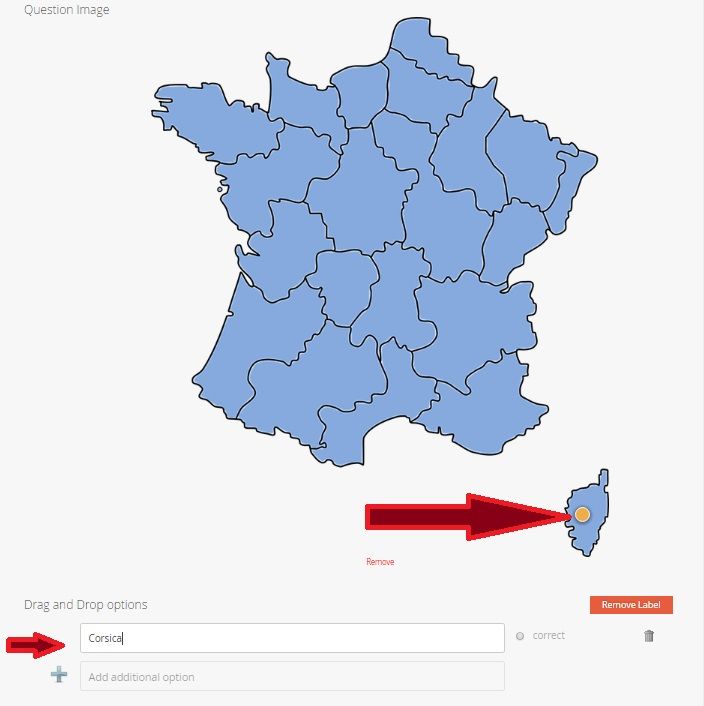
You can continue adding hotspots and marking correct answers.
Seite 6
Finished Image Question
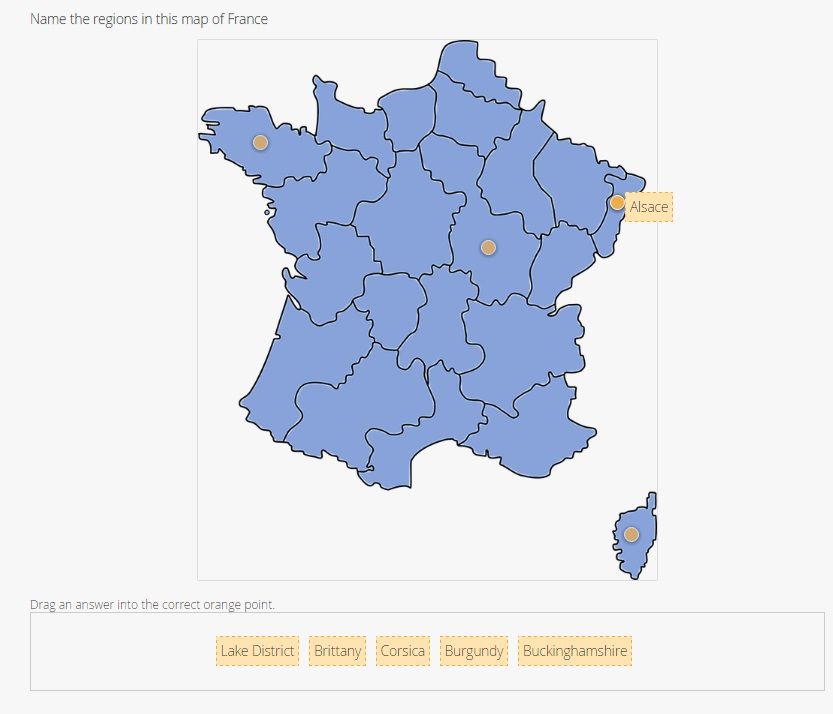
The user will see an array with all the possible right and wrong answers and can drag their answer to the appropriate spot.
As with all question types, you can add an explanation if necessary.
Informationen
- Beschreibung
- Overview of how to create Drag and Drop questions in GoConqr quizzes
- Erstellt von
- Gelöschter Nutzer · Apr 2017
- Aktualisiert
- 3 Apr 2017
- Aufrufe
- 19
- Tags
- Verlauf
-
- Erstellt von Sarah Egan · 28 Sep 2016
- Kopiert von daniella noel · 3 Apr 2017
- Bewertung