
Mapa mental
visual basic
Contenido del mapa
visual basic
form
- The forms are treated as controls with their properties, events and methods. Although we say that it is a special control that we use to contain the most usual controls with which we will build our applications: textbox, label, commandbutton, etc ...
- properties
- Name
- Name of the form, necessary to call the form from the code.
- Caption
- Text that appears in the form title
- Backcolor
- Background color of the form.
- Forecolor
- color of the form text.
- Name
controls
- Once we have seen some of the basic statements: statement of variables, selection sentences, which are very similar to the sentences used in MSDOS. We will start programming in windows and we will see how it differs from classical programming in MS DOS, so we are going to introduce the use of controls.
- Text
- Here we indicate the text that will appear in the control. We can assign any text at design or execution time. We can also take the text that the user has entered to deal with it during execution.
- Name
- This property has all the controls, the name that comes by default in this case Text1 and is the name by which the control will be known when we use it in the code. In the same form there can not be 2 controls with the same name.
- MultiLine
- It allows us to enter several lines of text in the control instead of just one.
- Alignment
- Alignment that will have the text within the control: left, center or right. For the MultiLine property to work, it must be with the value
- Locked
- If it has a value of true, it blocks the control, that is, the user can not enter or modify the text it contains. We can use it to use the control as data output without the user being able to modify them by mistake
- Backcolor
- background color.
- Forecolor
- color of letter
- Font
- type and size of letter.
Tool box
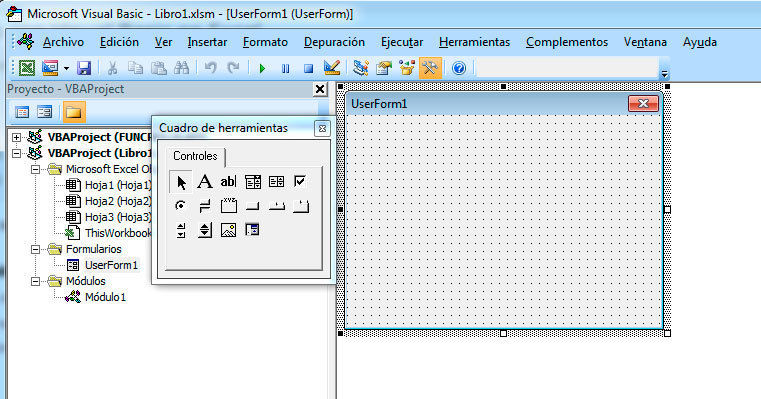
- Displays the standard Visual Basic controls plus any ActiveX controls and insertable objects that you have added to your project. You can customize the Toolbox by adding pages to it or by adding controls by using the Additional Controls command from the Tools menu. When you add a page, a Select Objects tool is always available on the page.
- Select Objects
- Select Objects is the only item in the Toolbox that doesn't draw a control. When you select it, you can only resize or move a control that has already been drawn on a form.
- Label
- Allows you to have text that you do not want the user to change, such as a caption under a graphic.
- TextBox
- Holds text that the user can either enter or change.
- ComboBox
- Allows you to draw a combination list box and text box. The user can either choose an item from the list or enter a value in the text box.
- ListBox
- Use to display a list of items from which the user can choose. The list can be scrolled if it has more items than can be displayed at one time.
- CheckBox
- Creates a box that the user can easily choose to indicate if something is true or false, or to display multiple choices when the user can choose more than one
- MultiPage
- Presents multiple screens of information as a single set.
- OptionButton
- Allows you to display multiple choices from which the user can choose only one.
- Image
- Displays a graphical image from a bitmap, icon, or metafile on your form. Images displayed in an Image control can only be decorative and use fewer resources than a PictureBox.
object properties
- An object is a combination of code and data that can be treated as a unit. An object can be a part of an application, such as a control or a form. The entire application can also be an object. When you create an application in Visual Basic, you constantly work with objects. You can use objects provided by Visual Basic, such as data access objects, forms, and controls. You can also use objects from other applications within the Visual Basic application. You can even create your own objects and define additional properties and methods for them. Objects act as prefabricated compilation blocks that allow you to write a piece of code at a time and use it again and again.
- procedure parameter
- enumeration
- literal
- variable
- property
- constant
type of data
control structure
- is used to control the flow of the program in a routine or control
- structure IF-THEN-ELSE
- structure WHILE-WEND
- structure SELECT-CASE
- structure FOR-NEXT
BIBLIOGRAFIA
- ESCUELA SUPERIOR DE INGENIEROS INDUSTRIALES (APRENDA VISUAL BASIC) EDITORIAL: SAN SEBASTIAN, AGOSTO 1999
Imágenes y archivos del mapa



Información
- Descripción
- Mapa Mental sobre visual basic, creado por Angie Lorena Castro Muñoz el 02/04/2019.
- Creado por
- Angie Lorena Castro Muñoz
- Visitas
- 0
- Valoración
Más sobre Visual Basic Programming