
Apuntes
THE HTML 5 TEMPLATE
Contenido del apunte (1)
Página 1
Video Summary
Every HTML 5 webpage begins with this code structure:
<!DOCTYPE html>
<html>
<head>
<meta charset="UTF-8">
<title> </title>
</head>
<body>
</body>
</html>
The !DOCTYPE on the first line tells the browser to interpret the file as HTML
The remaining code is enveloped by the html tags opening at the beginning and closing on the last line
HTML code is organized into two sections the head and the body
Komodo automatically adds closing tags as you enter the opening tag. This feature can be useful but will take some getting used to. This feature can be turned off in Komodo Preferences under Code Intelligence.
Do it!
Launch Komodo Edit
Click the File menu and New and then File from template
Select HTML 5 from the template list
Check to make sure that the open file is scrolled completely to the left edge of the page (this is a quirk of Komodo)
Compare the code in the Komodo document to the code shown above. What's missing?
Yes, Komodo adds a default title - "Page Title, but something important is missing in the Komodo code: The meta tag with the characters set (charset).
Add the meta tag in Komodo just as it is in the above code
Select File > Save As, navigate to your cgs2821 folder and use the New Folder button to create a folder named project03 (project zero three - no spaces, all lower case).
Save the file with the name index.html in cgs2821/project03
Launch Google Chrome
Open the File menu, and click Open File, navigate to cgs2821/project03 and open index.html
The page should be blank, and the tab should say "Page Title."
Leave Chrome open and switch back to Komodo for the next step (tip: Ctrl/Command + Tab is a fast way to switch between apps.
THE HEAD
Video summary
The head contains information for the browser that is not directly displayed on the page. Two items are always included:
The title tag is used to display the page title in the browser title bar or tab
The meta tag is used to tell the browser what character set (charset) is being used. HTML5 uses UTF-8. You can learn more about charset and character encoding at http://www.w3schools.com/html/html_charset.asp if you are curious.
Other items that you may find in the head include:
Other meta data associated with the page such as key terms for search, summary and author name
Javascript code for animating a webpage
CSS code for defining the visual style of the page
Links to supportive code files such as CSS and Javascript
Do it!
It's time to start working on your website content!
Change the page title from "Page Title" to a title that suites your website topic
Add three meta tags to the head section of your page to provide a description of your topic, keywords related to your topic for use by search engines, and author name (see http://www.w3schools.com/tags and click the meta tag to see how this is done).
Save your file (cgs2821/project03/index.html)
Switch to Google Chrome (Ctrl/Command+tab), and click the Refresh button to apply the changes you just made.
You should see your topic title displayed in the webpage tab, but no other changes.
FORMATTING CONTENT
Video summary
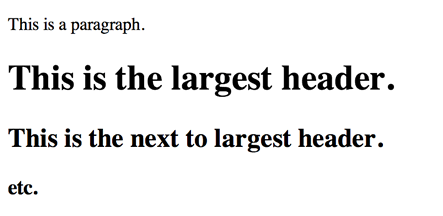
The <body> of the HTML page holds all that is displayed in the browser window. Most text is defined either as paragraphs or headings:
1 <p>This is a paragraph.</p>
2 <h1>This is the largest header.</h1>
3 <h2>This is the next to largest header.</h2>
4 <h3>etc.</h3>
The result:
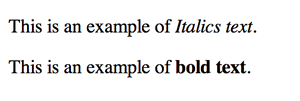
Additional formatting can be added such as:
1 <p>This is an example of <em>Italics text</em>.</p>
2 <p>This is an example of <strong>bold text</strong>.</p>
The result:
View more formatting options at http://www.w3schools.com/html/html_formatting.asp.
The paragraph and heading tags are classified as block level tags because they begin and end with a new line. Italics and bold tags are examples of inline tags because they are displayed without a new line. Inline tags operate on content within a block level tag as in the example above.
Block level tags are separated by a blank line. There may be times when you wish to move text down to the next line without skipping a line:
<br> - the break tag, moves content to the next line and has no closing tag
You'll find that HTML does not recognize the tab key, multiple spaces, or multiple empty paragraphs. Web designers use CSS to align content horizontally across the page in columns, or vertically down the page in rows. In some cases, a special character called a non breaking space - can be used to move text down. For example if you provide the browser with the following code:
1 <p></p>
2 <p></p>
3 <p></p>
4 <p></p>
It will ignore it, because HTML does not support multiple empty paragraphs. Adding to each paragraph tag will force the browser to acknowledge each paragraph and add four blank lines. More on special characters shortly.
Finally, the <hr> tag inserts a horizontal line (rule) across the page.
Do it!
Return to Komodo to edit index.html - it's time to do a little writing...
Remember an example of a finished project03 is provided. Right click the page to View Page Source and see what is expected of you.
Add the title of your website to the top of the page (body) using the h1 tag.
Save index.html and preview it in Google Chrome by clicking the small arrow on the preview button in Komodo and selecting Chrome from the list.
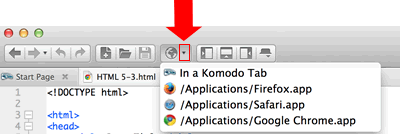
3.Leave the file open in Chrome and return to editing in Komodo.
4.Use the H2 tag with italics to add a subtitle, byline or tag line.
5.Save index.html and switch to Google Chrome and click the reload button to apply and review your latest changes.
6.Write at least four interesting paragraphs on your topic utilizing at least three online references. Do not write your content in Word, or copy it from Word since Word uses characters not recognized in HTML. Note that Komodo has spell check in the tools menu.
7.Save index.html and switch to Google Chrome and click the reload button to apply and review your latest changes.
8.Include a quote from a notable source utilizing the quote tag (look it up at w3schools).
9.Save index.html and preview it in Google Chrome
10.Conclude with a horizontal rule.
11.Save index.html and preview it in Google Chrome
Feel free to consult the example page at http://www.techminded.co/cgs2821/project03/.
THE CODE CYCLING-TITBITS
In the above steps, you were instructed to utilize a repetitive cycle called the coding cycle.
The coding cycle involves making small incremental changes to code and checking their effect in the browser.
Using this cycle, the developer can catch errors the moment they are made.
If you were to make many changes to code prior to previewing the changes in the browser, it would be much more difficult to track down errors in (debug) your code.
The coding cycle:
Add or change code in the code editor (Komodo)
Save the code file
Utilize the preview command in the editor to view the changes in the browser (Chrome)
Return to the editor and make additional changes or additions
Save the file
Switch to the browser and Reload to preview the changes
Repeat steps 4 - 6 over and over again until code is finished
COMPOUND TAGS
Video summary
Some tags are designed to be used together. For example, the bulleted list (unordered list - ul):
1 <ul>
<li>This is a list item</li>
<li>This is another list item</li>
<li>And another</li>
5 </ul>
The result:
This is a list item
This is another list item
And another
An unordered lists <ul> and ordered lists <ol> must always include at least one list item between opening and closing tags. Likewise, a list item cannot be used outside an unordered or ordered list.
The code for an ordered or numbered list looks like this:
1 <ol>
<li>This is the first list item</li>
<li>This is the second list item</li>
<li>And the third</li>
5 </ol>
The result:
This is the first list item
This is the second list item
And the third
Multiple level lists created by placing a new list within the <li> of a list. Here's an example
1 <ol>
<li>This is the first list item</li>
<li>This is the second list item</li>
<li>and the third
<ol type="A">
<li>This is the first item in a sublist</li>
<li>This is the second item in a sublist</li>
<li>and the third</li>
<ol type="a">
<li>This is the first item in a sublist of a sublist</li>
<li>This is the second item in a sublist of a sublist</li>
<li>and the third</li>
</ol>
<li>and the forth</li>
</ol>
</li>
<li>You get the idea</li>
18 </ol>
The result:
1. This is the first list item
2. This is the second list item
3. and the third
A. This is the first item in a sublist
B. This is the second item in a sublist
C. and the third
a. This is the first item in a sublist of a sublist
b. This is the second item in a sublist of a sublist
c. and the third
D. and the forth
4. You get the idea
Komodo automatically indents code properly for easier reading.
As you can see, lists inside lists can get rather complicated. Indenting the code assists in keeping track of what level of list is represented. HTML provides many options for unordered lists <ul> and ordered lists <ol>. You can learn about them at http://www.w3schools.com/html/html_lists.asp.
Tables are a bit more complicated. A table has three elements: <table>, <tr> for table row, and <td> for table data/columns. Here is the code for a table with four columns and three rows. The first column and the first row serve as headings.
<table border="1" cellpadding="12" cellspacing="0">
<tr>
<th> </th>
<th>Breakfast</th>
<th>Lunch</th>
<th>Dinner</th>
</tr>
<tr>
<th>Saturday</th>
<td>Pop Tarts</td>
<td>PBJ</td>
<td>Mac & Cheese</td>
</tr>
<tr>
<th>Sunday</th>
<td>Omelet</td>
<td>Sub Sandwich</td>
<td>Lasagna</td>
</tr>
</table>
The result:
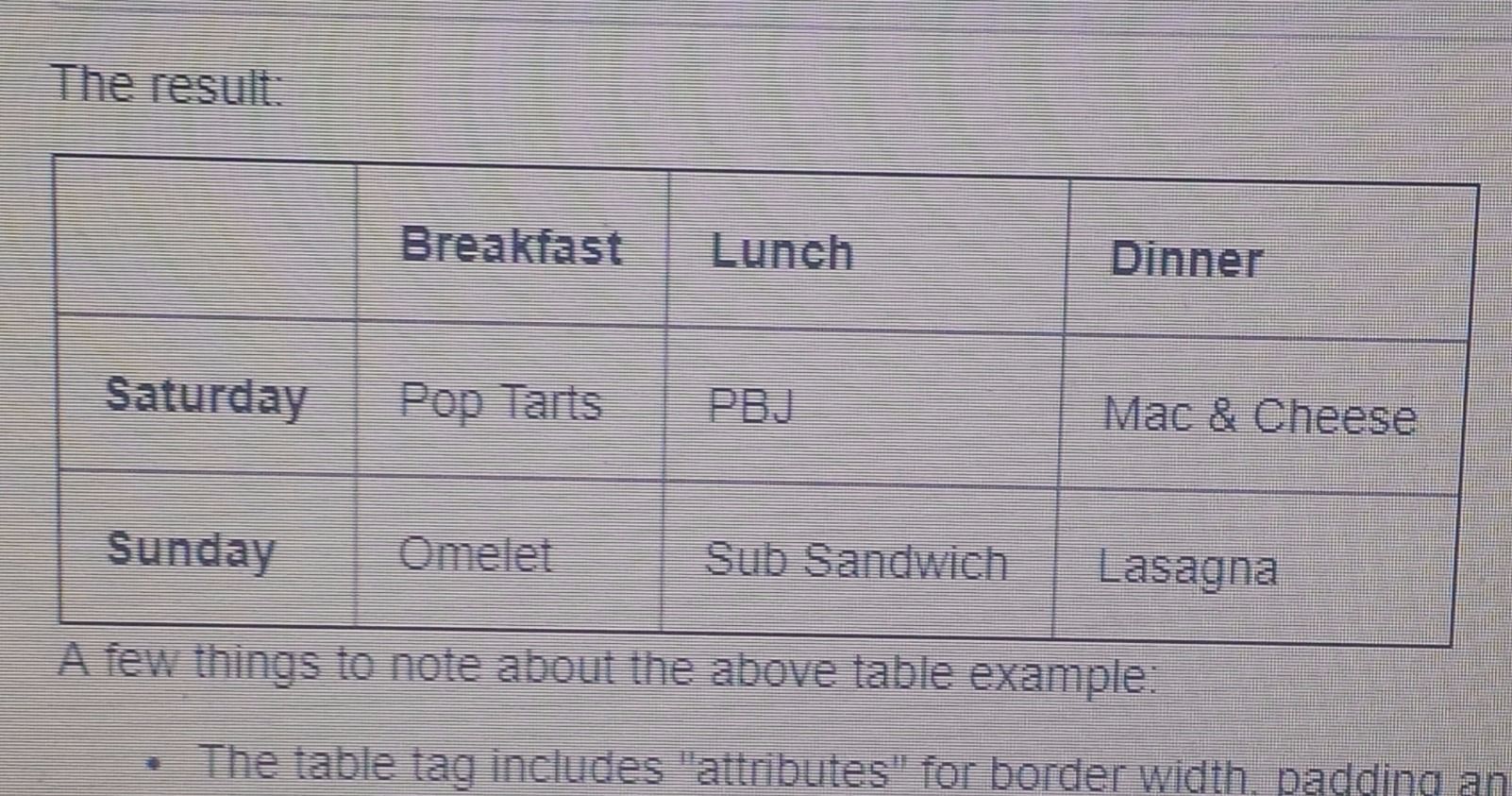
A few things to note about the above table example:
The table tag includes "attributes" for border width, padding and spacing. Attributes are covered in the next Lesson. HTML5 prefers that table attributes are specified in CSS code. Since you won't learn CSS code until Lesson 5 and 6, I've included them as attributes in the tag so this table will look good.
th is used rather than td for cells that serve as headings
The number of <td>'s must be the same for each <tr>.
The non-breaking space character ( ) is used in any cell that has no content. The ampersand is inserted using a special character as well. Special characters are covered in the next section.
Again, there are many options for tables provided at http://www.w3schools.com/html/html_tables.asp.
Do it!
Use your HTML knowledge and the coding cycle to implement the following:
Add your list of online references to the bottom of your page using an unordered list in the format illustrated by the example page at http://www.techminded.co/cgs2821/project03/. Include the references for your quote.
Consider other page content that would benefit from presentation in an unordered list and/or an ordered list and implement if needed.
Add a table to your webpage in an appropriate and useful manner for your topic.
CHARACTER ENTITIES
Video summary
Certain characters aren't allowed in HTML content because they are used in HTML tags. These are called reserved or special characters. For example the less than (<) and greater than (>) signs aren't allowed because they serve to identify tags. Similarly there are symbols that are not on a standard keyboard that can be included on a web page. Both reserved characters and special symbols are added to HTML documents using character entities. A character entity is a special code that begins with an ampersand sign and ends with semicolon. Below is a table of commonly used character entities.
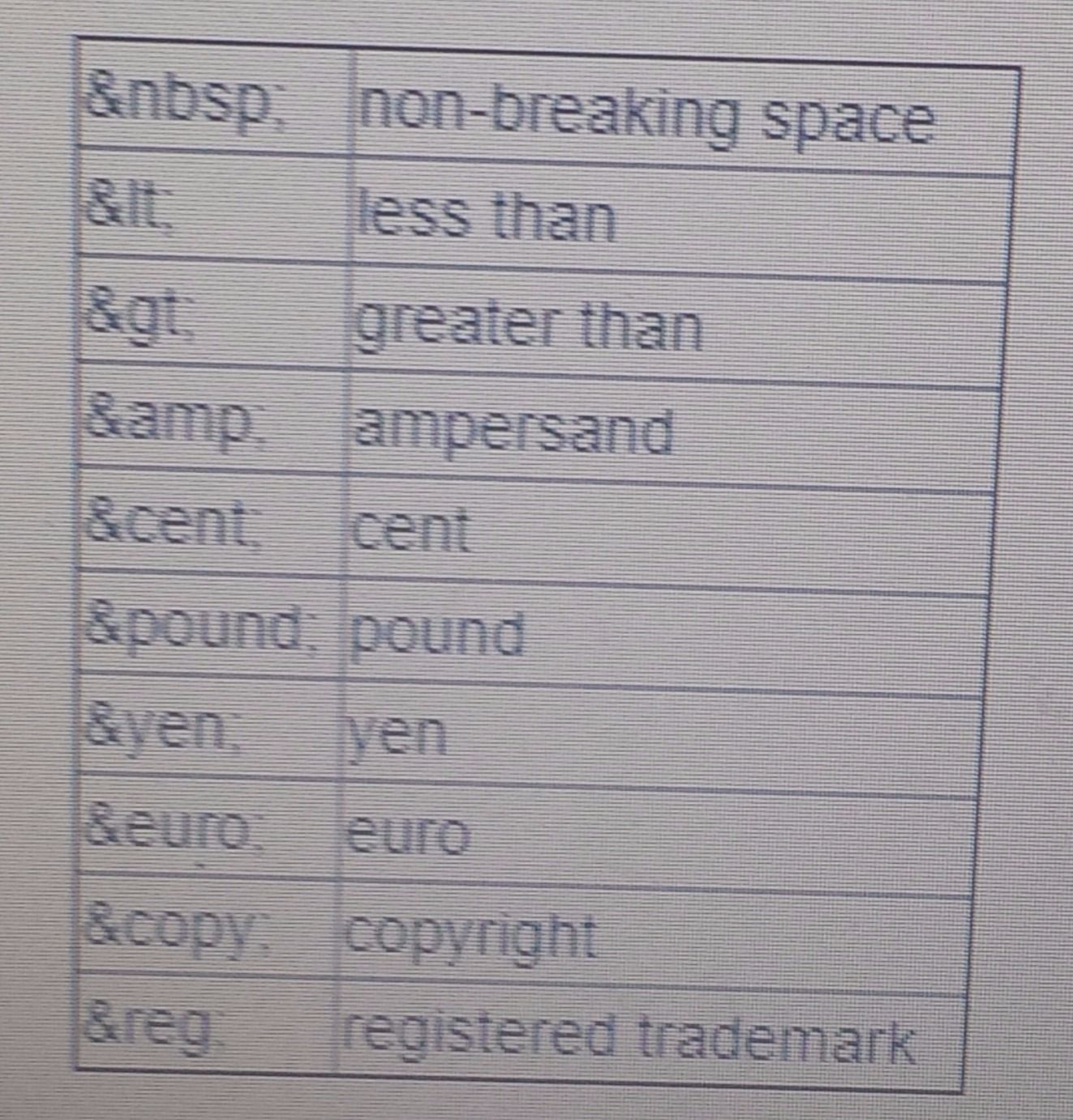
See more at http://www.w3schools.com/html/html_entities.asp and http://www.w3schools.com/html/html_symbols.asp.
Do it!
Add the character entity for a copyright symbol to the bottom of your page followed by your name and the date.
Use other character entities in your content as needed.
COMMENTING & FORMATTING CODE
Video summary
So far we've focused on formatting content for the public to view in a web browser. Now let's turn our attention to formatting code for developers to view.
HTML, like most coding languages, provides a mechanism for inserting comments in code intended to be viewed with the code, but not in the content displayed in the browser window.
1 <!-- This is a comment -->
The above illustrates how comments are inserted in HTML code. Comments are typically used to:
Document level:
Credit the author of the code, providing copyright information and contact information
Provide revision information and publication date
Describe the purpose of the page
Section level:
Describe what each section of code does
Line level:
Describe what a line of code does
Disable lines of code
Commenting out code disables it so you can see how the page behaves and later enable it if needed, or delete it
Comments don't only assist others in understanding a developers code, but they also assist the developer in navigating through the code quickly. Right-click this page and view the page source to see how comments are uses in this page.
More on comments at http://www.w3schools.com/html/html_comments.asp
In addition to commenting code, indentation should be used to organize your code into visually identifiable sections as was done in the example code above in the compound tags section. Komodo automatically indents code as you enter it.
Developers sometimes like to use blank lines in code to identify new sections.
Do it!
Add a comment to the head section of your page providing your name and the date of completion.
Add code indentation and additional comments as necessary
OTHER HTML TAGS
This Lesson has discussed the most commonly used HTML tags for text formatting. Needless to say there are many more tags available for use. No developer can remember them all. That's why it's nice to have a resource like http://www.w3schools.com/tags where you can quickly look up a tag and its usage requirements. In the next lesson you will learn about more common tags that require attributes such as tags for inserting images and embedding videos, and tags that create links to other web pages.
Do it!
Feel free to experiment with other HTML tags. You will not be penalized for any additional html features you wish to add to your work.
When finished, submit your index.html file using the form in "Submit Assignments" on the Learning for Life Student Portal.
DESIGNERS LOUNGE
Universal Usability
The Designers Lounge is a brief sidebar provided in each lesson that teaches important web design principles.
Usability is a measure of effectiveness. In web site design it describes how easy a website is to navigate
and understand. Universal usability refers to the usability of a web site for every type of user. Universal usability becomes challenging when concerned with disabled users. Accessibility refers to designing a web site to be usable by individuals with disabilities. Users may be challenged by physical disabilities such as vision or hearing loss, loss of motor skills, old age, mental disorders, lack of education, or technological challenges such as slow Internet or small display. Some disabled users make use of assistive technologies such as zoom text and screen readers which read everything on the screen aloud.
The Web site design process must take all these considerations into account from beginning to end. When it comes to commercial and governmental web sites, U.S law requires that all citizens have equal access. Just as modern brick and mortar stores are designed to accommodate shoppers of all types with ramps rather than stairs, wide entryways, accessible shelves, motorized and shopping carts, web sites must accommodate all types of users by providing:
a logical and easy to understand navigation system,
free access to resizing text through the browser's zoom feature by defining text size as a percentage or "em" in css (covered later),
text colors and background colors that provide enough contrast for color blind users to easily read,
text alternatives (using the "alt" attribute ) for images that screen readers for blind users can read to describe images,
providing closed captioning or scripts for video and audio for deaf and/or blind users,
and avoiding
technologies that hinder disabled users, such as complicated menu systems, and embedded apps that automate navigation,
and embedding text in images
Ultimately what we define as "good design" naturally implements universal usability. Recall that "good design" is both visually pleasing and appropriate to content, and also functional. "Good web design" should first and foremost provide access to information through mechanisms that are so simple to use they become "transparent" - effortless to navigate. Good web designers don't get caught up with flashy technologies, they strip away the technologies to provide a clean, simple and elegant user experience (UX). Designers are all about UX - check out http://www.uxbooth.com/, http://uxmag.com/ and http://uxdesign.smashingmagazine.com/.
Clean and simple design not only assists all types of users, but it also assists bots. Bots?! Yes bots. Google, Bing, Yahoo, and other web apps have bots constantly traveling the web to discover and define what's out there. If you want your site to appear in appropriate web search results, you'll exercise universal usability in your design. Search Engine Optimization (SEO) will be covered in a future Designers Lounge.
ADDITIONAL RESOURCES
HTML
This Lesson covered only a small percentage of HTML tags and attributes. You can learn the rest at http://w3schools.com/html/default.asp. Then check out the latest tags added to HTML at http://w3schools.com/html/html5_intro.asp.
There's no shortage of HTML tutorials online. Try Googling HTML Tutorials to learn more.
Code Editors
There are many HTML editors available, some of them are free. We chose Komodo Edit for this class because it is available for all platforms, it's free, and it's pretty good. Here's a Comparison of HTML editors from Wikipedia.
Browser-based editors that include built-in SFTP functionality are gaining in popularity. Check out the most popular at http://www.hongkiat.com/blog/cloud-ide-developers/.
Students serious about Web Design should consider investing in Adobe Creative Cloud for Students. Adobe's Dreamweaver - included in Creative Cloud, is a popular web designing environment, and Photoshop, Illustrator, and Fireworks - also included, are the most popular graphics editing products used for web design.
HTML 5
http://www.w3schools.com/html/html5_intro.asp
http://diveintohtml5.info/
Usability
Universal Usability: http://webstyleguide.com/wsg3/2-universal-usability/
Web Accessibility
Web AIM: http://webaim.org/
W3C Web Accessibility Initiative: http://www.w3.org/WAI/
User Experience (UX)
http://www.uxbooth.com/
http://uxmag.com/
http://uxdesign.smashingmagazine.com/
Información
- Descripción
- Apunte sobre THE HTML 5 TEMPLATE, creado por osborn hodges el 03/09/2017.
- Creado por
- osborn hodges
- Visitas
- 1
- Valoración