
Getting started with GoConqr Groups
Diapositivas del conjunto (9)
-
- Many of our users already use our online study groups to keep in touch with classmates, assign tasks, coordinate class projects, share resources, study a particular subject or simply just to chat with friends.
- We want our users to get the most out of this ‘fountain of knowledge’ and engage in collaborative learning.
- With that in mind we have greatly improved the usability of the GoConqr Groups and carried out a redesign of their structure.
- Discover how to get the most of GoConqr Groups in the following slides

-
- The new GoConqr groups will appear divided into 4 tabs:
- Activity
- Resources
- Analytics
- Members
- This helps to speed up your navigation and let you quickly find what you are looking for.

-
- To create a new group, simply:
- 1. Click in the + icon in Groups
- 2. Select a group name and description
- 3. Choose your favourite image for the group, and
- 4. Click Save

-
- Now discussions are much more dynamic and easy to use than before and adopt the feel of social networks.
- To start a new discussion, select a title and description and click the "Post a New discussion" button.
- You can now share links , add GoConqr resources, polls, and also like posts.

-

- Anyone can create a group and invite whoever they wish to join. It’s up to the person who creates a group to decide who can join.
- To invite new members to the group you can:
- 1. Enter your friend's user name or select them from list
- 2. Invite by email: Enter email address of your friend
-
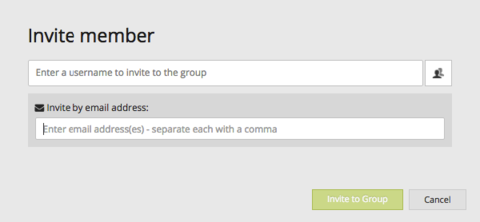
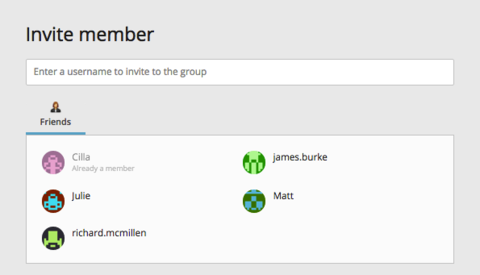
- Pie de imagen: Select a friend from list
- Pie de imagen: Invite a friend by email
-
- In the new Activity Tab you can:
- See information about the group
- Filter Activity by Discussions, Active Discussions and Resources
- Like and comment previous posts

-
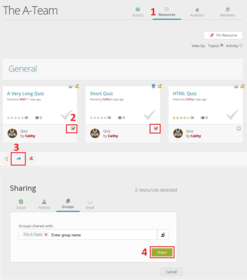
- Sharing resources has never been so easy.
- 1. Click on the Resources Tab
- 2. Select the resources you want to share
- 3. Click in the share button (at the left hand corner)
- 4. Click in share, and select the group you want to share the resource(s) with
- And enjoy sharing!
-
- Now is your time to create or participate in a group.
- Invite your friends, students, colleagues with a few simple clicks, whether they are existing GoConqr members or not. Once you are up and running you will see group activity updates on your homepage.
- Let's study together!

- Pie de imagen: Let's participate in the Groups!
Información
- Descripción
- This quick guide will help you understand how to get the most of GoConqr groups and how it will help you in the learning process.
- Creado por
- GoConqr Team-Liliana · ene 2016
- Actualizado
- 23 oct 2017
- Visitas
- 5.800
- Etiquetas
- Valoración