
Notas
ExamTime's Getting Started Guide
Conteúdo das notas (1)
Página 1
3. Editing Options
Along the top of the page you will see a list of actions which you can use to edit your Mind Map:
Download as a PNG image
Move your Mind Map to a different Subject or Topic
Delete the Mind Map
Copy your Mind Map
Automatically generate an ExamTime Note from your Mind Map
Print your Mind Map
Share a copy with your ExamTime Friends, Groups or copy the link or HTML to embed interactive resources on a website or blog
Change your Mind Map Private/Public
More information and details about your Mind Map
Enter View Mode where you can see the finished version
Tracking Mode allows you to tick areas which you have studied
In the bottom left-hand corner of your screen you will see a slider which will allow you to zoom in and out (see image on the right).
Beside this you'll see the insert image option. Clicking this will allow you to browse your computer and upload an image.
How To Create a Flashcard Deck Using ExamTime:
Students have been using Flashcards for years to memorize key concepts, definitions and as a quick way to look over notes before an exam. Using Online Flashcards means that you always have your notes with you when you need them, plus you're helping to save the trees!
Follow the steps below to start creating your first Flashcard deck now:
1. Create
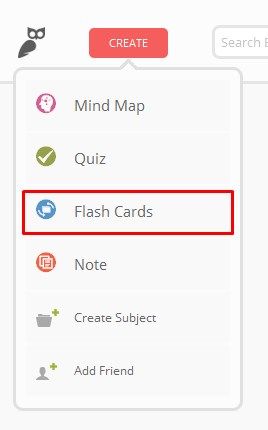
Click the Flashcard button under the Create drop-down menu to get started. This will bring you straight to a new Flashcard deck.
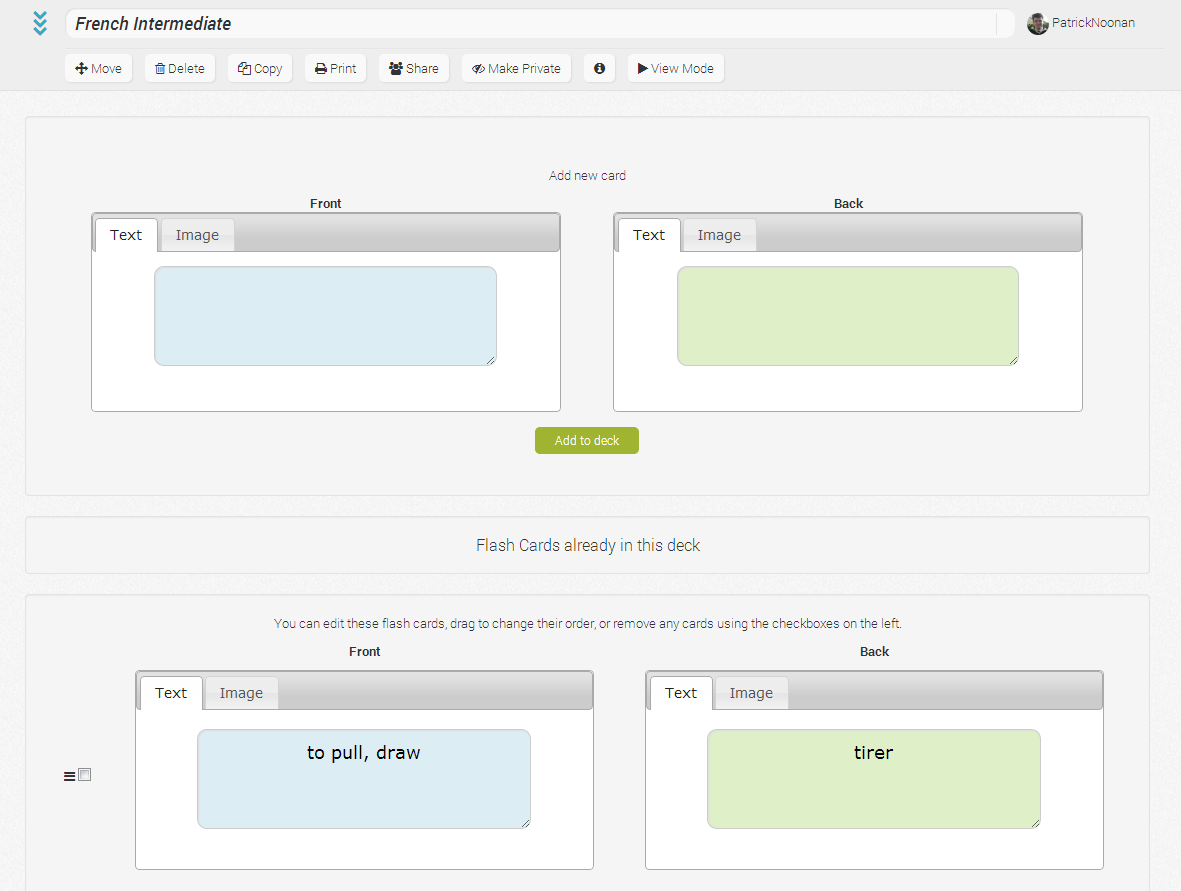
You will be presented with two boxes. The one on the left is for the front of the card; the one on the right is for the back of the card.
You are given the option to insert a Text or an Image.
Text: Click on the boxes and enter the text you want and click "Add to Deck"
Images: Click on the Image tab and you’ll be prompted to click the browse button. From here you can search your computer for the image you want to add then click "Add to Deck"
You will see the cards you enter appear below. Once here they are automatically saved so don’t worry! You can enter as much cards as you want.
2. Editing Options
In the header you will see an ‘Actions’ drop-down. In here you will find options to:
Move your Flashcard deck to a different Subject or Topic
Rename your Flashcard Deck
Delete the Flashcard deck entirely
Take a copy of the Deck
Share a copy with your ExamTime Friends
Turn a resource Private/Public
Information/Description
Enter View Mode
Using these techniques you will be able to create your own Flashcard deck in no time. Here are some finished deck for you to play around with:
Spanish Vocab - Beginner
German Vocab - Beginner
French Vocab - Beginner
All the Countries of the World and their Capital Cities
The 50 States of USA and their Capital Cities
3. Viewing Your Flashcard Deck
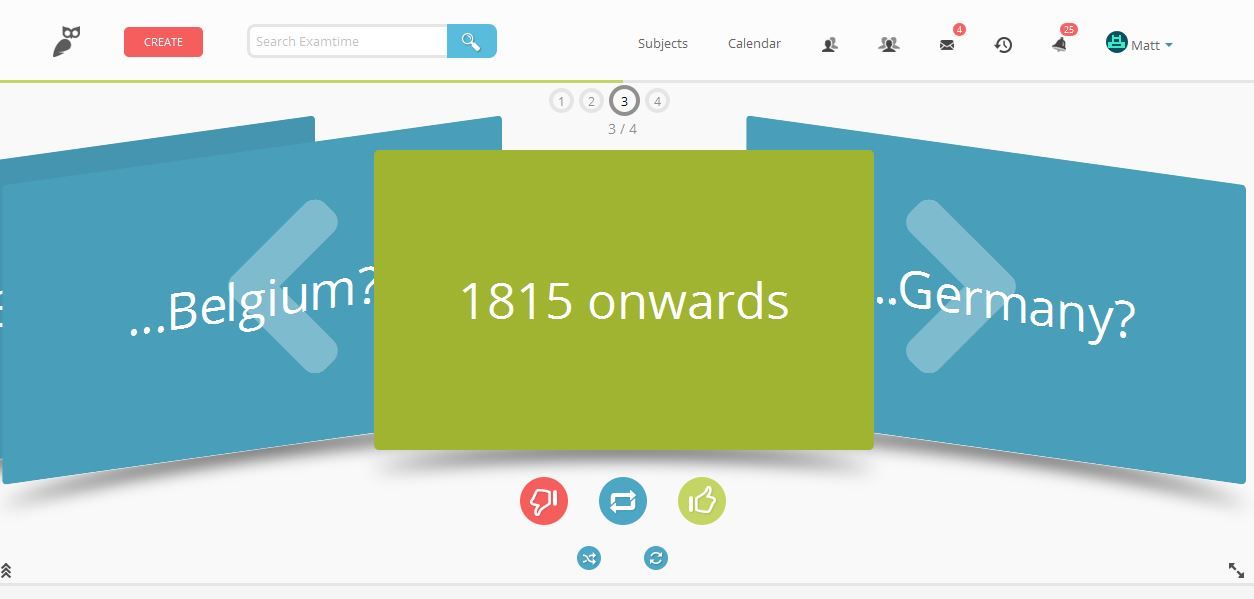
Click "View Mode" when you are finished creating/editing your deck. When viewing your Flashcard deck, you can click:
The left and right arrow icons flick through the deck. Alternatively, the left and right arrow keys on your keyboard will move the deck too
The icon in the middle flips the card over, as does the space bar and clicking on a Flashcard. You can use a touch screen device to navigate the deck too
The thumbs up and thumbs down icons allow you to mark whether you know/don't know a card. This is important for using the tracking feature where you can manage your learning progress
The two smaller icons below this allow you to shuffle the deck and to flip all cards at once.
The icon on the far right allows you to enter full screen
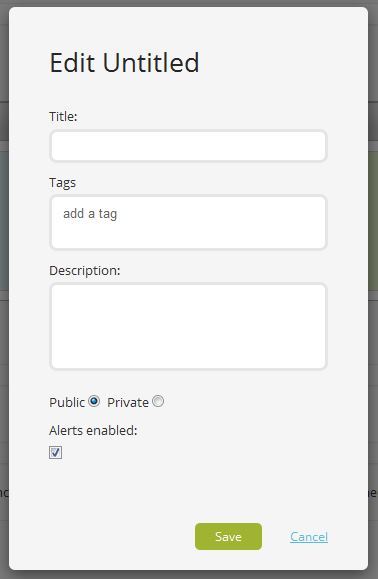
Remember: Fill in the title, description and tags on your Flashcard deck to help you and others find related resources.
How to Create a Quiz Using ExamTime:
Quizzes are a great way to test yourself before a big exam. We've added loads of extra features to our Quiz tool to help you really challenge your knowledge. Creating your first Quiz with ExamTime is easy.
Follow the steps below to get started:
1. Create
A Quiz is a series of questions. As such when making a Quiz you’ll be asked to create questions which will become a part of your Quiz.
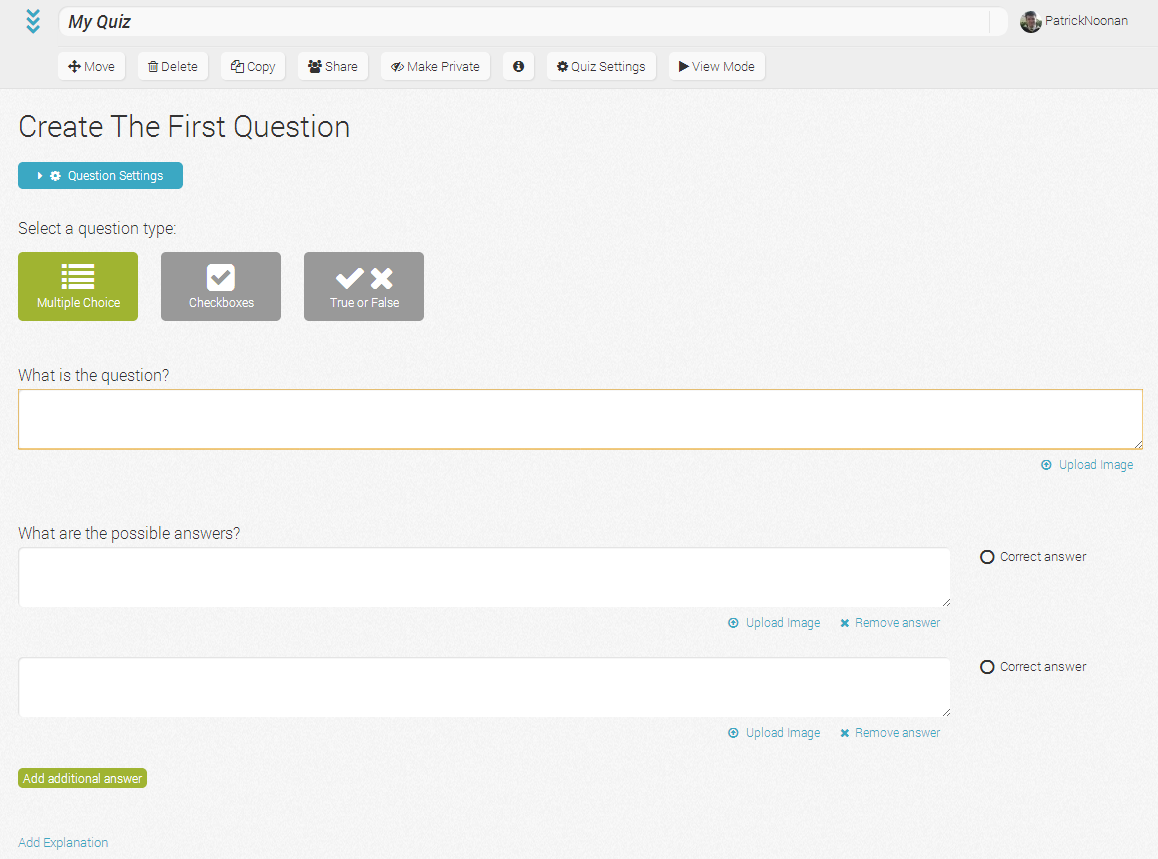
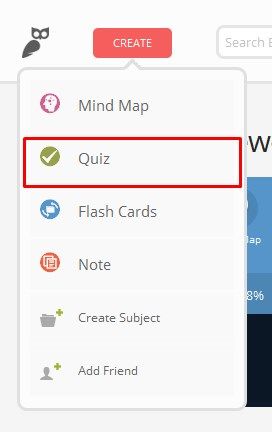
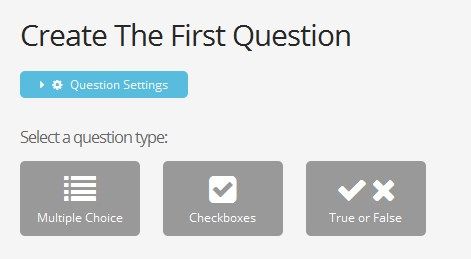
To get started, click "Quiz" under the "Create" drop-down menu. Once here, you can select the question style of your first questions:
Multiple Choice: A question with multiple answers but only one of which is correct
Checkboxes: A question with multiple answers that has more than one answer
True or False: A question where the answer is either true or false
You start with two answers as default but you can add more answers if
you wish by clicking the "Add an additional answer" button.
Note: You need to mark which answer(s) is correct by clicking the box with "Correct Answer" to right.
2. Editing Options
In the header you will see an "Actions" drop-down menu. Here you will find options to:
Rename your Quiz
Move your Quiz to a different Subject or Topic
Delete the Quiz entirely
Share and Embed options
Share a link to your resource publicly
Turn a resource Private/Public
Information/Descriptions
Edit your Quiz Settings - timer, weighting for questions etc.
Enter View Mode
When you are happy with your Question and Answers you can add
an explanation for future use if you want. Then click save. Repeat this
for each question you want in your Quiz.
Click ‘Finish’ when you’re happy with all your questions. Then enter View Mode to take your Quiz.
3. Taking a Quiz
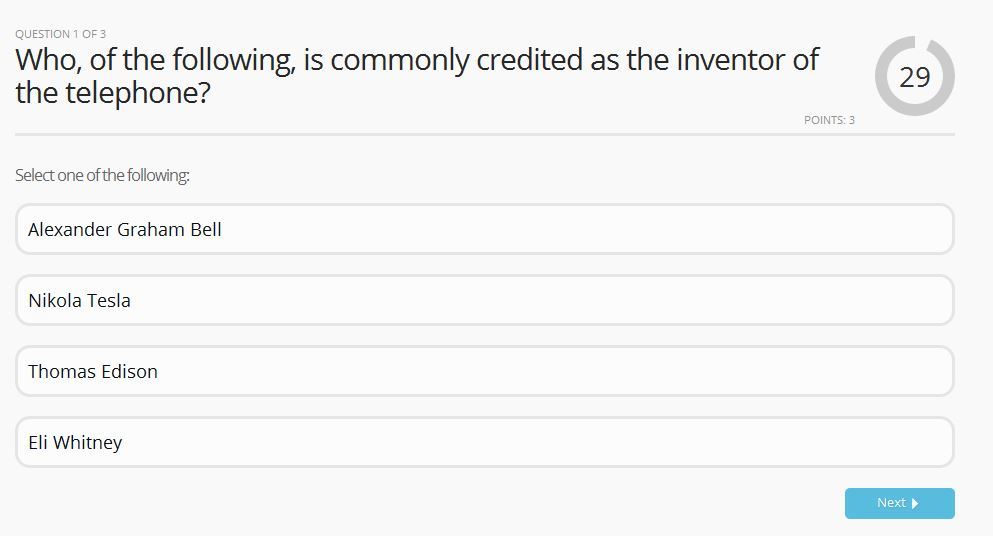
When you’re finished editing your Quiz, you can start testing your knowledge by attempting the questions. You need to select the answer and then confirm your selection before moving on the next question.
Using these techniques you will be able to create your own Quiz in no time.
Follow the links below for sample quizzes:
Geography Quiz
Macbeth Quiz
Energy, Power and Heat Quiz
Harry Potter Trivia Quiz
How to Create a Note Using ExamTime:
This whole 'Getting Started Guide' is an example of what a finished Note can look like. A Note provides you with a blank canvas to record your thoughts and ideas, store more detailed information and organise your study content.
Follow the steps below to create your first Note with ExamTime:
1. Create
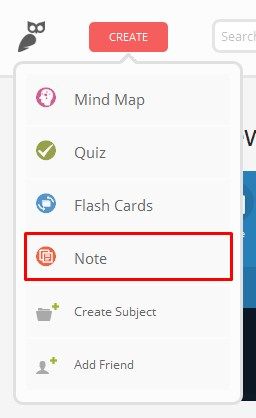
As with the other resources, you start creating a Note by clicking the "Create" drop-down menu and selecting "Note". After creating a Note you'll be brought to a blank canvas.
Clicking anywhere on the canvas will create a text box. Once you type in this box you can move it around the canvas. You can add multiple text boxes.
2. Editing Options
There a numerous "Text Controls" located in the toolbar including:
Bold
Italics
Underline
Change Size
Text Colour
Bullet or Number points
Insert a link to an external site.
Next to your text options are you "Media Controls". Here you can embed:
Videos
Images
Audio
Slideshows
Just like the other resources, you have options to add details, share and edit your Note. Here, you can:
Rename your Note
Move your Note to a different Subject or Topic
Delete the Note entirely
Take a copy of the Note
Print your Note
Share or embed the Note
Turn a resource Private/Public
Enter Information/Description
Click "View Mode"
You can add multiple new pages or tabs by clicking the "+" icon above the text and media controls toolbar. You can also select the "X" icon to delete a page/tab.


How To Sign Up To ExamTime:
There are 3 ways you can sign up to use ExamTime with your:
1. Email
2. Facebook
3. Google
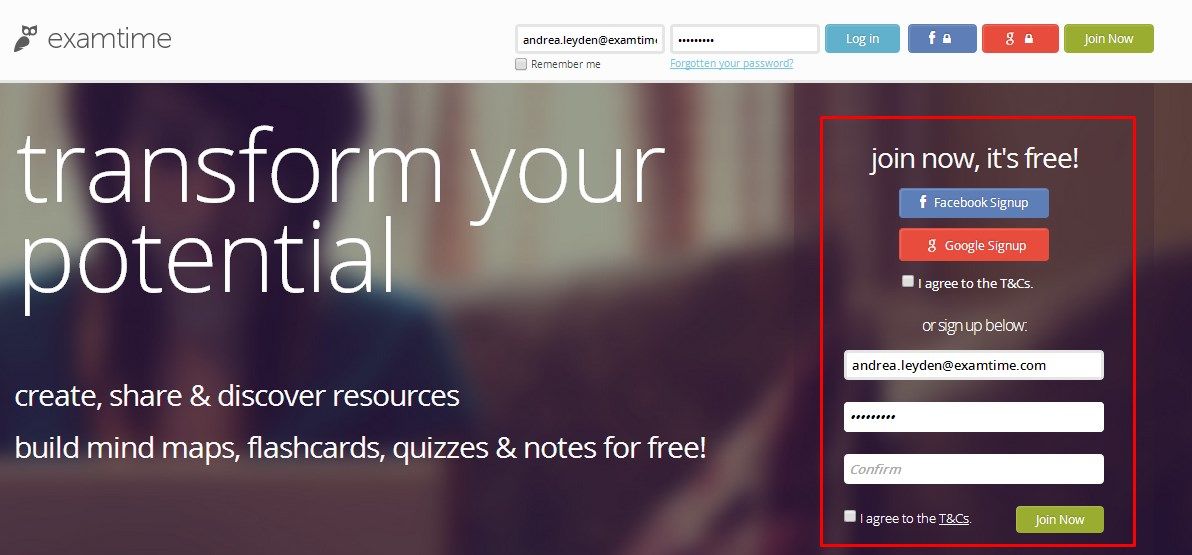
To sign up to ExamTime using your email, enter your details in the box on the homepage under "Join now, it's free!", select "I agree with the T & Cs" and click "Join Now".
You will be sent a confirmation email with a link to activate your ExamTime account. Once your account is activated, you can log in to ExamTime using the details you provided when signing up.
Alternatively, you can sign up using your Google or Facebook account by simply click "Facebook Signup" or "Google Signup". If you sign-up via Facebook you will be asked to log in and give
ExamTime access to your account. Once your ExamTime and Facebook accounts
are connected, you can log in with one click.
If you want to use your Google account to sign up to ExamTime, you need to accept the terms and conditions. Follow the on-screen instructions when signing up for more information.
How to Log In to ExamTime:
The login button is located in the top right-hand corner which you can
see marked in red in the image on the right. Click on this and you can then log into
ExamTime using either your email account or via Facebook.
The ExamTime Dashboard:
When you log in, you will see your personal ExamTime Dashboard. This shows you a quick overview of:
Your recently viewed resources
New resources from your ExamTime Groups
Featured Resources from other ExamTime users
Example Mind Maps, Flashcards & other resources
Discover...
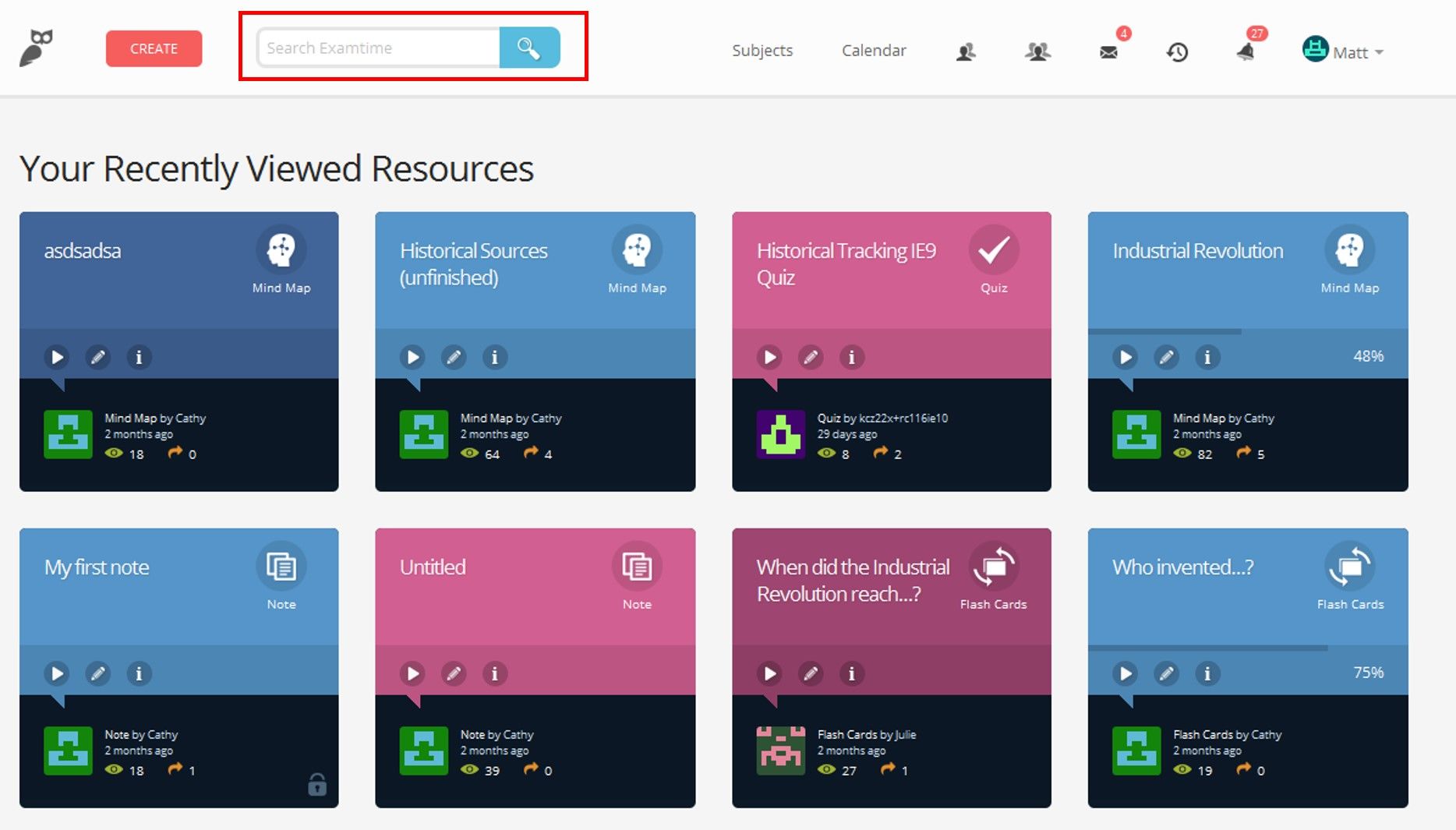
On the top of your Dashboard you'll also see the ExamTime Search bar marked in red in the image to the right. This allows you to search the ExamTime library.
You can quickly search all public ExamTime resources that have been crated by users from Mind Maps and Flashcards to Quizzes and Notes.
This is an invaluable tool for finding useful and relevant study resources to help you prepare for your exams.
Create...
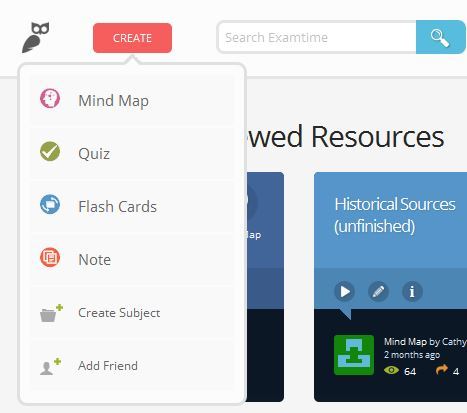
Beside the Search bar, you will find the "Create" button in red. This is your first step to creating your study resources with ExamTime.
Clicking this button will show you options to create:
Mind Maps
Flashcards
Notes
Quizzes
The drop-down menu will also show you options to create a new Subject and Add a Friend so you can collaborate using our tools.
5. Click View Mode
Once you have finished creating your Mind Map, enter "View Mode" to see the final version. Try using "Play Mode" which is a quick way to turn your Mind Map into a presentation tool and recap what you have learned. Click the play button and using the slider to adjust the speed (see image on the right).

Share...
ExamTime also provides options which allow you to study collaboratively with other students.
Using the Groups tool, you can share your study resources (Mind Maps, Flashcards, Quizzes or Notes) with a select group of classmates. If you share using "Copy & Edit", other students can add their insights to you notes and share them back with you.
You can also share ideas by hosting a private Group discussion using the Discussion feature in the Groups tool.
Private Messaging also allows you to attach study aids and host discussions with two or more participants.
More Features:
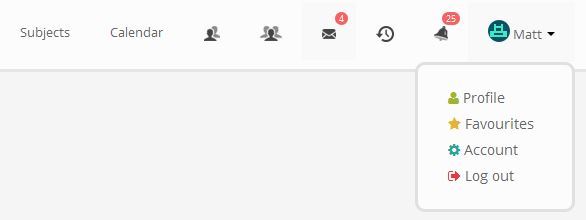
Along the top header you will see a number of other options including:
Subjects
Calendar
Friends
Private Messages
Recently Viewed Resources
Alerts
Profile and Account Settings

How to Create a Mind Map Using ExamTime:
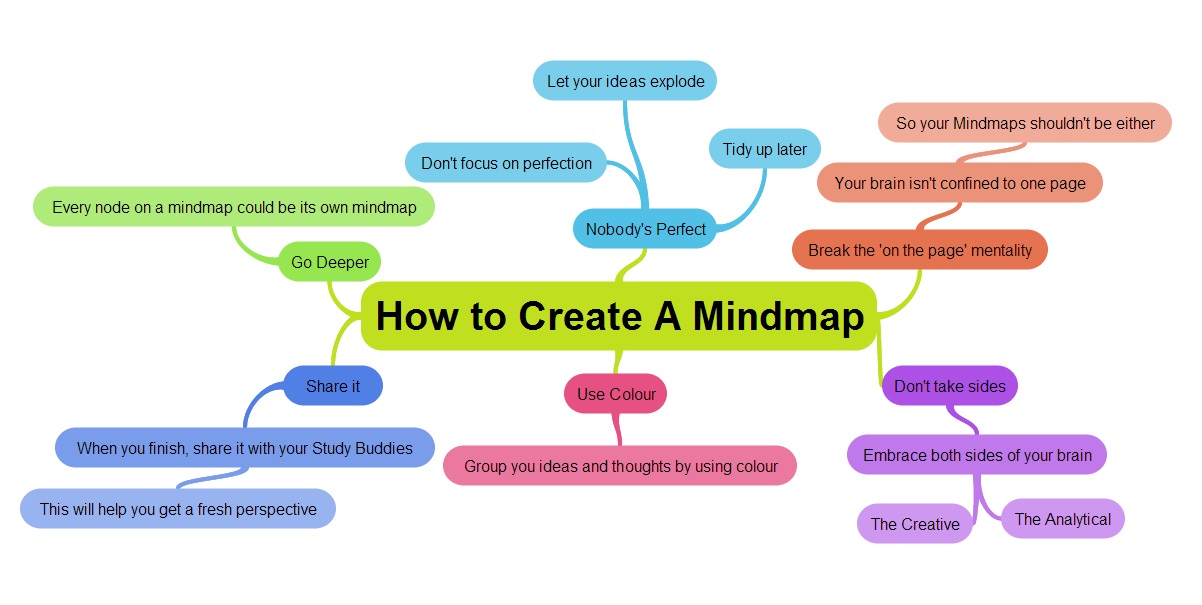
You don't need to be an artist to create a Mind Map! Creating a Mind Map online can help you understand and memorize key concepts, connect ideas and create a broad overview of a topic or subject plus you can tailor it to suit your needs using ExamTime.
Follow the steps below to get started creating your first Mind Map:
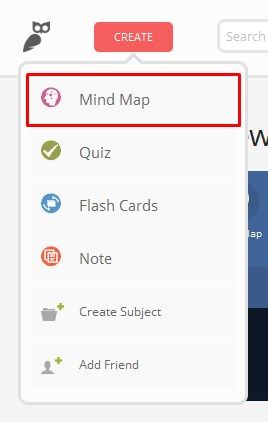
1. Create Mind Map Button
The button to start building your Mind Map is located in the drop-down menu under the "Create" button.
2. Get Started
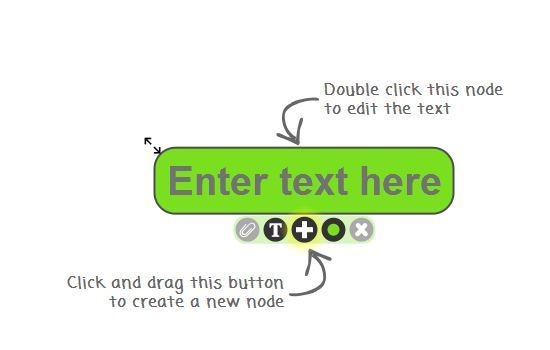
Once you create a Mind Map you'll be brought to a white canvas with a central node ready for you. The text you enter in the central node will be your default title for your Mind Map.
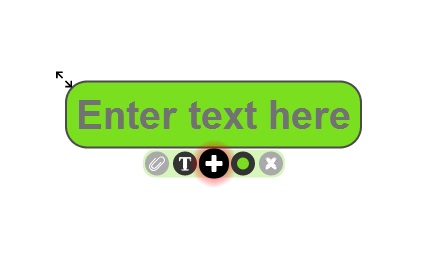
When you click the central node, a small taskbar will appear with options for the following:
+ Icon: If you drag the “+” icon out from the node you can create another node. This will be connected to the central node by a thin strand
T Icon: The ‘T’ icon controls the text within the node; you can make it bigger, bold, italic or change the colour
Coloured Circle: The coloured circle icon allows you to change the colour of the node and
any nodes that are attached to it. Use the slider to pick your colour
X Icon: The ‘x’ icon deletes the node and any lower level nodes connected to it
Paperclip Icon: The paperclip icon allows you to attach another resource (Flashcard, Quiz, Note) to a node for easy access
Snippet Note: You can also attach a Snippet, which is a little post-it note for
each node. To create a Snippet, click on the little grey note that
appears behind the node on the right-hand side
Create as many nodes as you need in different shapes, colours and sizes then edit your Mind Map using the options listed below.
4. Add Your Mind Map to a Subject
If you create a Mind Map it will be automatically saved to your General
subject. However, If you have a subject chosen when you decide to create
a Mind Map it will be saved in this subject automatically.
Remember: Add details such as a title, description and tags to your Mind Map so you can easily find related resources.




3. Play Mode
Just like Mind Map, Notes can be 'played' to help you recap what you have learned by focusing your attention on specific details. Simply click the big Play icon when you are in View Mode and adjust the speed to suit your needs (see image on the right).

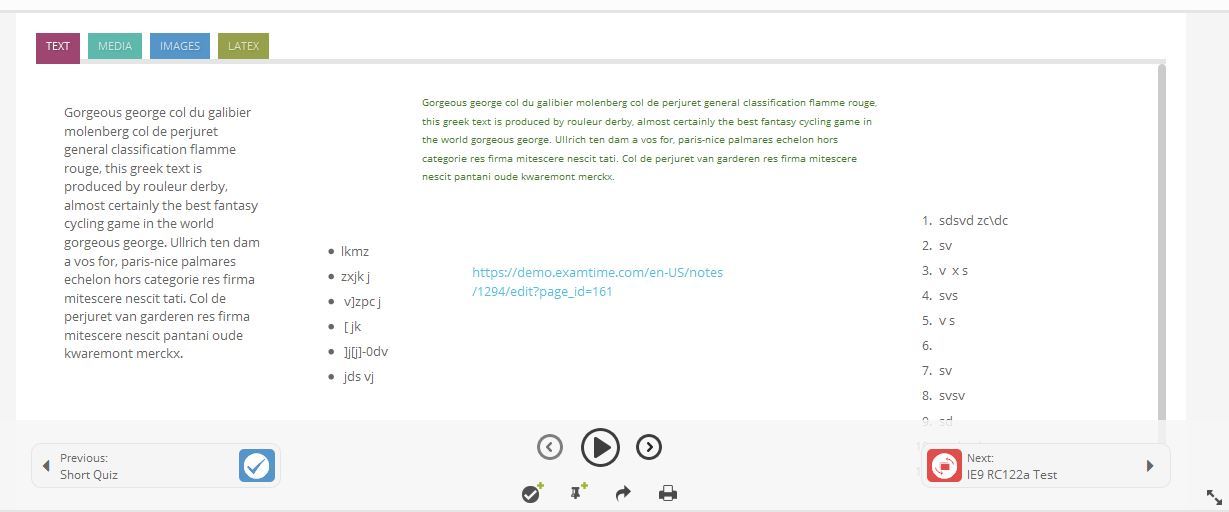
Examples of Notes:
Here's a few examples of ExamTime Notes to get you started and to get a feel for the tool:
Electrochemistry Note
Steve Jobs Note
Cell Structure Note
Back to School Guide
ExamTime Dashboard
Creating A Mind Map
Creating A Flashcard Deck
Creating A Quiz
Creating A Note
Informações
- Descrição
- How to use and create using ExamTime's online study tools. Give a step-by-step walkthrough on how to create a Mind Map, Flashcard Deck, a Note and a Quiz.
- Criado por
- PatrickNoonan
- Visualizações
- 44.861
- Tags
- Histórico
-
- Criado por PatrickNoonan · 20 mai 2013
- Copiado por PatrickNoonan · 20 mai 2013
- Avaliação