
Fichas
Linux
Fichas del conjunto (64)
- 1What is Linux?An Operating System
●
A Kernel
●
Created by Linus Torvalds in 1991
●
First version released in 1994
●
FOSS (Free/Open Source Software)
●
Unix-Like - 2What is a linux distribution?Linux Kernel Plus Additional Software
●
Each Distribution has it's own focus
●
Many of Distributions available - 3Why use linux?Runs on many hardware platforms
●
Small Footprint
●
Stable, Reliable, Secure
●
Great for servers
●
FOSS
●
Free Software Ecosystem
●
Choice / Freedom - 4Some key ideas about linuxLinux is an operating system.
●
At the heart of the OS is the Linux Kernel.
●
Linux is the layer between applications and
hardware.
●
Linux can be used as a server or a desktop.
●
Distributions are implementations of Linux,
each with their own goals and focus. - 5What are terminals?Terminals were how people primarily
interacted with computers in the past
●
Used to interact with your local computer
●
Used to interact with networked computers - 6How can you acces a terminal?Web Based Command Line Access
●
Web Hosting Shell Accounts
●
VPS (Virtual Private Server) or Cloud Server
●
Live Linux Distro
●
Install on Hardware
●
Use Preinstalled Images with VirtualBox - 7What are the common linux directories?/
“Root,” the top of the file system hierarchy.
●
/bin
Binaries and other executable programs.
●
/etc
System configuration files.
●
/home
Home directories.
●
/opt
Optional or third party software.
●
/tmp
Temporary space, typically cleared on reboot.
●
/usr
User related programs.
●
/var
Variable data, most notably log files. - 8Command line vs GUIThe command line is more powerful.
●
There will always be a command line.
●
Server distributions do not include GUIs.
●
Desktop distributions have GUIs and CLIs - 9What is root acces used for?Root access is typically restricted to system
administrators.
●
Root access may be required to to install,
start, or stop an application.
●
Day to day activities will be performed using a
normal account. - 10What are the linux basic commands?ls -Lists directory contents.
●
cd - Changes the current directory.
●
pwd - Displays the present working directory.
●
cat - Concatenates and displays files.
●
echo - Displays arguments to the screen.
●
man - Displays the online manual.
●
exit - Exits the shell or your current session.
●
clear - Clears the screen. - 11What are the man pages commands?Enter
Move down one line.
Space
Move down one page.
g
Move to the top of the page.
G
Move to the bottom of the page.
q
Quit - 12What are environmental variables?Storage location that has a name and a value
●
Typically uppercase
●
Access the contents by executing:
echo $VAR_NAME - 13What is PATH?An environment variable
●
Controls the command search path
●
Contains a list of directories - 14How do you ask for help on a specific command?-h or --help
- 15How do you create and remove directories?mkdir [-p] directory - Create a directory.
rmdir [-p] directory - Remove a directory.
rm -rf directory - Recursively removes directory. - 16What does the ls -l command show?$ ls -l
+++ -rw-rw-r-- 1 jason users 10400 +++
+++ Sep 27 08:52 sales.data +++
Permissions = -rw-rw-r--
Number of links = 1
Owner name = jason
Group name = users
Number of bytes in the file = 10400
Last modification time = Sep 27 08:52
File name = sales.data - 17What are symbolic links?A link is a points to the actual file or directory.
●
Use the link as if it were the file.
●
A link can be used to create a shortcut.
○
Use for long file or directory names.
○
Use to indicate the current version of software - 18ls -F?Use ls -F to reveal file types.
/ = Directory
@ = Link
* = Executable - 19What are some usefull ls options?-a
List all files, including hidden files.
--color
List files with colorized output.
-d
List directory names, not contents.
-l
Use the long listing format.
-r
Reverse the order.
-R
List files recursively.
-t
Sort by time, most recent first - 20What does the tree command do?Provides a more visual output to ls
tree -d = List directories only.
tree -C = Colorize output. - 21What types of file can ls reveal?-
Regular file
d
Directory
l
Symbolic link - 22What does the read permision mean?Read (r)
Allows a file to be read.
Allows file names in the
directory to be read - 23What does the write permision mean?Write (w)
Allows a file to be modified.
Allows entries to be
modified within the
directory. - 24What does the execute permision mean?Execute (x)
Allows the execution of a file.
Allows access to contents
and metadata for entries. - 25What permision categories are there?u
User
g
Group
o
Other
a
Al - 26Users and groupsEvery user is in at least one group.
●Users can belong to many groups.
● Groups are used to organize users.
● The groups command displays a user’s
groups.
● You can also use
id -Gn - 27How do you change file/directory permisions?chmod
Change mode command
ugoa
User category
user, group, other, all
+-=
Add, subtract, or set permissions
rwx
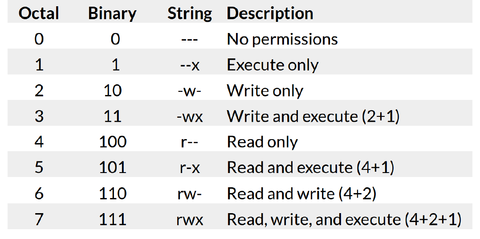
Read, Write, Execute - 28What are some common permision changing codes?
- 29What are file creation masks?File creation mask determines default
permissions.
●
If no mask were used permissions would be:
777 for directories
666 for files - 30How do you change file creation masks?umask [-S] [mode]
● Sets the file creation mask to mode, if given.
● Use -S to for symbolic notation - 31the find commandfind [path...] [expression]
Recursively finds files in path that match
expression. If no arguments are supplied it find
all files in the current directory.
-name pattern
Find files and directories
that match pattern.
-iname pattern
Like -name, but ignores
case.
-ls
Performs an
ls
on each of
the found items - 32the locate commandlocate pattern
●
Lists files that match pattern.
●
Faster than the
find
command.
●
Queries an index.
●
Results are not in real time.
●
May not be enabled on all systems - 33viewing filescat file
Display the contents of file.
more file
Browse through a text file.
less file
More features than more.
head file
Output the beginning (or top)
portion of file.
tail file
Output the ending (or bottom)
portion of file - 34vim commands:n
Positions the cursor at line n.
:$
Positions the cursor on the last line
:x
Same as :wq
u
Undo
Ctrl-R
Redo - 35vim navigation and writingi
Insert at the cursor position.
I
Insert at the beginning of the line.
a
Append after the cursor position.
A
Append at the end of the line. - 36vim inserting textRepeat a command by preceding it with a
number.
○
5k = Move up a line 5 times
○
80i = Insert 80 times
○
80i_ = Insert 80 "_" characters - 37vim deletingx
Delete a character.
dw
Delete a word.
dd
Delete a line.
D
Delete from the current position. - 38vim searching/
Start a forward search.
?
Start a reverse search - 39the sort commandsort file
Sort text in file
-k F
Sort by key. F is the field number.
-r
Sort in reverse order.
-u
Sort unique - 40the tar commandtar [-] c|x|t f tarfile [pattern]
c - create
x - execute
t - list contents - 41costumiseing the shell prompt\d
Date in "Weekday Month Date" format
"Tue May 26"
\h
Hostname up to the first period
\H
Hostname
\n
Newline
\t
Current time in 24-hour HH:MM:SS format
\T
Current time in 12-hour HH:MM:SS format
\@
Current time in 12-hour am/pm format
\A
Current time in 24-hour HH:MM format
\u
Username of the current user
\w
Current working directory
\W
Basename of the current working
directory
\$
if the effective UID is 0, a #, otherwise a $ - 42wild cards* - matches zero or more characters
? - matches exactly one character
[] - A character class.
[!] - chars not included in the brackets
Use two characters separated by a hyphen to create a range in a character class.
[a-g]
\ - escape character. Use if you want to match
a wildcard character - 43premade wildcards[[:alpha:]]
●
[[:alnum:]]
●
[[:digit:]]
●
[[:lower:]]
●
[[:space:]]
●
[[:upper:]] - 44redirection>
Redirects standard output to a file.
Overwrites (truncating) existing contents.
>>
Redirects standard output to a file.
Appends to any existing contents.
<
Redirects input from a file to a command - 45combining output&
Used with redirection to signal that a
file descriptor is being used.
2>&1
Combine stderr and standard output.
2>file
Redirect standard error to a file - 46redirecting to null>/dev/null
Redirect output to nowhere. - 47comparing filesdiff file1 file2
Compare two files.
sdiff file1 file2
Side-by-side comparison.
vimdiff file1 file2
Highlight differences in vim - 48the grep commandgrep
Display lines matching a pattern.
grep pattern file
commands:
-i
Perform a search, ignoring case.
-c
Count the number of occurrences in a file.
-n
Precede output with line numbers.
-v
Invert Match. Print lines that don’t match - 49the file commandfile file_name
Display the file type - 50the cut commandcut [file]
Cut out selected portions
of file. If file is omitted,
use standard input
commands:
-d delimiter
Use delimiter as the field
separator.
-f N
Display the Nth field - 51the alias commandalias [name[=value]]
List or create aliases.
Use name=value to create a new alias.
unalias name
Remove the “name” alias.
unalias -a
Remove all aliases - 52the su commandsu [username]
Change user ID or
become superuser
commands
-
A hyphen is used to provide an
environment similar to what the
user would expect had the user
logged in directly.
-c command
Specify a command to be
executed - 53who am I?whoami
Displays the effective username - 54the sudo commandsudo -l
List available commands.
sudo command
Run command as root.
sudo -u root command
Same as above.
sudo -u user command
Run as user
sudo su
Switch to the superuser account.
sudo su -
Switch to the superuser account
with root’s environment.
sudo su - username
Switch to the
username account
sudo -s
Start a shell
sudo -u root -s
Same as sudo -s
sudo -u user -s
Start a shell as user - 55the history commandhistory
Display a list of commands in the
shell history. - 56environmental variables commandsprintenv
- Print all or part of environment.
echo $ENV_VAR
- Print the ENV_VAR variable
export
- Allows vars to be used by subshells.
unset - delete an environment varialbe. - 57common environmental variablesEDITOR
Program to run to perform edits
HOME
Home directory of the user.
LOGNAME
The login name of the user.
MAIL
The location of the user’s local inbox.
OLDPWD
The previous working directory.
PATH
A list of directions to search for
commands.
PAGER
Program used to paginate through
files.PS1
The primary prompt string.
PWD
Present working directory.
USER
The username of the current user. - 58the ps commandps
Display process status.
-e
Everything, all processes.
-f
Full format listing.
-u username
Display username’s processes.
-p pid
Display information for PID. - 59some ways to view processespstree
Display processes in a tree format.
top
Interactive process viewer.
htop
Interactive process viewer - 60background and foreground process commandscommand &
Start command in background.
Ctrl-c
Kill the foreground process.
Ctrl-z
Suspend the foreground process.
bg [%num]
Background a suspended
process.
fg [%num]
Foreground a background
process.
kill
Kill a process by job number
or PID.
jobs [%num]
List jobs - 61cron and crontabThe cron service runs scheduled jobs
●
Use the crontab command to schedule jobs - 62crontab commandscrontab file
Install a new crontab from file.
crontab -l
List your cron jobs.
crontab -e
Edit your cron jobs.
crontab -r
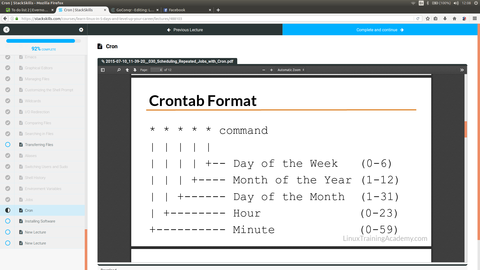
Remove all of your cron jobs - 63crontab format
- 64installing files and taling to serversadd something here
Información
- Descripción
- Computer Science Fichas sobre Linux, creado por Mircea Chira el 19/11/2016.
- Creado por
- Mircea Chira
- Visitas
- 2
- Valoración