
Fichas
A+
Fichas del conjunto (119)
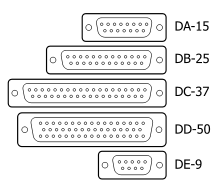
- 1—D-Shell Connector (connector attached to integrated motherboard)
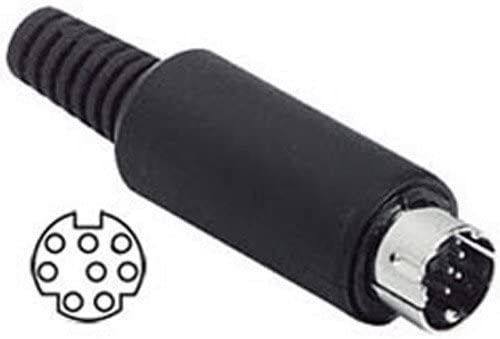
- 2—Mini-DIN Connector (connector type on integrated motherboard)
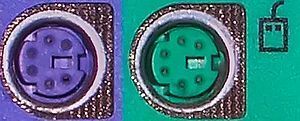
- 3—9-pin Mini-DIN PS/2 Connector (connectors for keyboard and mouse; keyboard = purple, mouse = green; may sometime come in 6-pin mini-DIN connector with half purple w/three holes and half green w/three holes)
- 4Analog SignalSignal that is constant; another object acts on the continuous wave to modify it. For example, on an analog sound system, the sound waves are constant and are acted on by opening and closing, to varying degrees, the channels the waves are traveling across.
- 5Digital SignalA digital signal involves the use of an instrument that translates the waves involved into binary packets.
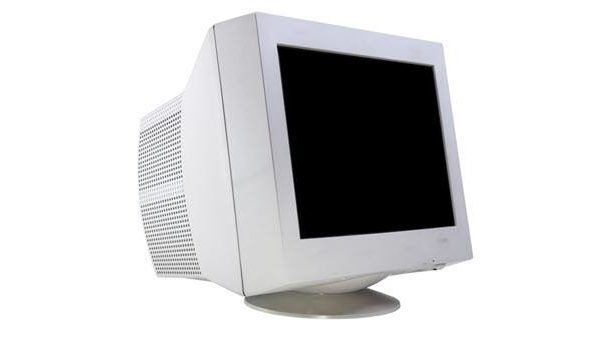
- 6—CRT Monitor. A cathode ray tube (CRT) monitor is an old monitor that used analog signals.
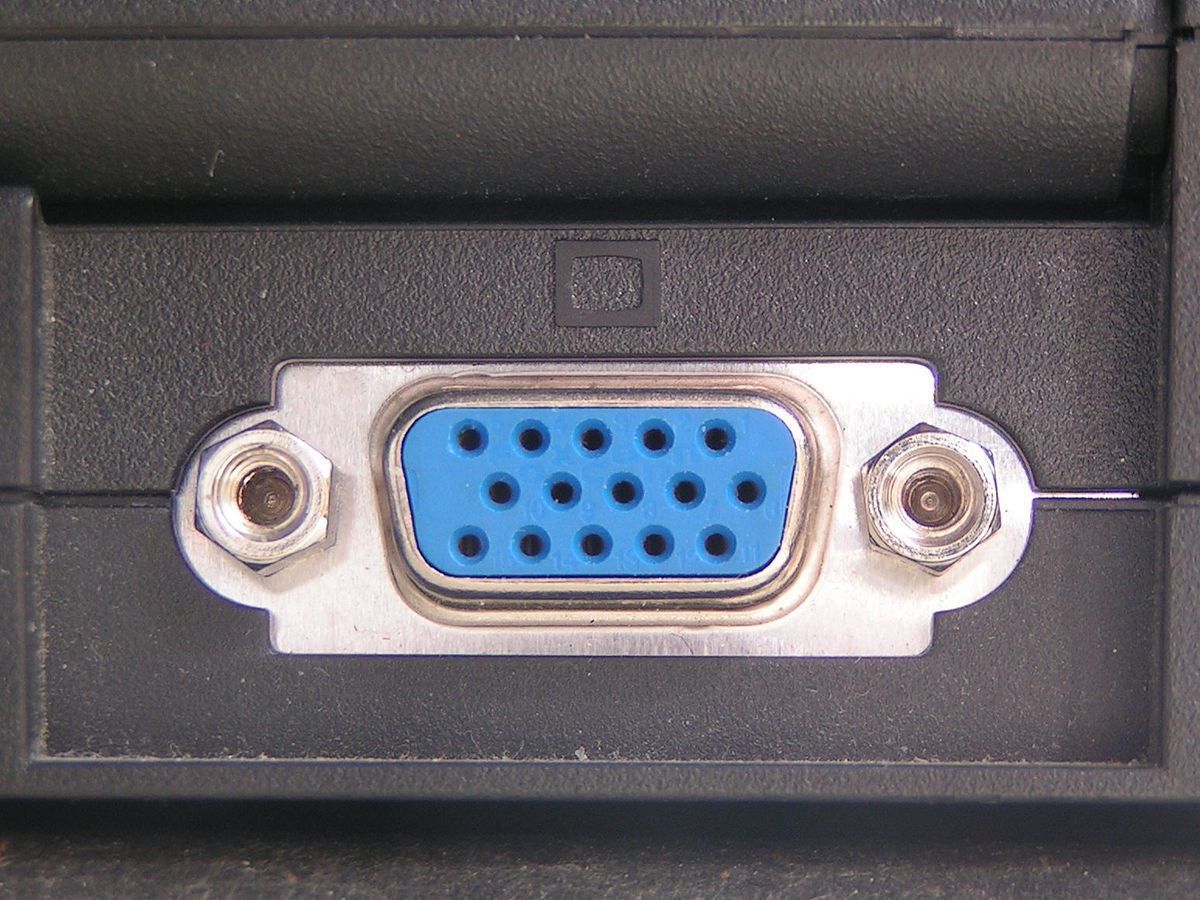
- 7—VGA Port (Video Graphics Array): was a video port designed for output to a CRT monitor. The female port (pictured) is sometimes advertised as an HD-15 or DE-15 port. The VGA cable (blue with screws on the sides) has a DB-15 male end that attaches to the DE-15 female port.
- 8—DVI (Digital Visual Interfact) port. Used to connect flat panel digital displays (though some older ones still use VGA and most newer ones use HDMI).
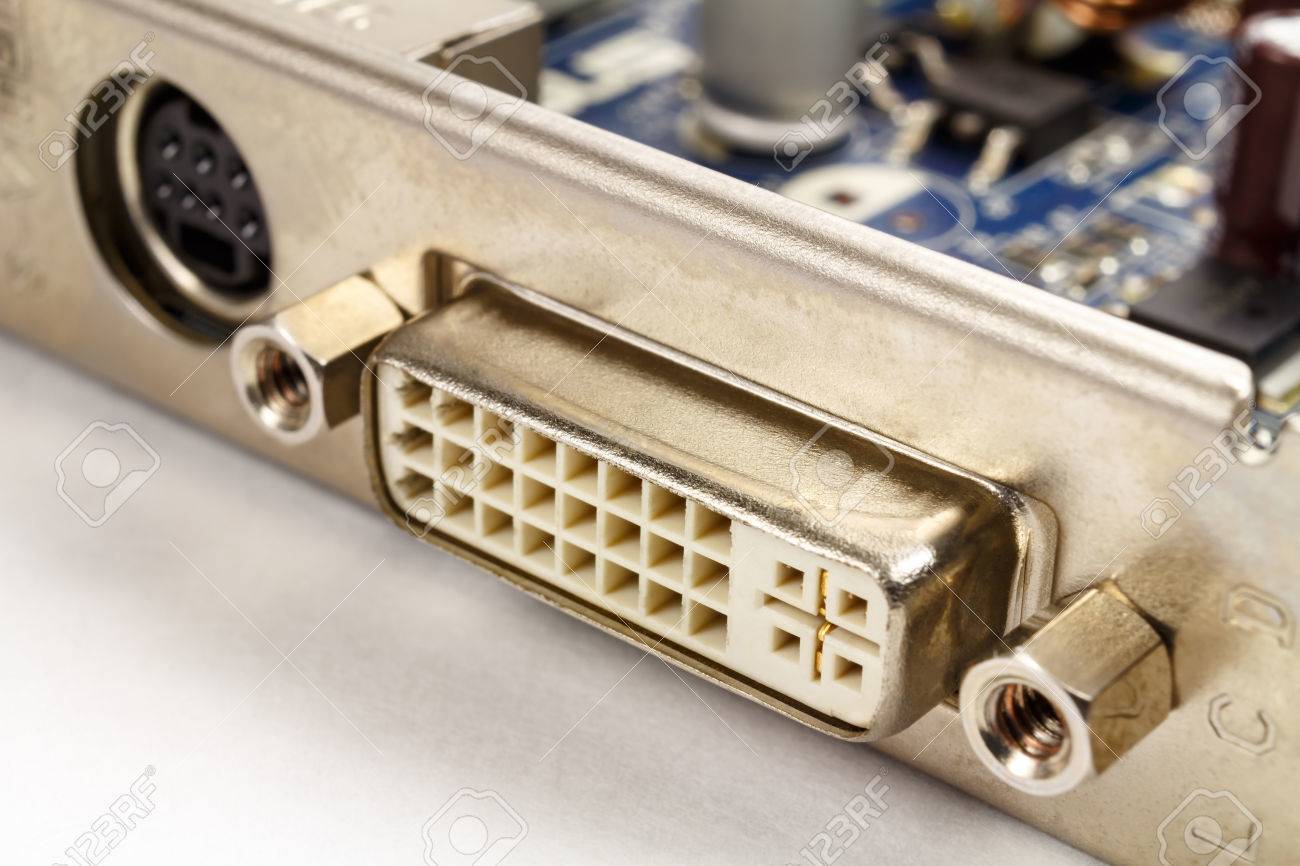
- 9Single Link DVI ConnectionDVI connector that allows video resolutions up to 1920x1080.
- 10Dual link DVI ConnectorA DVI connector with more pins then the single link DVI; more pins are available to send more signals, allowing higher resolutions such as 2560x1600.
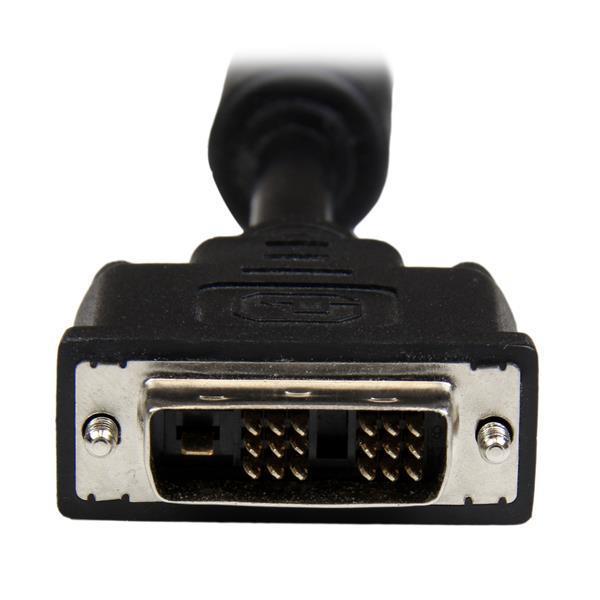
- 11—Single link DVI-D connector. To differentiate with single link DVI-I connector, note the end pin-holes: DVI-D has a single line slot.
- 12—Single link DVI-I connector. To differentiate between this and the single link DVI-D connector, note the end pin-holes: DVI-I has a cross like section.
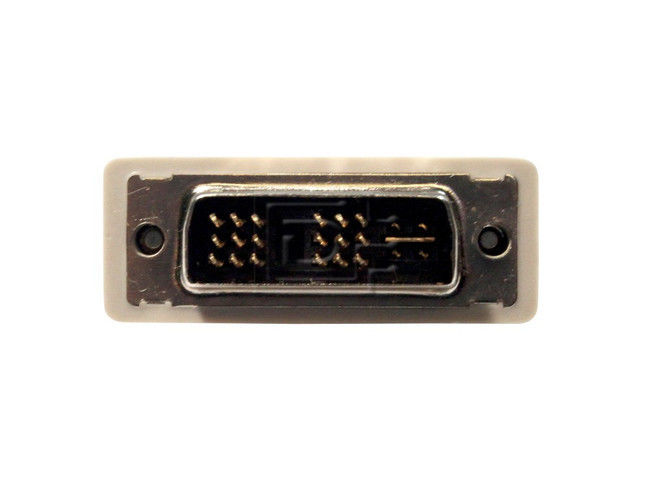
- 13—Dual Link DVI-I: note the slots again. Dual uses three continuous rows of holes plus an end arrangement of a cross with four holes, one in each indice.
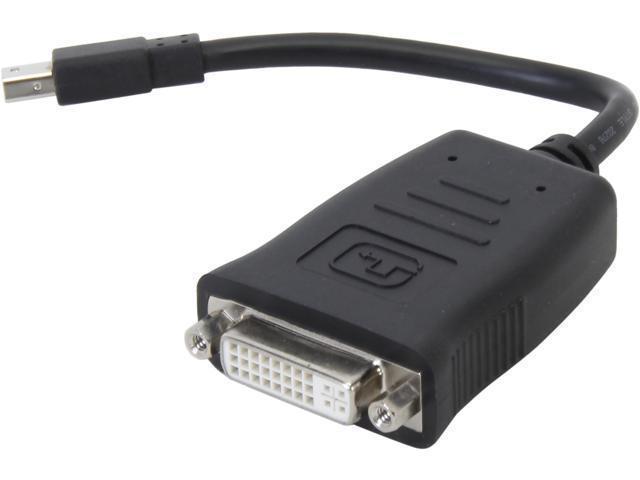
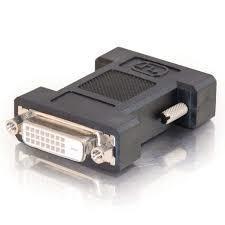
- 14—Dual link DVI-D
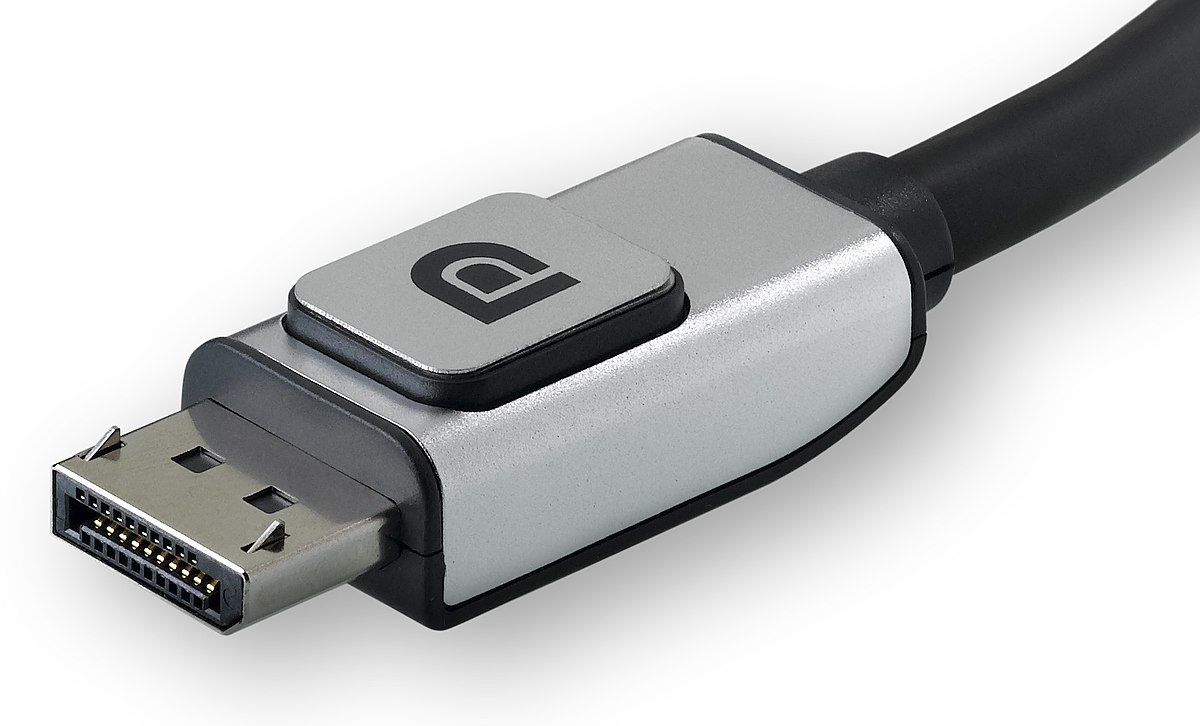
- 15—DisplayPort Cable. Note a few things: the connector is an elongated D-shape. If you see the logo, know that it is DisplayPort: it is a D and P in negative.
- 16—HDMI Cables and slots. There are four types:
1) A --> 19-pin port found on a TV or PC that can have a Category 1 (standard) or Category 2 (high-speed) cable attached
2) B --> 29-pin port used with very high resolution displays
3) C --> 19-pin mini-HDMI port (2.42mm x 10.42mm) found on mobile devices
4) D --> 19-pin micro-HDMI port (2.8mm x 6.4 mm) found on mobile devices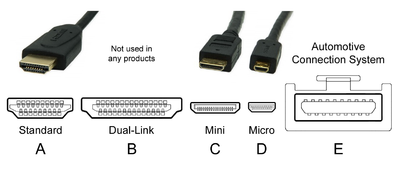
- 17HDCPHigh-bandwidth Digital Content Protection; it is a feature on DVI, DisplayPort, and HDMI ports. It is a part of Intel's digital rights management (DRM) specs, is designed to protect copyrighted material.
- 18—Bayonet Neill-Concelman (BNC) connector with coaxial cable. Likely found with cable TV, it is the cable with a prong in the middle that you screw in.
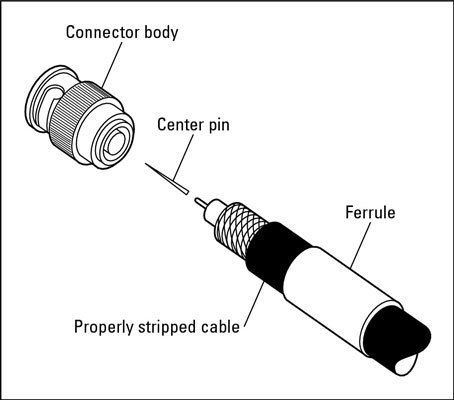
- 19RG-6 Coax CableType of coaxial cable that is least likely to be used in a network. It is a 75-ohm cable suitable for distributing signals for cable TV, satellite dish, or rooftop antenna. It has better shielding that RG-59 so it is larger in diameter. Typical distances are 1000 feet to 1500 feet. It can carry frequencies up to 2200 MHz.
- 20RG-59 Coax CableType of coax cable that is a 75-ohm cable. It is not used in LANs but is used in video installations. Typical distances are 750 feet to 1000 feet. It can carry frequencies up to 1000 MHz.
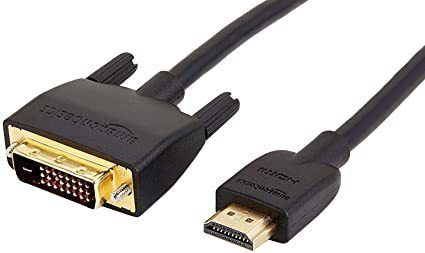
- 21—DVI-to-HDMI adapter. Can be used to connect a device with DVI or HDMI output to another device with DVI or HDMI input.
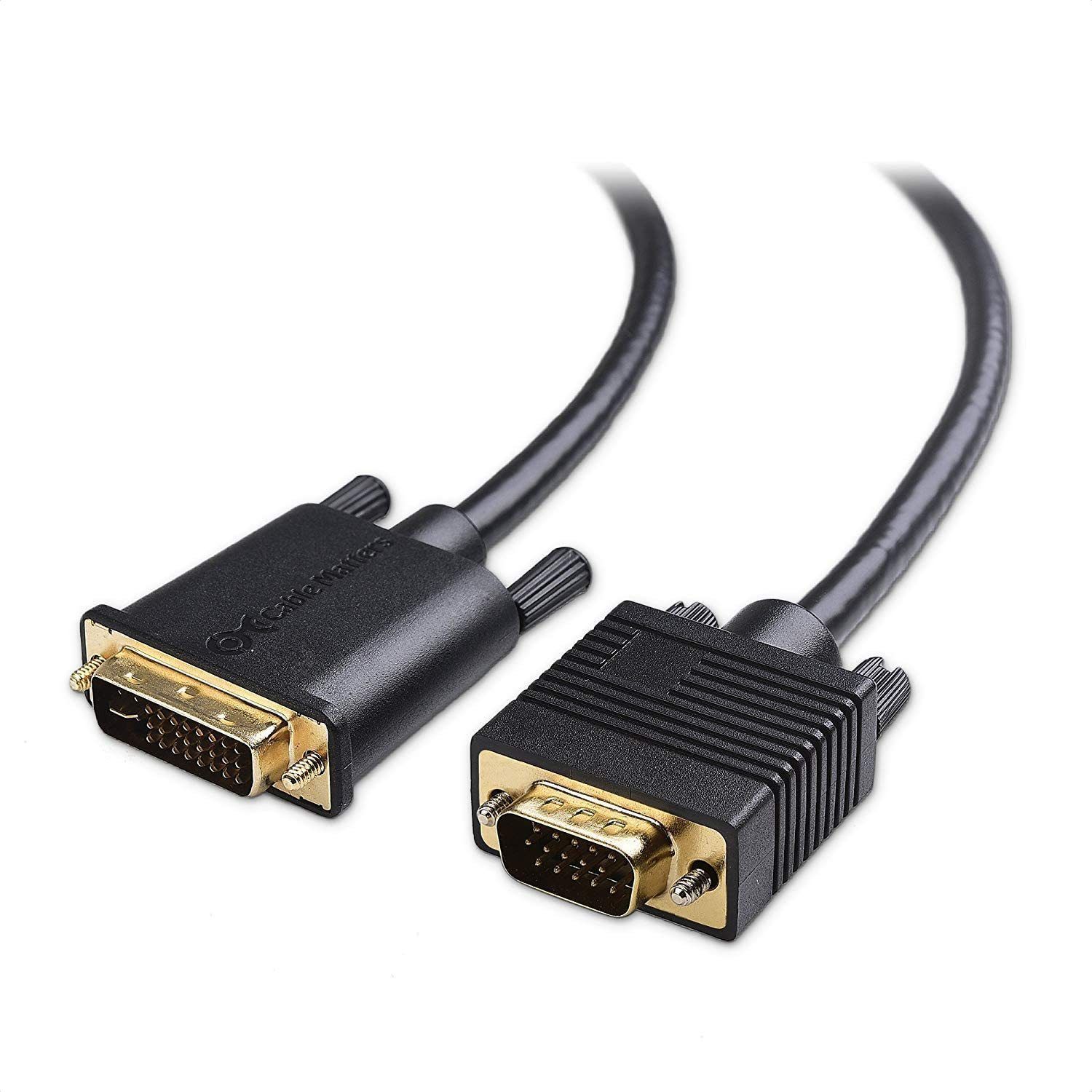
- 22—DVI-to-VGA adapter: can be used to connect a device with DVI or VGA output with a device with DVI or VGA input.
- 23USB 1.0/1.1One version of USB port. It operates at speeds of 1.5 Mb/s and 12Mb/s. Cables use 4 wires.
- 24USB 2.0Hi-Speed USB port. It operates at speeds up to 480 Mb/s. Cable uses 4 wires.
- 25USB 3.0USB port that supports transmissions up to 5 Gb/s. It still accepts older devices and cables and is colored blue. USB 3.0 cables use 9 or 11 wires.
- 26USB 3.1 Gen 1USB 3.1 Gen 1 is a port that supports transmission speeds up to 5 Gb/s. USB 3.1 cables have 24 wires.
- 27USB 3.1 Gen 2Upgrade to USB 3.1 Gen 1. It increases the speed to 10 Gb/s, is backward compatible with prior versions, and can deliver more power. Its ports are colored teal. Cables have 24 wires.
- 28USB 3.2 Port StandardNewest USB port standard. It can support two lanes of 5 Gb/s or two lanes of 10 Gb/s. It requires a USB Type-C (sometimes called USB-C) cable and supports 20 Gb/s data transfer rates. Type-C cables have 24 wires.
- 29USB-PDA newer USB standard, USB Power Delivery can provide up to 20 V at 5 A for 100 watts of power, meaning it can power the USB cable. The standard has five levels of power delivery: 10W, 18 W, 36 W, 60 W, and 100 W.
- 30USB Version 1.0/1.1 Cable4 wires. Its maximum length for which devices can function properly is 9.8 feet (3 m). Note that if powered by USB PD the length shortens.
- 31USB Version 2.0 Cable4 wires. Its maximum length for which devices can function properly is 16.4 feet (5 m). Note that if it is powered by USB PD the length shortens.
- 32USB Version 3.x CableVersion 3.0 cables use 9 or 11 wires. Version 3.1 and 3.2 Type-C have 24 wires. The maximum length for which devices will function properly is 9.8 feet (3 m). Note that if powered by USB PD, the length shortens.
- 33—USB Type-A Port. It is a downstream port.
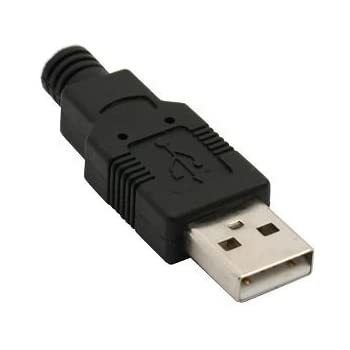
- 34—USB Type-B Connector.
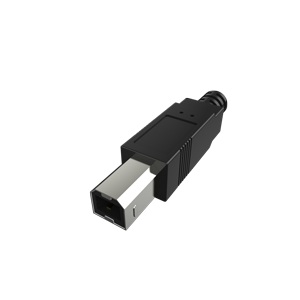
- 35Upstream PortA port that connects directly to the computer.
- 36Downstream portPort that connects to peripheral.
- 37USB Type-CThe latest connector type that will eventually replace the Type-A and Type-B connectors. Many USB 3.0 ports are Type-C connectors, but they don't have to be. USB 3.1 (Gen 2) and USB 3.2 requires USB Type-C connectors
- 38mini-USB and micro-USBTwo smaller USB ports used on portable devices (hubs, external hard drives, digital cameras, smartphones). There are several smaller types: mini-A, mini-AB, micro-B, and micro-AB. The mini-AB and micro-AB accept either a mini-A/micro-A or a mini-B/micro-B cable end.
- 39USB HubA USB port that can have more than one device attached to the port.
- 40Self-powered USB HubA USB hub that has an external power supply attached.
- 41Bus-Powered USB HubA USB hub that has no external power supply connected to it.
- 42USB Cabling Rules1) 5 hubs maximum (total range of 88.5 feet or 27 meters)
2) 127 devices maximum connected to up to 5 hubs
3) Maximum distance between 2 USB hub:
- high speed devices --> 16.4 ft/5m
- low speed devices --> 9.8 ft/3m - 43Charging USB PortUSB port designed to be able to provide power and charge attached devices.
- 44Sleep-and-charge USB portUSB port that provides power to charge devices even when the power is turned off.
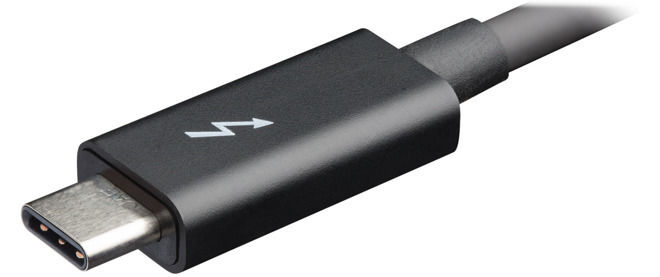
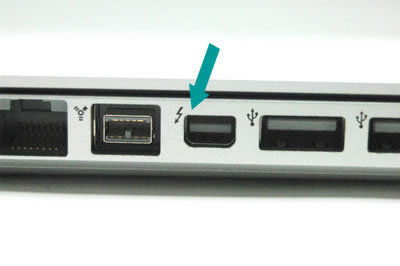
- 45Thunderbolt PortUpdated multipurpose port that uses some of the DisplayPort video tech. The port on Apple computers is the same connector as the min-DisplayPort; however, Thunderbolt 3 uses the USB Type-C connector. Thunderbolt 3 is the first Thunderbolt version to support USB. In addition to carrying video signals, A Thunderbolt cable can also be used to carry power, audio, video, and data to external storage devices at speeds up to 40 Gb/s.
- 46—Thunderbolt Cable
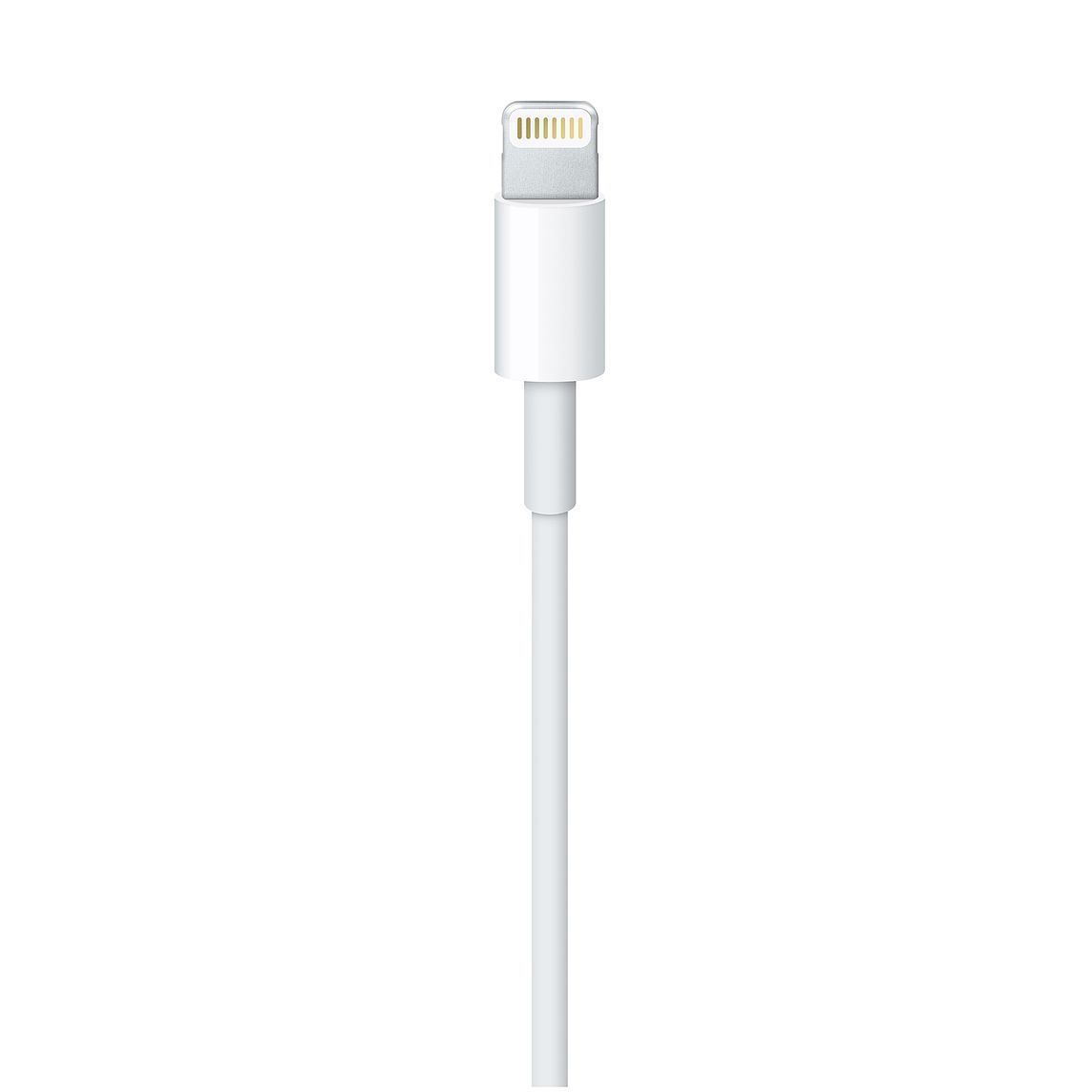
- 47Lightning Port8-pin port that accepts the cable w/ either side facing up (i.e., it is reversible). It can carry data and power from mobile devices to other devices, such as cameras, external monitors, and external storage devices. An adapter/converter can be used to allow the cable to be used w/the older Apple 30-pin connector, USB, HMDI, VGA, or SD cards. It supports USB data and USB charging but the port or cable are not interchangeable with USB-C.
- 48—Lightning Cable
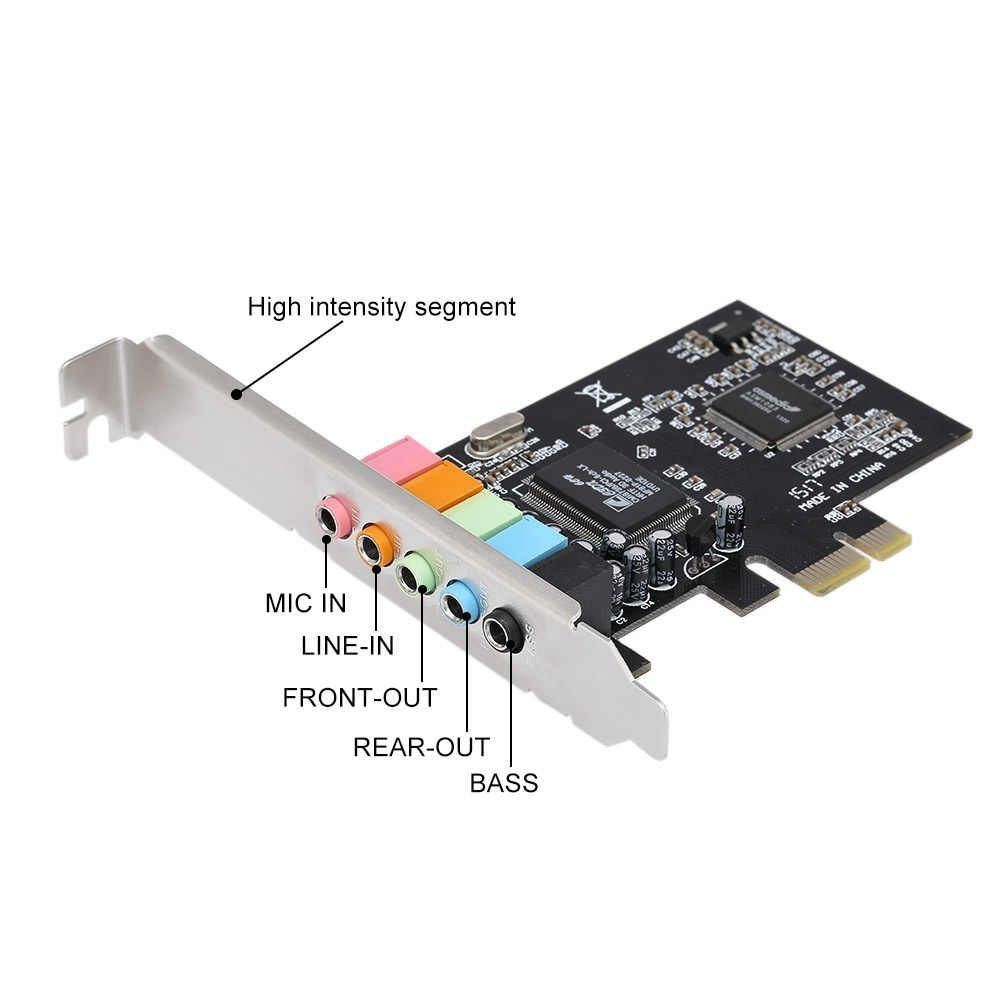
- 49Sound CardConverts digital computer signals to sound and sound to digital computer signals. A sound card is sometimes called an audio card. They are commonly integrated into the motherboard, but when some people want better sound, they add a card. The most common are those for a mic, MP3 player, or other audio device.
- 50Sony/Phillips Digital InterfaceAcronym: S/PDIF. It is an in/out port interface that is used to connect to various devices, such as digital audio tape players/recorders, DVD players/recorders, and external disk players/recorders.
- 51—Sound card w/common ports
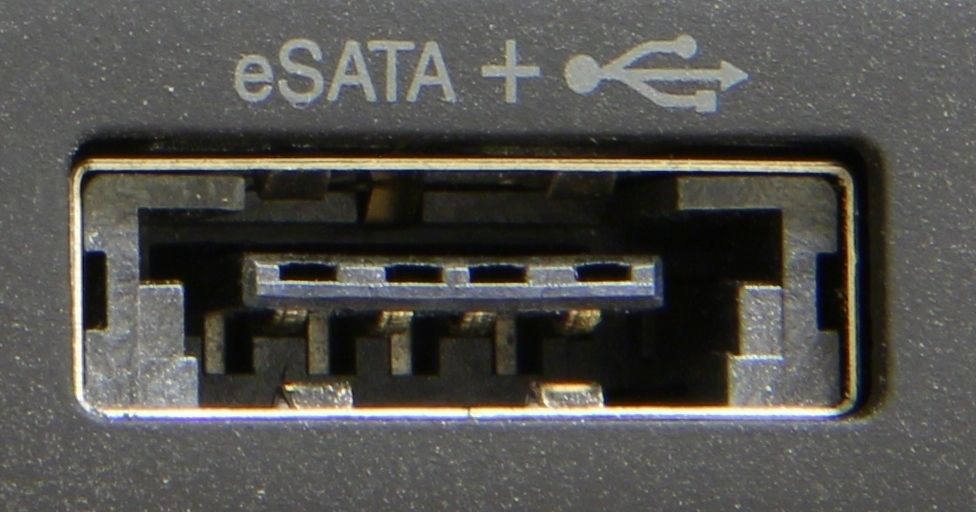
- 52eSATA PortA 7-pin nonpowered external serial AT attachment. It is a port used for connecting external storage devices such as hard drives or optical drives and is commonly found on laptops. It can transfer data at 600 MB/s. Devices w/eSATA can connect at a max of 6.6 feet (2m). If the internal hard drive has crashed, an external hard drive connected to an eSATA or USB port can be used to boot and troubleshoot the system.
- 53eSATAp PortA variation of the eSATA port, it is also known as eSATA/USB, or power over eSATA. The variation can accept eSATA or USB cables and provides power when necessary.
- 54—eSATAp Port
- 55Network PortPort used to connect a device such as a computer or printer to a network.
- 56Ethernet PortThe most common type of network port. A network cable (ethernet cord) inserts into the Ethernet port to connect the computing device to the wired network.
- 57NICA network interface card/controller, it is a common name for a network port.
- 58RJ-45Registered Jack-45, it is a network port that looks like an RJ-11 phone jack, but instead of 4 wires, it has 8. RJ-45 ethernet ports can also be found on external storage devices, printers, Internet modems, and other network devices.
- 59Modulator/demodulatorMore commonly known as a "modem" it connects a computer to a phone line. It can be internal or external. An internal modem is an adapter that has one or two RJ-11phone jack connectors. An external modem is a separate device that sits outside the computer and connects to a 9-pin serial port or a USB port. The RJ-11 connector labeled Line is for the connection to the wall jack. The RJ-11 connector labeled Phone is for the connection to a phone.
- 60UTP"Unshielded twisted pair" is the most common type of Ethernet cable. It attaches to an RJ-45 Ethernet port. It comes in three common types: Cat 5, Cat 5e, and Cat 6 (Cat 7 is also available but not as common). It has 8 wires that are twisted to prevent data that is traveling along one wire to prevent interference with an adjacent wire.
- 61Shield Twisted Pair"STP" it is an alternative to UTP Ethernet and is used in manufacturing and other harsh environments where the cabling needs a little more shielding to keep the data intact. Shielding is provided by a foil wrapped around all the cables as well as around each grouping of two cables (meaning its thicker)
- 62Plenum CableSpecial type of UTP or STP that is meant to run along with a building's air circulation space (a plenum). It is treated with Teflon or alternative fire-retardant materials to reduce fire risk. It also produces less and smoke and is less toxic when it burns.
- 63PVC CableAlternative to plenum cable, it is an ethernet cable that has a plastic cable insulation or jacket. It is cheaper than plenum cable and it can have flame-retardant chemicals added to make it compliant w/building codes. It is also usually easier to install than plenum cable.
- 64ANSI/TIA/EIA-568-A 568-B AKA: T568A, T568B, 568A/BNetwork cable installation standards. To avoid extra troubleshooting time, businesses install their network cable according to these standards, which specify how far the cable can extend, how to label it, what type of connectors to use, and so forth.
- 65Fiber cableAlso known as fiber-optic cable, is made of glass or a type of plastic fiber and is used to carry light pulses. It can be used to connect a workstation to another device, but in industry, the most common uses of fiber-optic cable are to connect networks forming the network backbone, networks between buildings, service provider high-speed networks, and homes to a service provider.
- 66—Fiber optic cables
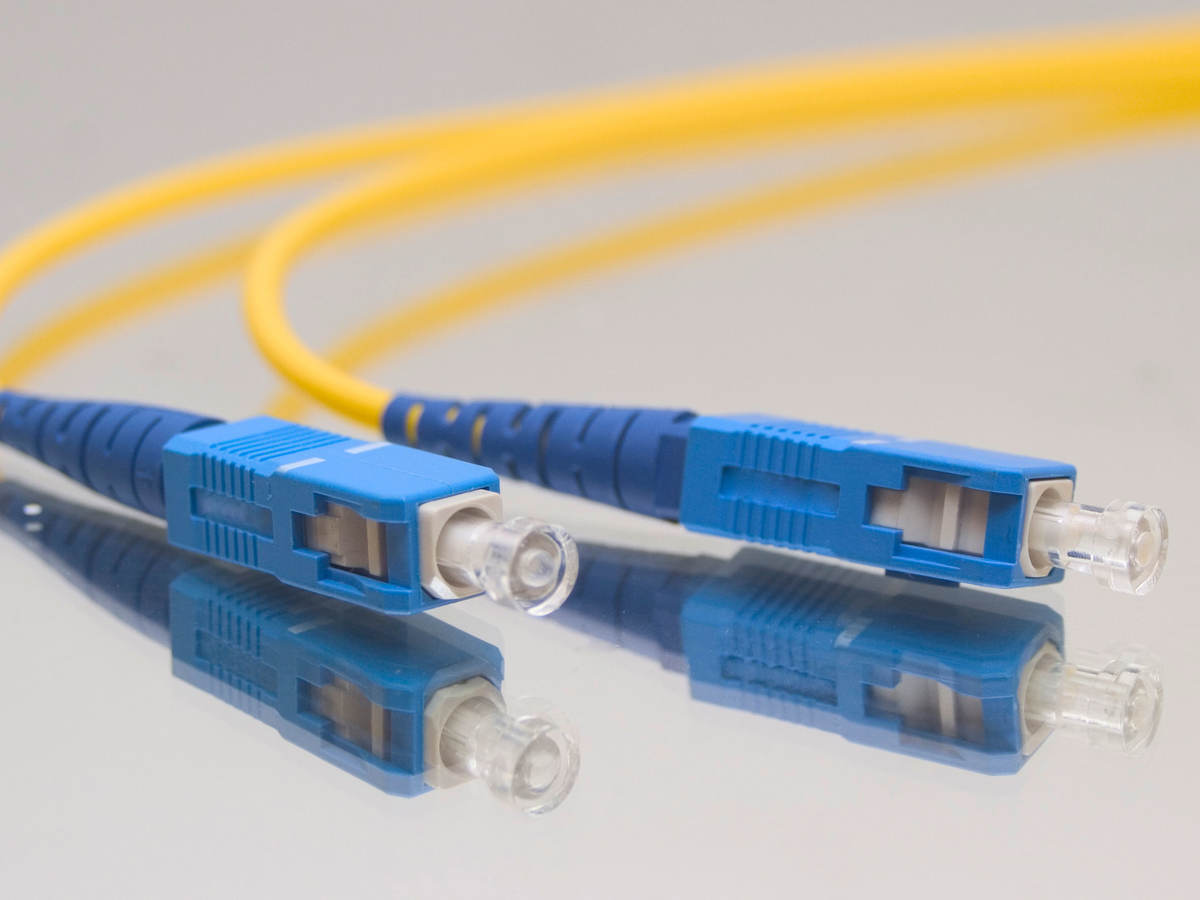
- 67Single-mode fiber cableOne of two major classifications of fiber. It has only one light beam sent down the cable. Common sizes include 8/125 to 10/125 microns, where the first # reps the size of the core and the second is the size of the cladding. Single-mode allows for distances more than 50 miles (80km) at speeds more than 100 Gb/s.
- 68Multi-mode Fiber CableSecond of two major classifications of fiber optic cable. It allows multiple light signals to be sent along the same cable. Sizes include 50/125 and 62.5/125 microns. It can support distances more than 1 mile (2km) are speeds up to 10 Gb/s. ST connectors are used more with multi-mode fiber than with single-mode. Multi-mode is cheaper and more commonly used.
- 69Infrared Wireless I/OType of wireless communication media. It is used for very short distances and is cheaper than other technologies.
- 70Radio WirelessWorks in the 27 or 900 MHz, or 2.4, 5, or 60 GHz radio frequency ranges. Supports longer distance range than infrared.
- 71BluetoothWireless communication media. Includes a 128-bit security and works in the 2.4 GHz range. There are four classes of devices, with ranges up to 1.6 feet (0.5m), 3 feet (1 m), 33 feet (10m), and 328 feet (100m. Note that Bluetooth 5 supports a connection between two devices up to 800 feet (242m) away. Up to 8 devices can be connected in a master/slave relationship, with one device being the master.
- 72NFC"Near Field Communication": used to print from a phone or a camera or to transfer data between two smartphones that are positioned very close to one another (less than 6 inces). They are also used in payment systems. Works in the 13.56 MHz range at transfer speeds up to 424 kb/s.
- 73RCACable jack on a S/PDIF port card that is used to connect a coaxial cable to the card.
- 74TOSLINKCable connection port on a S/PDIF used as a fiber optic port.
- 75(A)Center speaker or subwoofer audio port
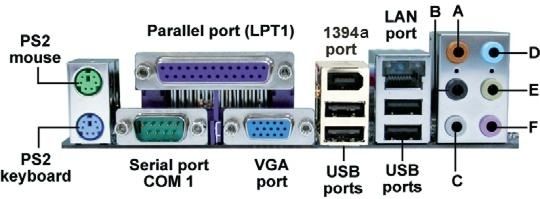
- 76(B)Rear speaker audio port
- 77(C)Side speaker audio port
- 78(D)Line in audio port
- 79(E)Line out audio port
- 80(F)Mic audio port
- 81(Second column, bottom)Optical S/PDIF out port
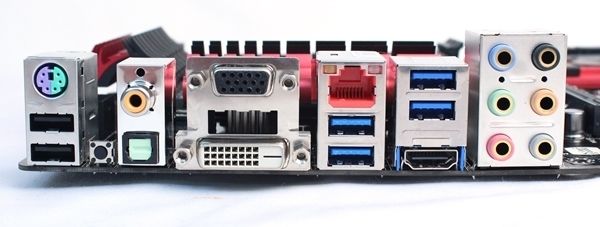
- 82(Second column, top)Coax S/PDIF out
- 83(Fourth Column, Top)NIC
- 84HardwareThe physical components that require a computer to operate. You can touch/handle it.
- 85SoftwareSets of instructions, data, or programs used to operate computers and execute specific tasks. It interacts with the hardware.
- 86Operating SystemSoftware needed by each computer that coordinates the interaction between hardware and software applications. It also handles the interaction between a user and the computer.
- 87Device DriverSpecial piece of software designed to enable a hardware component. It enables the operating system to recognize, control, and use the hardware component. They are hardware and OS specific.
- 88KernalCentral part of the operating system that is the main connection between the computer's hardware and the applications being used.
- 89Where are software application usually stored?On the hard drive.
- 90FirmwareCombination of hardware and software, such as electronic chips that contain software. The chip is physical (hardware) and it has software built into the chip.
- 91BIOS chipChip that contains software needed to start the computer and must be present for a computer to operate. It locates and loads the OS and contains software instructions for communication with I/O devices, as well as important hardware parameters that determine to some extent what hardware can be installed.
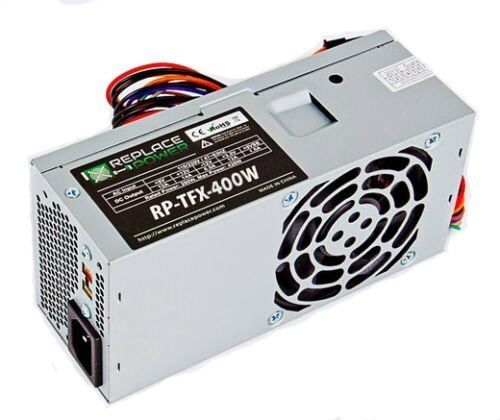
- 92—Power supply. It is a metal box normally located in a back corner of a computer case. A power cord connects the power supply to a wall outlet or surge strip. One purpose is to convert AC voltage to DC voltage to be used internally in the PC. A fan located w/in cools the computer.
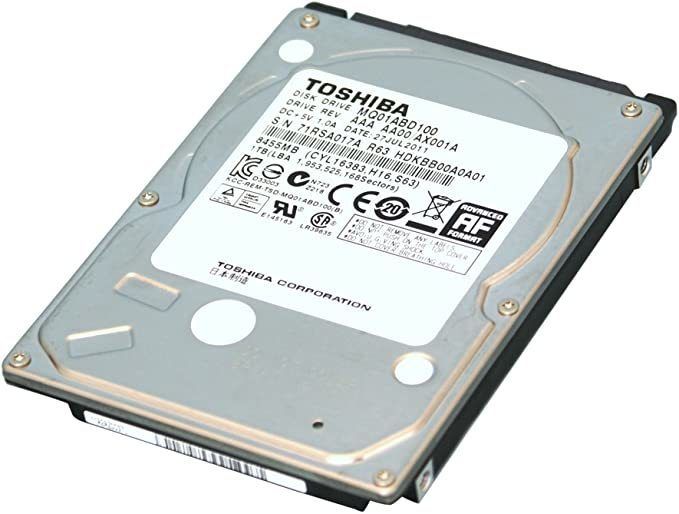
- 93—Hard drive (closed case)
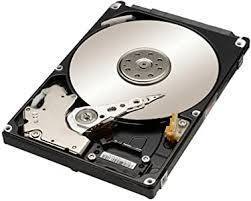
- 94—Hard drive (open)
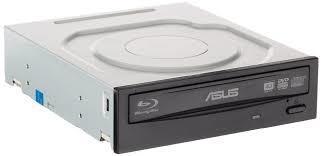
- 95—DVD drive/optical drive
- 96—Motherboard
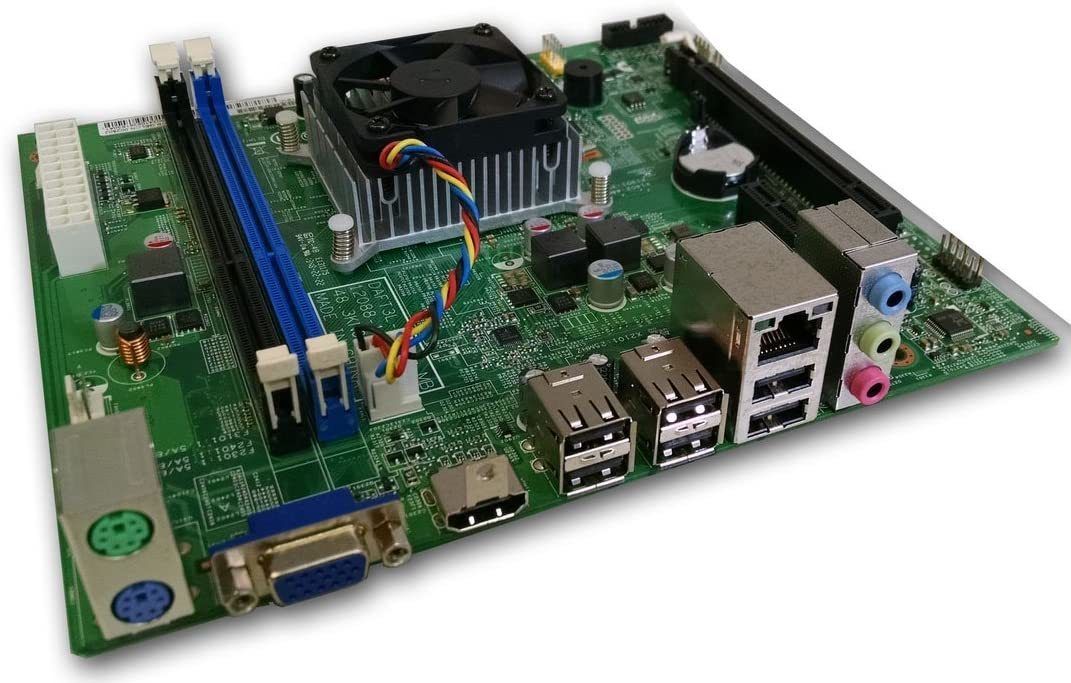
- 97Power SupplyMetal box normally located in a back corner of a computer case. A power cord connects the power supply to a wall outlet or surge strip. One purpose is to convert AC voltage to DC voltage to be used internally in the PC. A fan located w/in cools the computer.
- 98—BIOS (Basic Input/Output System) chip. Located on the motherboard and has a lot of wires leading from it.
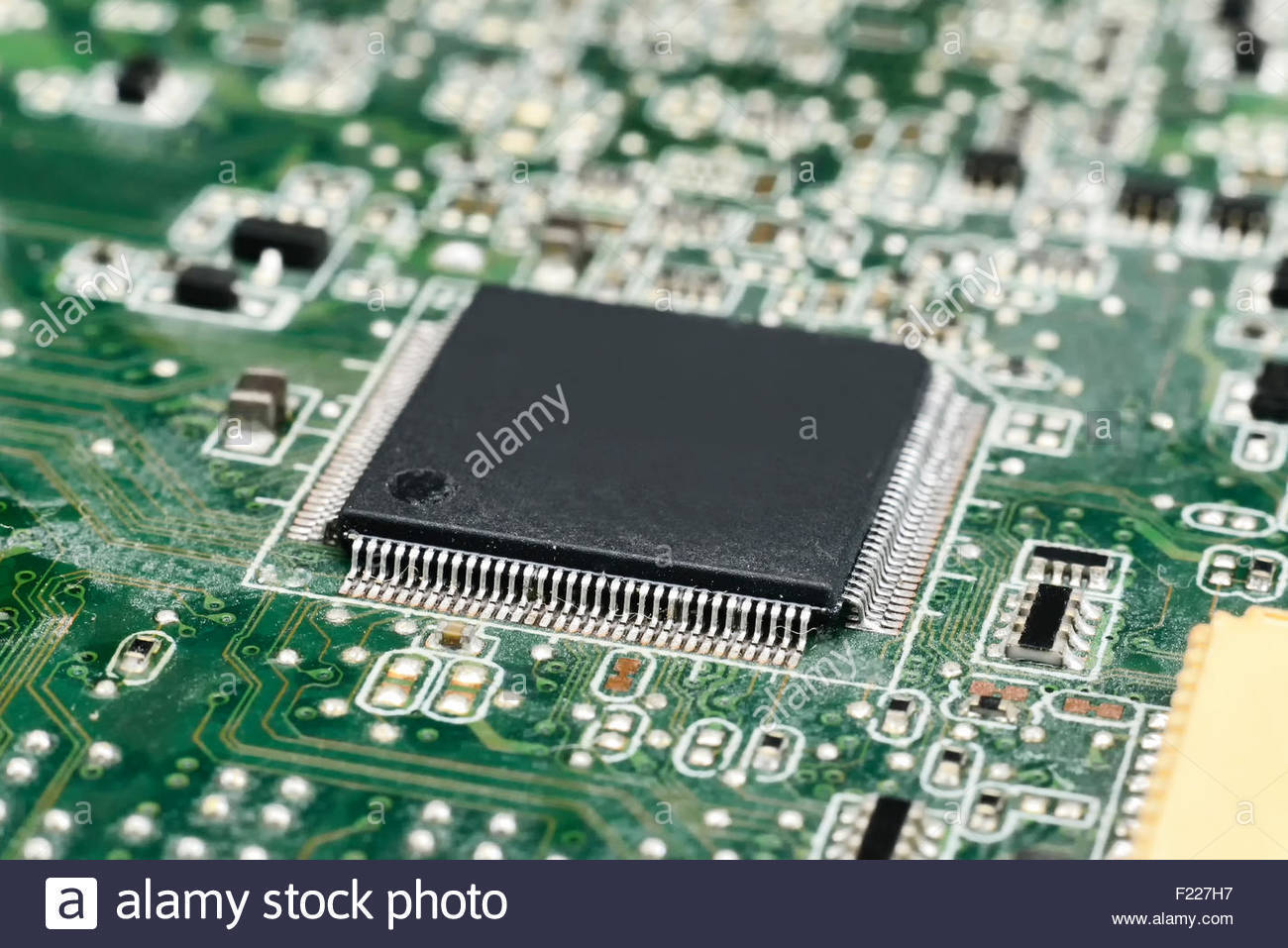
- 99Hard driveSometimes called the hard desk. Rectangular box normally located inside the computer's case that is sealed to keep out dust and dirt. It has no external opening. It stores the software computer for long-term use.
- 100DVD Drive/Optical DriveHolds disks (compact discs, or CDs), digital versatile discs (DVDs), or Blu-ray discs (BDs) that have data, music, video, or software apps on them. The front has a tray that ejects outward so a disc may be inserted.
- 101MotherboardMain circuit board inside a PC that contains the most electronics. Attached is the CPU, RAM modules, the BIOS chip, and other hardware for the computer.
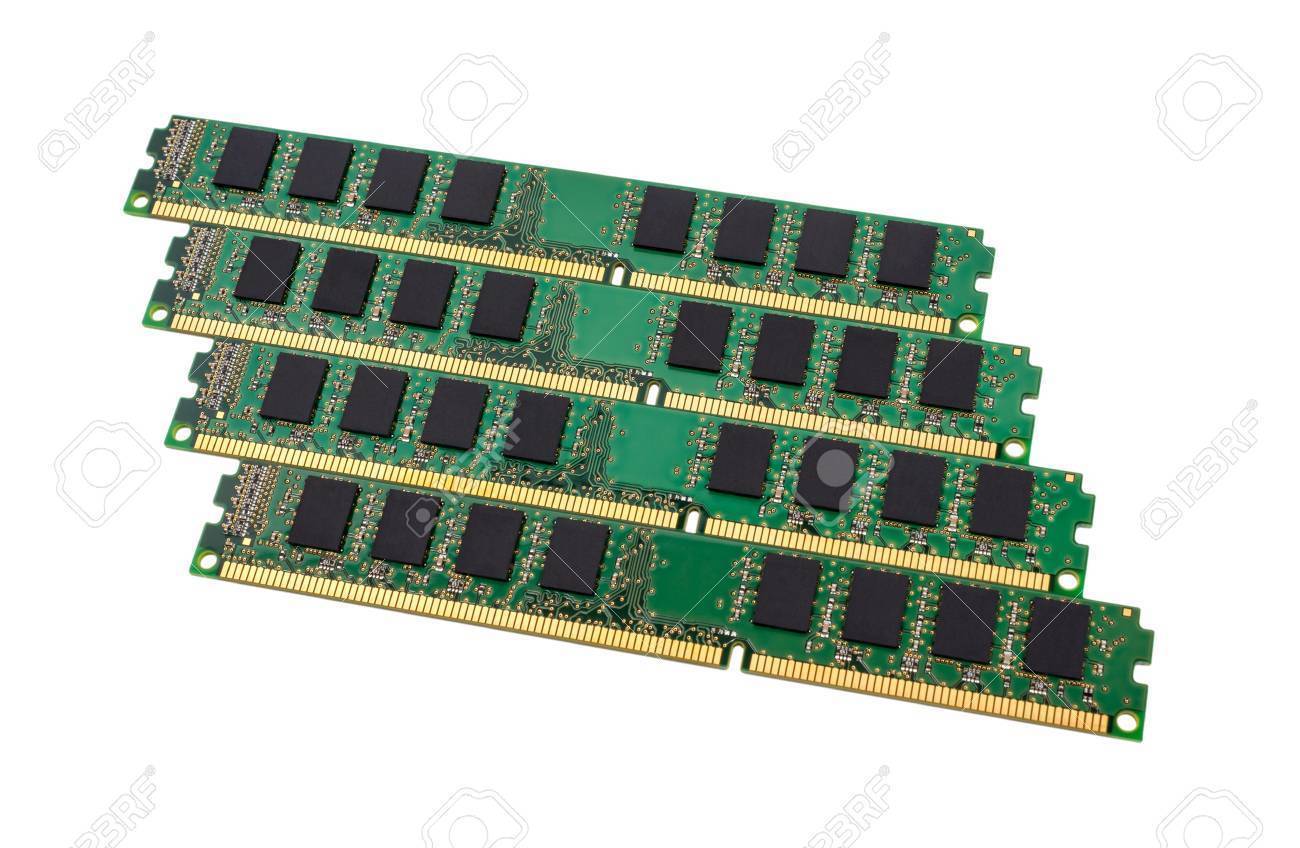
- 102—RAM (memory) modules. They go into slots on the motherboard. Each type of motherboard accepts specific RAM modules.
- 103—Expansion slots for adapters on a motherboard.
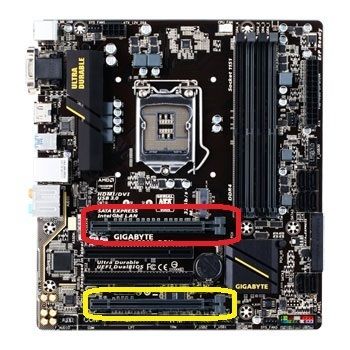
- 104AdapterElectronic card (aka controller, card, controller card, circuit card, circuit board, and adapter board). Allows someone to add a functionality or enhancement that is not provided through the ports on the motherboard. They fit into expansion slots included on the motherboard.
- 105—Example of an adapter that adds more USB slots to the motherboard.
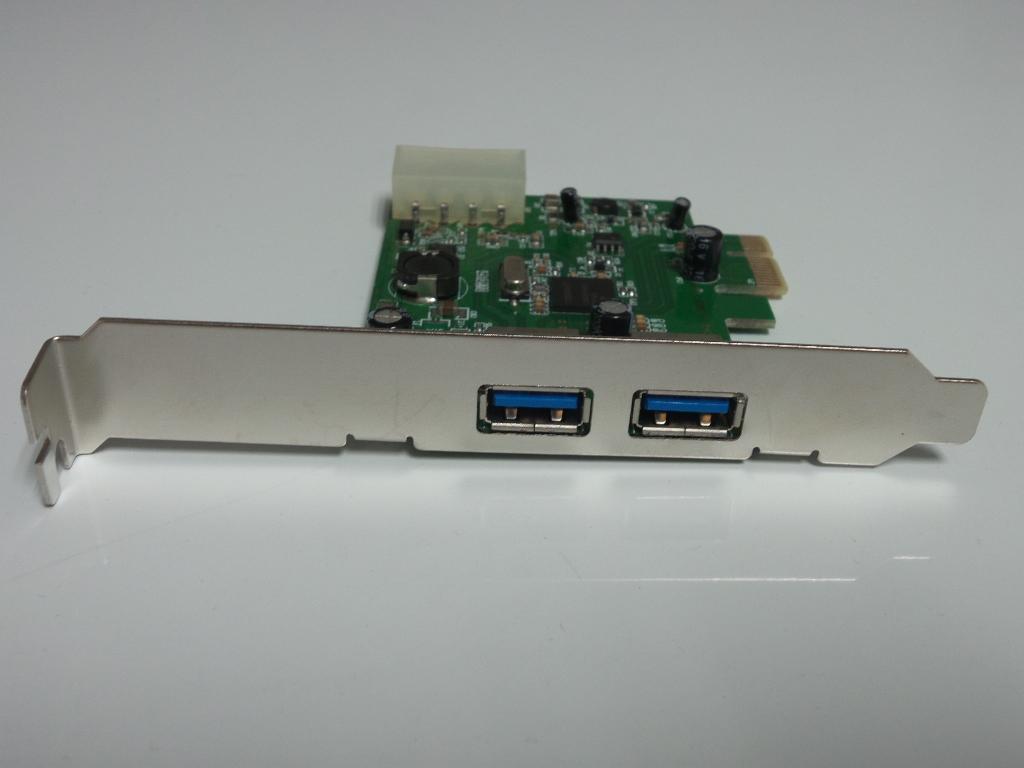
- 106BitA 1 or 0 that represents a single voltage of electricity.
- 107ByteEight bits grouped together.
- 108Kilobyte (kB)Approximately 1,000 bytes (exact number = 1,024).
- 109Megabyte (MB)Approximately 1 million bytes (exact number = 1,048,576 bytes)
- 110Gigabyte (GB)Approximately 1 billion bytes (1,073,741,824 bytes)
- 111Terabyte (TB)Approximately 1 trillion bytes (1,099,511,627,776 bytes)
- 112—DB-9 Serial ports (blue)
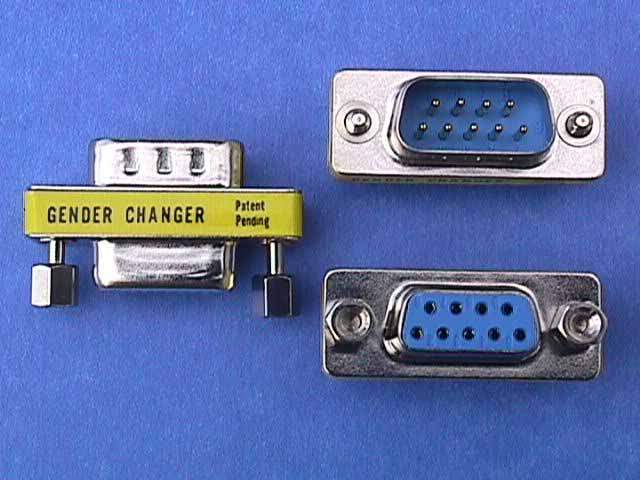
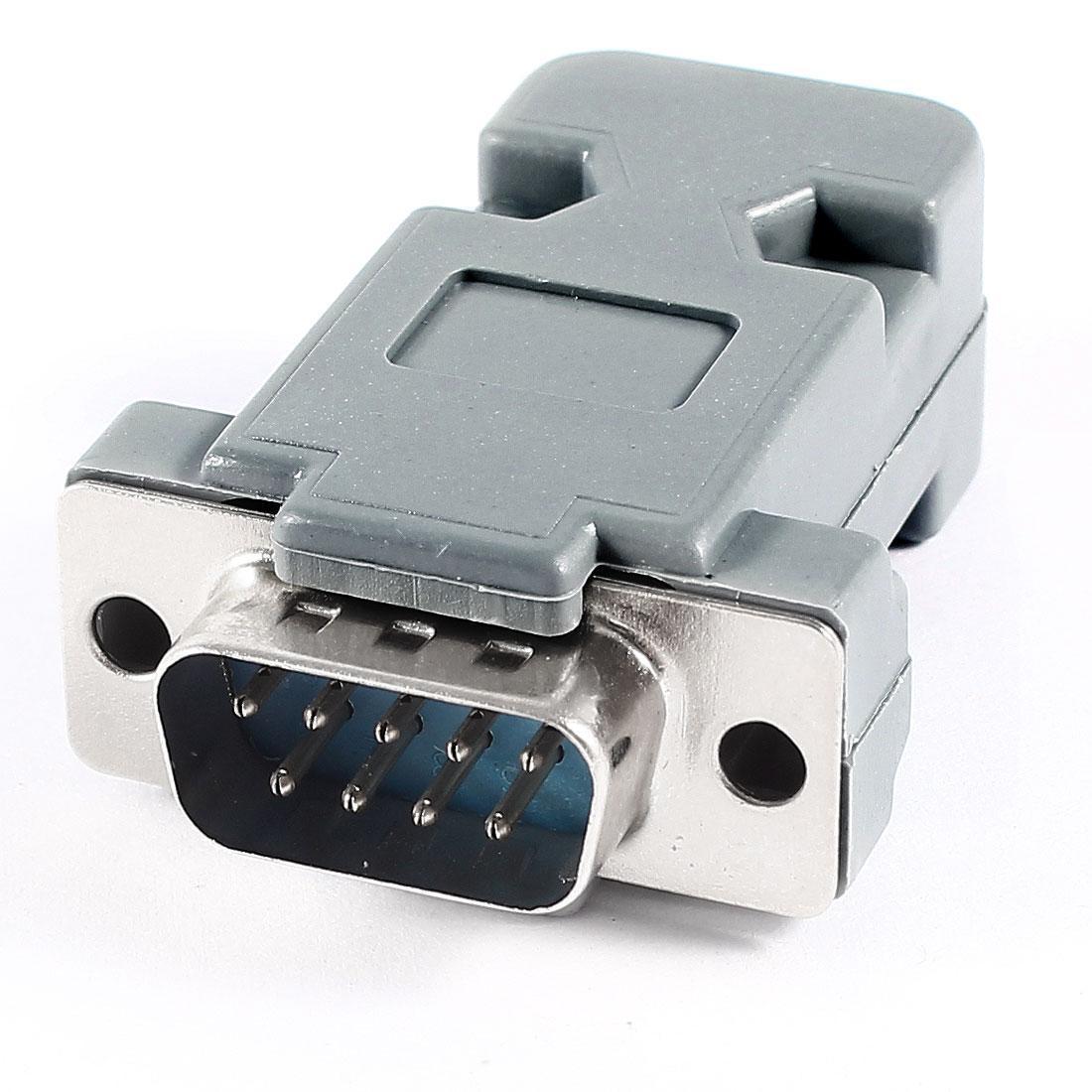
- 113Serial Port9-pin male serial ports found on older motherboards, network equipment, and some projectors. It is also called a DB-9 or RS-232 port.
- 114—Serial cable end (note the 9-pins)
- 115—Thunderbolt Port (note the D-shape)
- 116CPUThe central processing unit (aka processor). It executes instructions, performs calculations, and coordinates I/O ops. In other words, it executes all instructions received from software, user input, and other hardware.
- 117—CPU chip (shiny chip right beneath the hand).
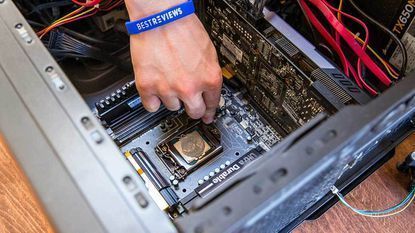
- 118BusLines that carry electric signal (binary: on (1) and off (0)) from the CPU. They are located both inside the CPU housing and outside.
- 119Internal Data BusElectronic lines inside the CPU housing. Also called the "system bus." The word size (the proces
Información
- Descripción
- CompTIA A+ Digital Technologies Fichas sobre A+, creado por Billy Magginis el 03/05/2020.
- Creado por
- Billy Magginis
- Visitas
- 1
- Valoración