
Computer Hardware and Components
353 resources created by 305 users
This Computer Hardware and Components page on GoConqr gathers community-made quizzes, mind maps, flashcards, notes and slide sets, from input and output devices and printers to motherboards, CPU, RAM and storage. It's built for school students revising a topic and teachers after ready-made material. There are over 3,100 resources here, including more than 100 quizzes, over 2,100 mind maps and more than 700 flashcards, made by over 2,700 contributors. Pick a topic, try a quiz to find your gaps, then make your own set.
Top Computer Hardware and Components resources
-
71 questionsHardware Support Exam Ch 19, 20, 21 Notebooks use the same technology as desktops except they use less power and take up less space.
-
22 questionsQuiz chapter 1 - Raheem Which type of memory is primarily used as cache memory?
-
37 questionsCisco Chapter 1 review What are two factors that must be considered when choosing a computer case (Choose two.)
-
21 cardsoutput, output devices and media Output, output devices and media.
-
21 cardsComputer Hardware SCA What connects the internal hardware of a computer system?
-
20 questions8.2 Computer Hardware Which component fetches, decodes and executes data and instructions?
-
16 cardsInput devices and peripherals Keyboard 1. definition 2. functions 3. connector types
-
18 cardsInputs What is an input device?
Quizzes
See all 62 quizzes-
71 questionsHardware Support Exam Ch 19, 20, 21 Notebooks use the same technology as desktops except they use less power and take up less space.
-
22 questionsQuiz chapter 1 - Raheem Which type of memory is primarily used as cache memory?
-
37 questionsCisco Chapter 1 review What are two factors that must be considered when choosing a computer case (Choose two.)
-
20 questions8.2 Computer Hardware Which component fetches, decodes and executes data and instructions?
-
20 questionsInput, output and storage devices An input device enters data into the computer for processing
-
5 questionsComputers 101 for grade 4 and 5 What kind of memory holds data only while there is power to the PC?
-
15 questionsinput devices A mouse, touch screen, and a trackball are all examples of
-
6 questionsThe CPU What does CPU stand for?
Mind maps
See all 155 mind maps-
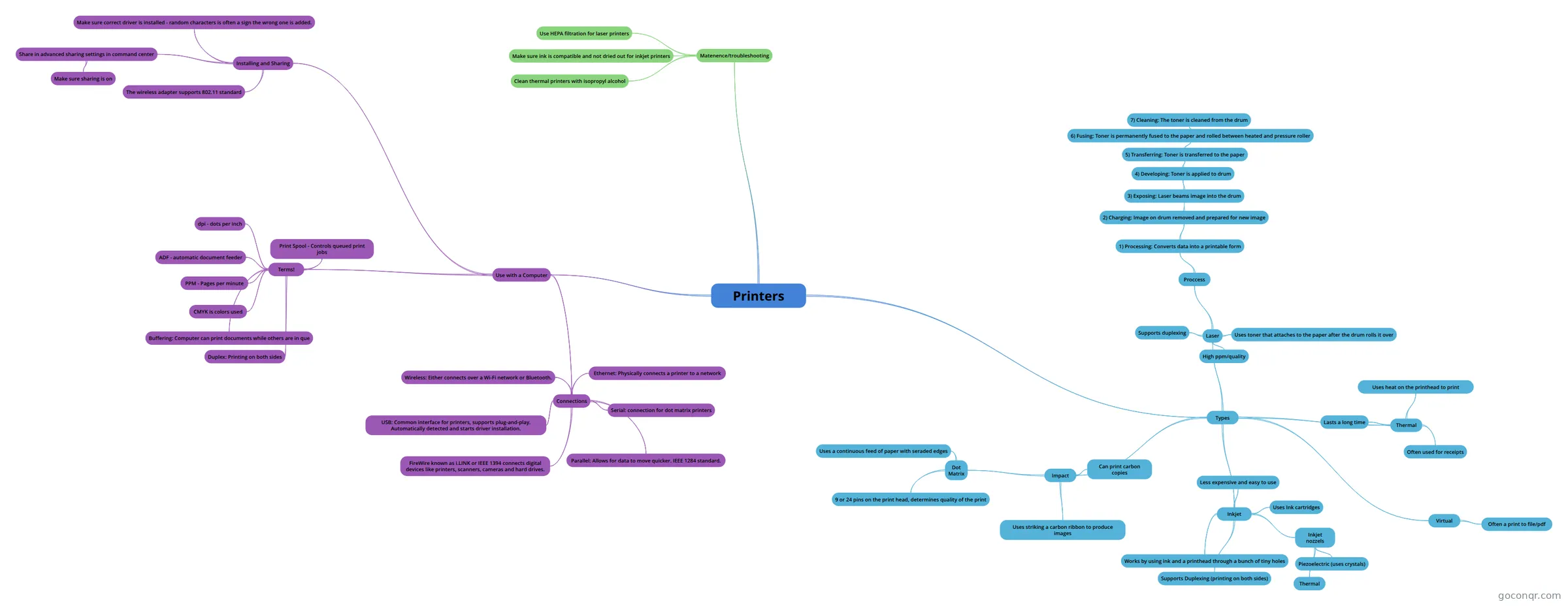 Printers Printer review for CompTIA exam
-
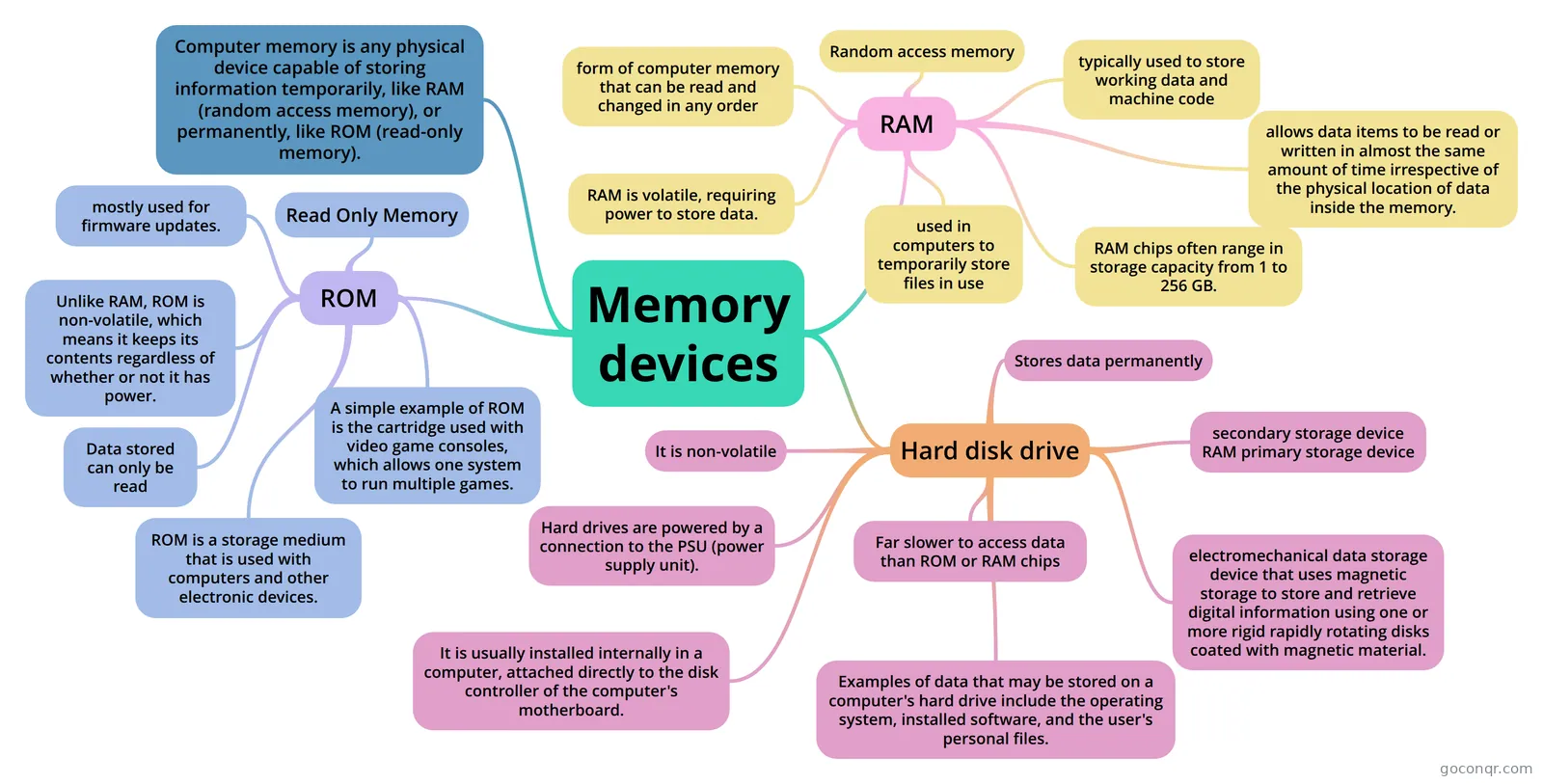 Memory devices ROM, RAM and Hard disk drive
-
MOTHERBOARD MOTHERBOARD
-
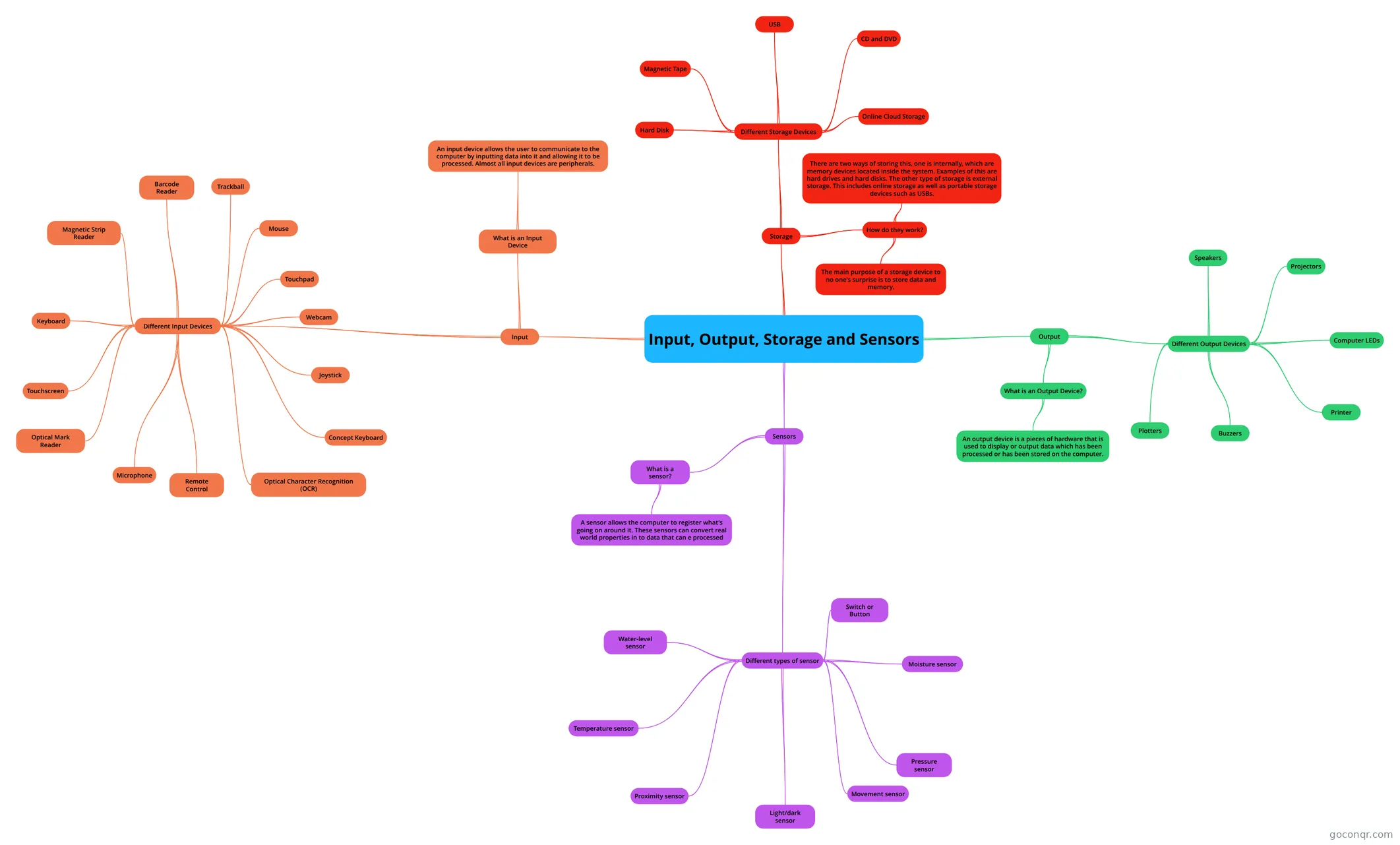 Input, Output, Storage and Sensors My IT revision
-
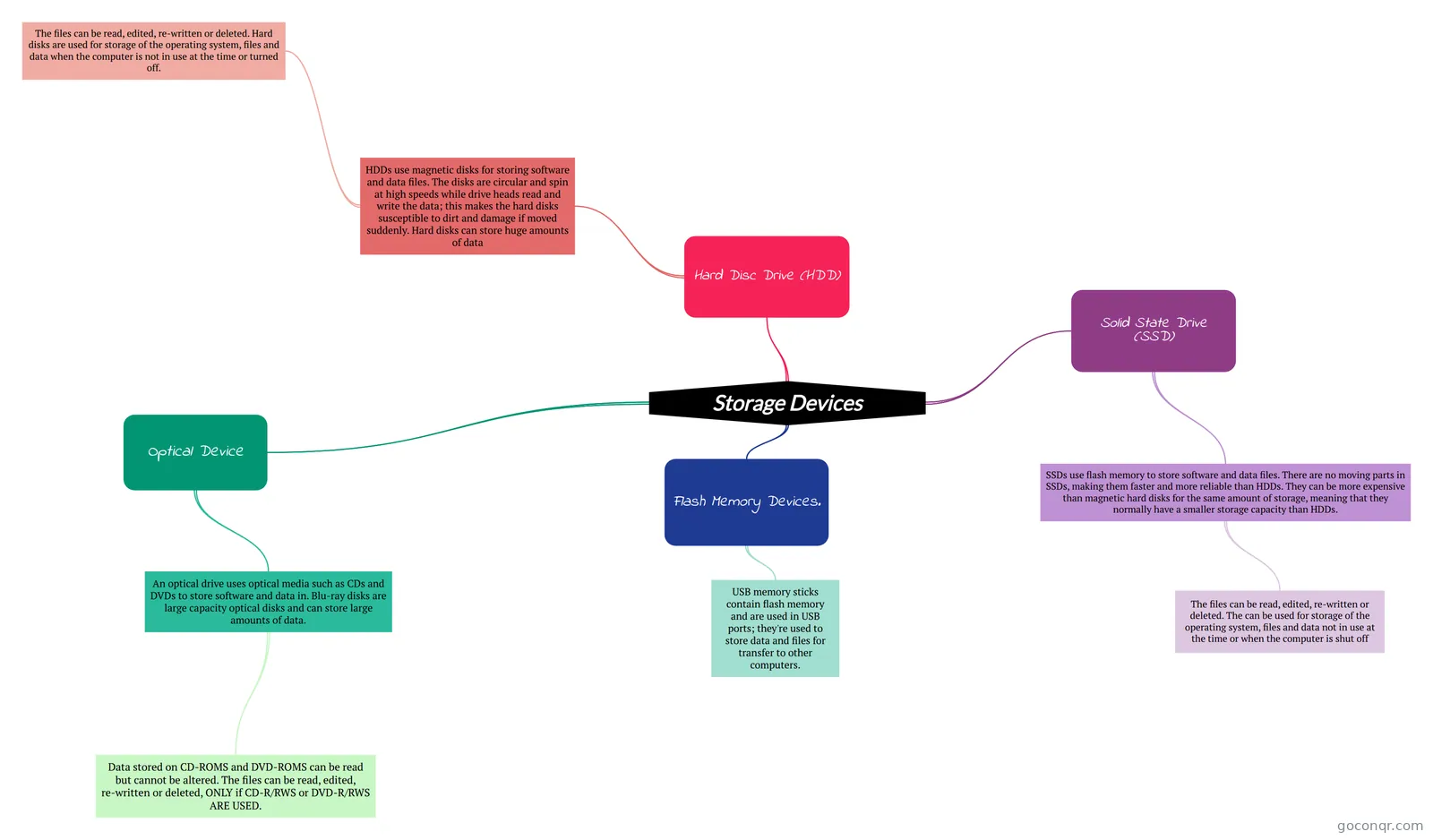 Storage Devices
-
INPUT AND OUTPUT DEVICES A mindmap summarising input and output devices, gor GCSE ICT revision
-
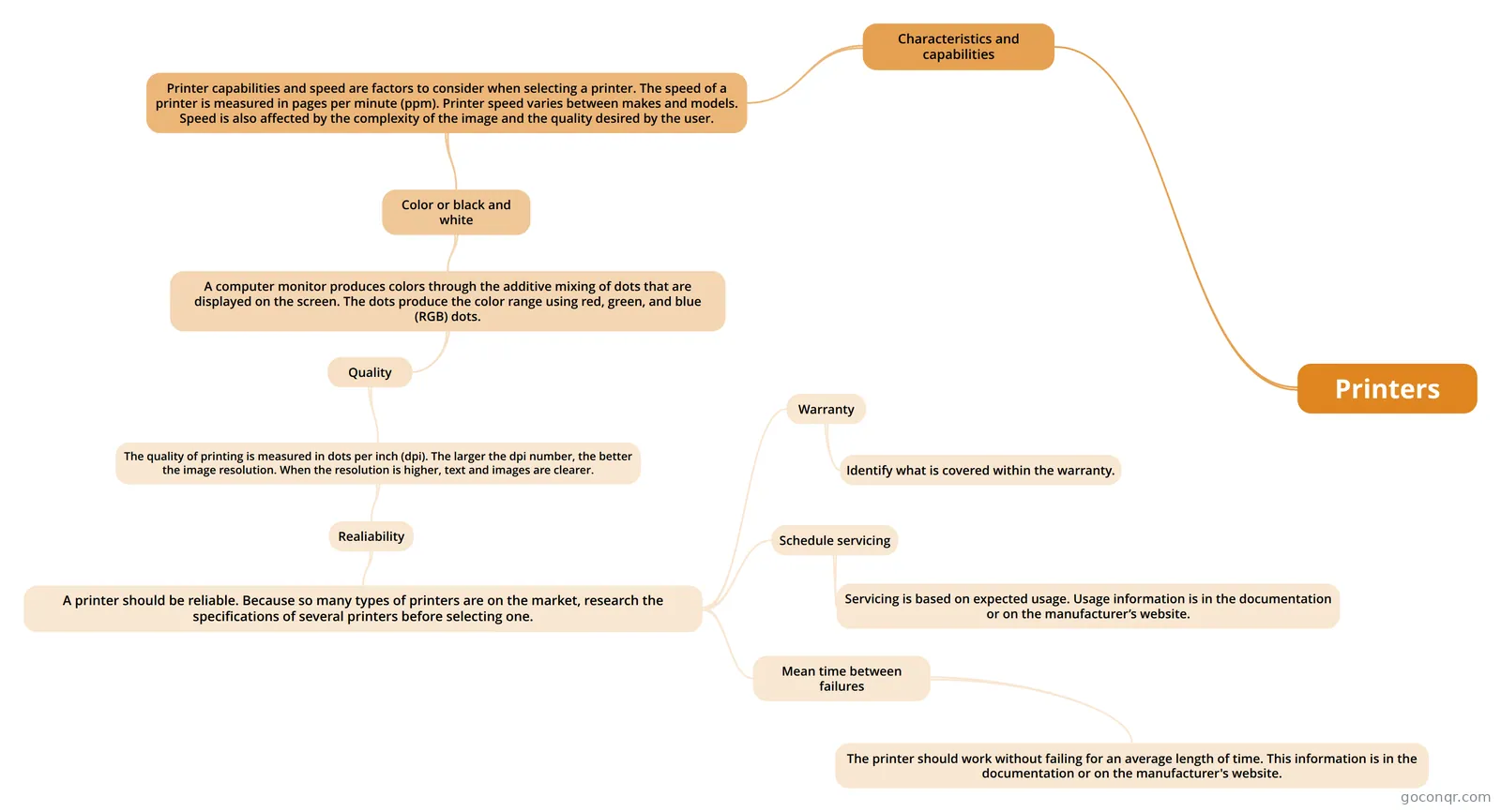 Printers
-
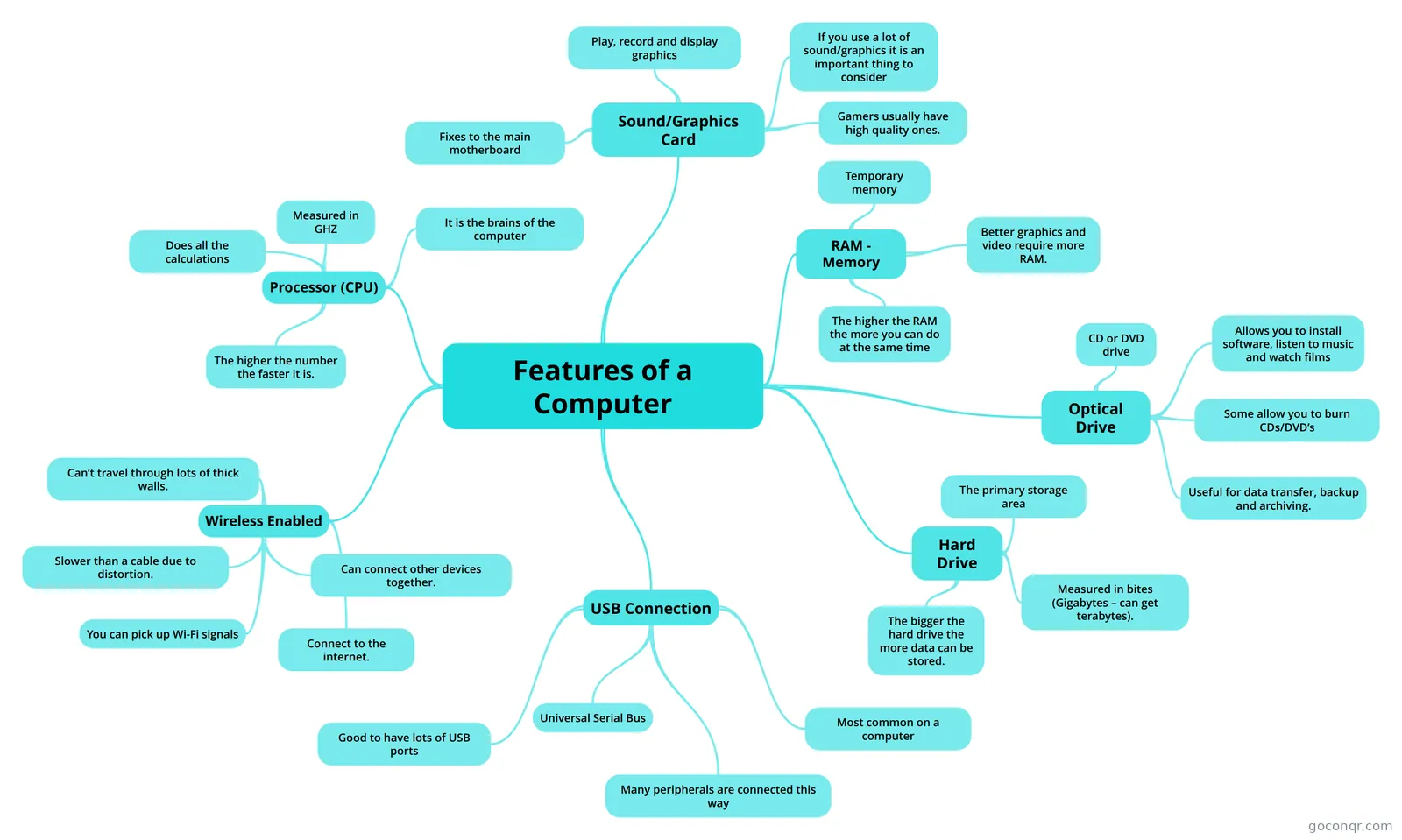 Features of a Computer
Flashcards
See all 116 flashcards-
21 cardsoutput, output devices and media Output, output devices and media.
-
21 cardsComputer Hardware SCA What connects the internal hardware of a computer system?
-
16 cardsInput devices and peripherals Keyboard 1. definition 2. functions 3. connector types
-
18 cardsInputs What is an input device?
-
7 cardsPrinters Printers 1. function 2. connections 3. network share
-
10 cardsWhats inside a computer MotherBoard its the computers main circuit board. this holds all the CPU, memory connectors etc.
-
20 cardsInput and Output Devices Is it an input or output device?
-
9 cardsInternal Hardware components of a computer What is the role of the CPU?
Flowcharts

Notes
See all 10 notes-
Input and Output Devices Input DevicesIn computing, an input device is a peripheral (piece ofcomputer hardware equipment) used to provide data and control signals to an information processing systemsuch as a computer or other information appl...
-
Input & Output Devices Input is data put into a computer for processing. Input devices, are broken down into 3 categories: keyboards, pointing devices, and Data-Entry devices. Keyboard A logitech gaming keyboard. The keyboard is the most po...
-
Storage Magnetive Devices Data storage Device A data storage device is a device for recording (storing) information (data). Recording can be done using virtually any form of energy, spanning from manual muscle power in handwriting, to acoustic...
-
Input and Output Devices Input DeviceskeyboardThe computer keyboard is used to enter text information into the computer, as when you type the contents of a report. The keyboard can also be used to type commands directing the computer to perfo...
-
Parts Of the Computers COMPUTER’S PARTS The computer is collections of physical elements that constitutes a computer system. The physical parts or components of a computer such as the monitor, mouse, keyboard, CPU (Central Processing Unit),...
-
Parts of Computer COMPUTER’S PARTSThe computer is collections of physical elements that constitutes a computer system. The physical parts or components of a computer such as the monitor, mouse, keyboard, CPU (Central Processing Unit), ...
-
GCSE Computing: Hardware GCSE Computing: HardwareContentsKeywordsThe Central Processing Unit (CPU) How it works The fetch-execute cycle Dual-core and quad-core processors How common characteristics of CPU's such as clock speed, cache size and...
-
Memory Memory RAM - Random Access Memory A memory chip will have a size which is normally given in either mega or giga bytes.Memory is then split up into a lot of storage blocks. The number of available blocks is governed by...
Slides
More Computing and ICT (programming, computer science, digital skills, educational technology) topics
About Computer Hardware and Components
GoConqr OriginalWhat the page covers
The resources here follow the parts of a computer. A large group looks at input and output devices. The slide set Input Devices starts with the keyboard, the most widely used input device, and explains numeric and QWERTY layouts. The mind map INPUT AND OUTPUT DEVICES covers the mouse, keyboard, game controller and webcam.
Inside the machine
For the internal parts, look at the mind maps MOTHERBOARD and Motherboards. They describe the main printed circuit board that holds the CPU, RAM and the buses linking them. The flashcard deck Whats inside a computer gives short definitions of the motherboard and the CPU, and Features of a Computer explains processor speed in GHz and temporary memory.
Printers and storage
The two mind maps called Printers compare inkjet, thermal, impact and laser types, and look at speed measured in pages per minute. Storage is covered by Storage Devices and Memory devices, with Rom and Ram for the memory basics.
Where to start
- Read a slide set or mind map on a topic, such as Input Devices.
- Check your recall with a deck like Whats inside a computer.
- Take the quiz Input, output and storage devices, then return to any map where you slipped.
Some resources suit exam courses named in the listings, including GCSE Computer Science, GCSE ICT, IGCSE ICT, OCR Computing and A-level Computer Science. Others, such as Comptia A+, lean towards technician-style hardware support questions.
Place in the subject
This unit sits in the Computer Systems strand of Computing and ICT. Teachers can pick a map or quiz to set as a starter or a revision task. Open a resource that matches your topic and see how much you can recall before checking the answers.
Frequently asked questions
Which resource should I open first?
Start with the slide set Input Devices if you are new to the topic, since it begins with the keyboard and builds outward. If you already know the basics, go straight to the quiz Input, output and storage devices and see which areas need another look.
What do the mind maps cover?
The mind maps cover input and output devices, motherboards, printers, storage, memory, peripherals and the CPU. For example, the Printers maps compare inkjet, thermal, impact and laser types, while the Motherboard maps describe the circuit board that links the CPU and RAM.
Are the resources free to use?
Yes. Every resource listed here is free to open, study and take, with no account needed. They were made by GoConqr users, not by GoConqr itself. A free account also saves your quiz scores and lets you make your own quizzes, maps, flashcards and notes.
Which exams do these resources suit?
The listings mention GCSE Computer Science, GCSE ICT, GCSE Computing, IGCSE ICT, OCR Computing, Cambridge Nationals, A-level Computer Science and A-level ICT. Some also mention IT Essentials and A+. Check each resource against your own course, as they were made by community members.
What if I cannot find my exact topic?
Try a nearby title, such as CPU, RAM, BIOS or Peripherals, since the resources are grouped by hardware topic. Because the material is community-made, you can also build your own mind map, flashcards or quiz on the missing topic.