
Fichas
BTEC ICT theory FIRST HALF
Fichas del conjunto (77)
- 1Multifunctional DevicesDevices that can perform multiple functions, such as inputting and outputting data.
E.g. Touch screen - 2Personal ComputersSmall and inexpensive computers for the use by individual users
E.g. Desktops and Laptops - 3Mobile DevicesSmartphones and tablets are made with portability in mind to give people computer and internet access while on the go
- 4ServersThese powerful computers provide services to other computers connected to a network.
E.g. Mail server - 5Entertainment SystemsDevices for watching TV/films, listening to music and playing video games
- 6Digital CamerasThese capture images and videos digitally using an image sensor and store them as digital data on media such as a memory card or hard drive
- 7Navigation SystemsUse a GPS (Global Positioning Satellite) receiver to locate the users position on a digital map and provide directions to a given destination.
- 8Communication Devices and SystemsCan send and receive analogue or digital data to and from another device.
E.g. Traditional analogue = Phones and faxes
Modern digital = router - 9Data Capture and collection systemsCollect and input data through automated systems rather than direct data entry.
- 10Three examples of Data Capture and collection systems>Barcode Scanner
>Optical Mark Reader
>EPOS (Electronic point of sale) - 116 uses of digital devices1) Education and Training
2) Personal
3) Social
4) Retail
5) Organisational use
6) Creative - 12Peripheral DevicesHardware devices that are not essential to the running of a computer system but that connect to the system and provide additional functions. (Most common types are input and output devices)
- 13Input devices>Keyboard
>Mouse
>Scanner
>Graphics tablet
>Microphone
>Webcam
>Sensor - 14Features of a MicrophoneConverts analogue signals (sound waves) into electrical signals to be sent to the sound card which converts analogue to digital.
- 15Output devices>Monitor
>Projector
>Printer
>Plotter
>Speakers
>Headphones - 16Features of a plotterThis specialist type of printer draws to a very high quality on very large paper
- 17Accessibility Devices (Disabilities)>Trackball
>Touch screen / large key keyboard
>Eye motion sensors
>Braille embosser - 18Manual Processes>Keying client or product details into a database
>Entering customers' meal choices into a restaurant's system.
>Marking exam scripts
>Entering survey responses from a form - 19Automatic processes/Devices>Biometric readers (fingerprints etc)
>Barcode readers
>Optical Mark Recognition (OMR) Readers
>Radio-frequency identification (RFID)
>Smart Meters - 20Hard disk drivesMagnetic storage devices, commonly used as the primary internal storage device but can be external
- 21Advantages of HDD> Low storage capacity (1 terabyte or more)
> Low cost on a per byte basis
> Very reliable - 22Disadvantages of HDD> Slower than SSDs at loading data
> External HDDs are not as portable as some other options - 23Solid State DrivesFlash memory devices commonly used as the primary storage in portable computing devices like tablets and laptops.
- 24Advantages of SSDs> Very fast data read/write speeds
> Low power consumption
> Extremely reliable as they have no moving parts which can be damaged. - 25Disadvantage of SSDs> Higher cost than HDDs on a per byte basis
> Usually have a lower storage capacity
> Only have a finite number of writes - 26SD cardsSmall flash memory cards that are commonly used for storage in digital cameras and some smartphones
- 27Advantages of SD cards> Very small and portable
> Easy to transfer between devices with SD card readers - 28Disadvantages of SD cards> Very small storage capacity, generally around 64gb - greater capacity is costly
> Various 'enhancements' to the standards, resulting in potential compatibility problems (SDHC and SDXC) - 29USB memory sticksSmall flash memory devices that connect through a USB port
- 30Advantages of USB> Extremely portable device
> Compatible with most computer systems through USB ports - 31Disadvantage of USB> Storage capacity is low when compared to HDD and SSD
> Only have a finite number of writes before they break
> Get lost easily - 32Optical disksSuch as CDs, DVDs and Blu-ray disks are used for software, music and movies
- 33Advantages of Optical Disks> Small and portable
> A lot of devices have built in capability to read them - 34Disadvantages of Optical Disks> Archival stability or writable media can be questionable
> Fragile and easy to damage - 35Magnetic tapeUsed for large data backups
- 36Advantages of Magnetic tape> Very large storage capacity
> Cheap on a per byte basis - 37Disadvantages of Magnetic Tape> Data is accessed serially which is very slow
> Requires specialist equipment for recording and reading data. - 38Operating system(on a digital device) is the link between the hardware and the software. It passes messages back and forth and carries out instructions.
- 39Types of operating systems1) Real-time (RTOS)
2) Single-user single task
3) Single-user multi-tasking
4) Multi-user - 40Real-time Operating systems (RTOS)Inputs are processed and responded to instantaneously.
> Provides fast response
> Used for traffic lights - 41Single-user single task OSOne user can use the system at a time, and one application can be run at a time.
> Requires fewer resources - 42Single-user multi-tasking OSOne user can use the system at a time, but many applications can be run simultaneously.
> Open several applications at a time - 43Multi-user OSMany users can use the system at the same time and can run many applications simultaneously.
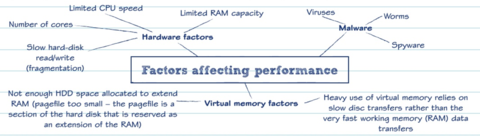
> Processing and resources can be shared by multiple users - 44Factors effecting performance> Hardware factors
> Malware
> Virtual memory factors - 45Role of operating systems1) Networking
2) Security
3) Memory management
4) Multi-tasking
5) Device drivers - 46User InterfacesThe core part of any operating system. It allows the user to interact with the computer system.
1) CLI
2) GUI
3) Menu Based - 47Command Line Interface (CLI)User interacts by typing in commands in response to prompts displayed on the screen
ADV: quick, less memory
DISAD: Knowledge, intimidating - 48Graphical User Interface (GUI)Controlling a pointer or touch screen to select icons and menus displayed on screen.
- 49Menu Based interfaceUsers interact using a simple menu that presents options to choose from e.g. ATM screen
- 50Utility softwareUsed to manage system resources.
1) Disk
2) Network
3) Other (that don't fall under a particular category) - 51Disk utilitiesDesign to maintain performance of a computer's disk drive
> File compressors
> Backup
> Disk deftagmenter - 52Network utilitiesDesign to maintain good network traffic and keep networks secure.
> Firewalls
> Anti-virus - 53Image File types> GIF
> JPEG
> PNG
> BMP - 54Application software file types> DOC and RTF
> PDF
> XLS
> ODF
> PPT
>MDB and ACCDB - 55Video file types> MOV
> AVI
> MP4
> MKV - 56Factors to think about when choosing a file type1) Compatibility
2) Quality
3) File Size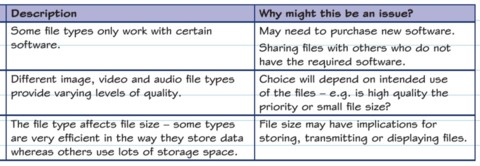
- 57Uses of application software>Productivity software - apps like word, publishers etc
>Graphics software
>Communications software - instant messaging, email, VOIP - 58Name the different types of people who owns the source code behind the software.> Proprietary Software - source code is privately owned by the software company
> Open source software - source code is available to read and modify - 59What to consider when choosing an applications software> Ease of use
> Reliability
> Capability - can do the job required of it - 60Emerging technologiesWhat are currently in development and are just starting to make an impact on business and general society
>Artificial intelligence
>Biometrics
>Robotics
>Virtual reality - 61Choosing an IT system1) User experience and needs
2) Specifications, compatibility and connectivity
3) Cost
4) Efficiency and productivity
5) Implementation
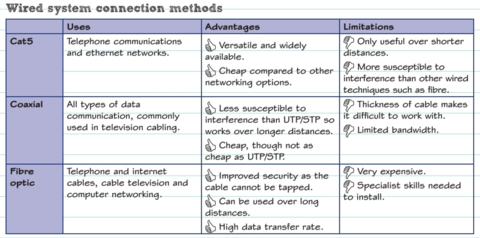
6) Security - 62Wired system connection methods
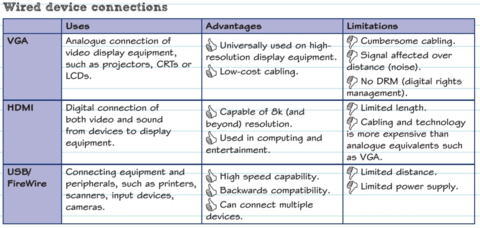
- 63Wired Device connections
- 64Wireless system connection methods
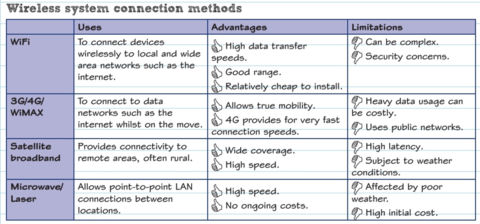
- 65Wireless connections methods for devices
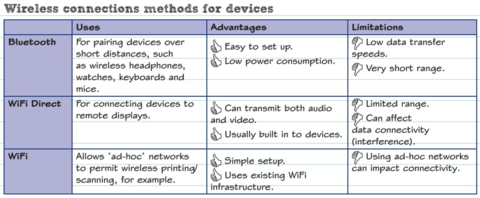
- 66LANA computer that covers a single building or site.
A router might connect a LAN to the internet/WAN - 67WANA computer network that covers a large geographical area such as a country or the world.
Normally made up of many LANs connected together.
E.g. Internet - 68PANPersonal area network. Used to network devices wirelessly within a short range of an individual.
E.g. Bluetooth - 69VPNCreates a secure network connection by encryption.
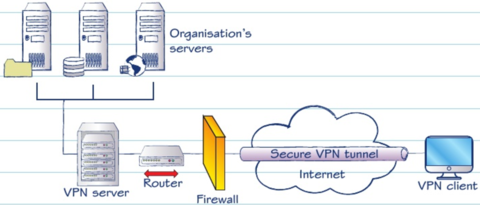
- 70Factors effecting choice of network>User experience & needs
>Specifications
>Connectivity
>Cost
>Efficiency
>Compatibility
>Productivity
>Security - 71Network Performance factors>Bandwidth and connection methods
>Load
>Professional level equipment or SOHO equipment?
>Infrastructure - 72ProtocolsRules that define methods of communicating data between two or more digital devices. They ensure that transmission of data always follows a set procedure.
- 73Transmission Control Protocol and Internet ProtocolTCP/IP used together as basic communication over the internet. Data sent over the internet are sent over 'packets' individually, then re-assembled at the destination.
TCP creates packets - IP routes the packets - 74Email (Protocols)>SMTP - Simple mail transfer protocol (transfers)
>POP3 - Post office protocol 3 (retrieve & Download)
>IMAP - Internet Message Access Protocol (retrieve & sync) - 75Voice and video calls (Protocols)>H.323
>SIP - Session initiation Protocol
>RTP - Real-time Transport Protocol - 76Web pages (Protocols)>HTTP - HyperText Transfer Protocol
>HTTPS
>FTP - File Transfer Protocol - 77Security Protocols>SSL - Secure Sockets Layer
>TLS - Transport Layer Security
Used to make sure that transactions over the network are kept safe
Información
- Descripción
- BTEC IT Fichas sobre BTEC ICT theory FIRST HALF, creado por Maria Cul el 22/03/2017.
- Creado por
- Maria Cul · mar 2017
- Actualizado
- 22 mar 2017
- Visitas
- 24
- Etiquetas
- Valoración