
The internet protocol
Diapositivas del conjunto (69)
-
- The Internet Protocol (IP) is the principal communications protocol in the Internet protocol suite for relaying datagrams across network boundaries. Its routing function enables inter-networking, and essentially establishes the Internet.

- Pie de imagen: The Internet.
-
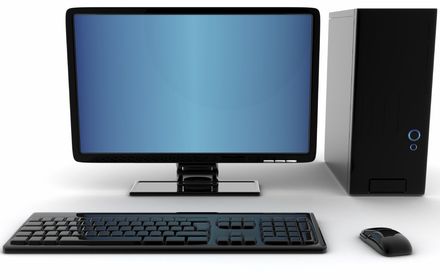
- A point of presence was a location where a long-distance carrier (IXC) could terminate services and provide connections into a local telephone network (LATA). An Internet point of presence is an access point to the Internet.
-
- A Network Access Point (NAP) was a public network exchange facility where Internet service providers (ISP) connected with one another in peering arrangements.
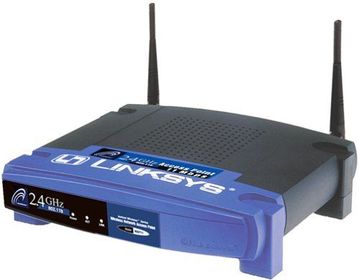
- Pie de imagen: Router
-
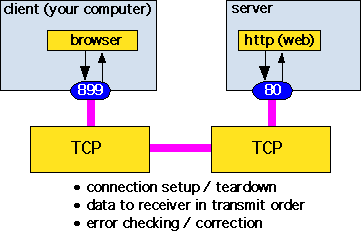
- TCP (Transmission Control Protocol) is a standard that defines how to establish and maintain a network conversation via which application programs can exchange data. TCP works with the Internet Protocol (IP), which defines how computers send packets of data to each other. Together, TCP and IP are the basic rules defining the Internet. TCP is defined by the Internet Engineering Task Force (IETF) in the Request for Comment (RFC) standards document number 793.
-
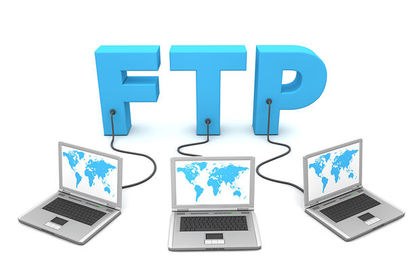
- The File Transfer Protocol (FTP) is a standard network protocol used to transfer computer files from one host to another host over a TCP-based network, such as the Internet. FTP is built on a client-server architecture and uses separate control and data connections between the client and the server.
-
- An Internet Service Provider (ISP) is a company that provides you with access to the Internet, usually for a fee. The most common ways to connect to an ISP are by using a phone line (dial-up) or broadband connection (cable or DSL).
- Pie de imagen: A few popular internet providers.
-
- A computer or program which runs purely to serve the needs of other computers. It runs special that manage communication with the internet.server software to service the requirements of the users (clients). There are several types of servers,including file servers and printer servers on a local area network (LAN), and web and email servers
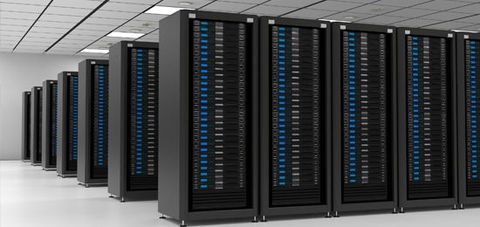
- Pie de imagen: A server room.
-
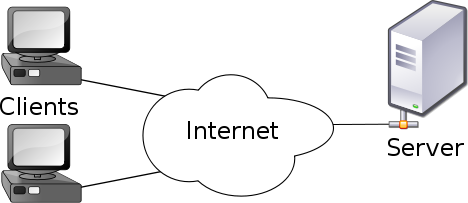
- A computer which uses the services provided by the server.
-
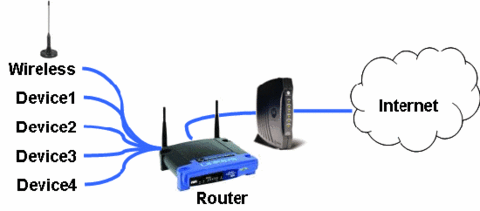
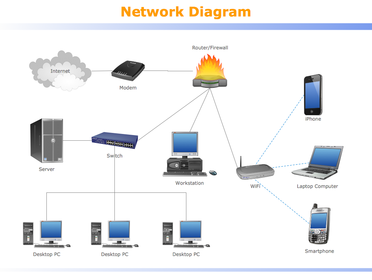
- A piece of hardware that connects two or more networks. In relation to the internet, data from described as ‘directors of traffic’ for the networks.the ISP is sent into the network and the router then directs the data packets to the correct destinations. The router also handles data travelling in the other direction. Routers can be
-
- The main connecting data routes between large networks on the internet and smaller networks in local regions.
-
-
- ADVANTAGES.
- Not fixed to astationary computer.
- Can be used wherever
- there is a wireless hub
- which is accessible.
- DISADVANTAGES
- Need to have access to a wireless hub.
- Can be less secure than wired
- connections.
- Tend to have slower data transmission
- speeds than wired broadband methods.
-
- ADVANTAGES
- Broadbandconnections can give
- better reception and
- are usually faster than
- dial-up.
- DISADVANTAGES
- Requires a base which is wired in, so it
- is less flexible than wireless.
-
- ADVANTAGES
- Can use existingtelephone circuits,
- which is useful in some areas
- DISADVANTAGES
- Older technology gives poor reception
- at times.
- The conversion from digital to
- analogue signals can cause errors.
- Tends to be slower than other
- connection methods.
-
- Hyper-link – A link (which can be text or a graphic) which takes you to another web page or location within a document.

-
- Web server – It is the job of a web server to deliver web pages to users’ computers.
- processes requests via HTTP, the basic network protocol used to distribute information on the World Wide Web. The term can refer either to the entire computer system, an appliance, or specifically to the software that accepts and supervises the HTTP requests.
-
- Wizard – A sequence of dialogue boxes which lead the user through a series of well-defined steps.

- Pie de imagen: internet wizard.
-
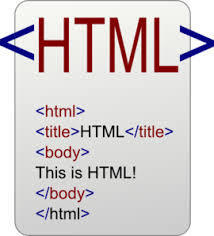
Hypertext markup language (HtML)
- A computer language
- used to create web pages.
-
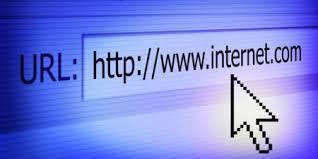
- Web pages are searched for using a uniform resource locator (uRL) , which is a string
- of characters that identify a particular web page on the internet. Every web page has a
- unique URL.
- URLs are made up of three components.
-
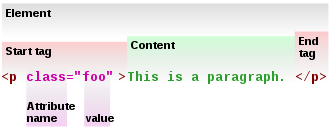
- HtML element – An individual
- component of a HTML
- document.
-
- if you dont know the name of a particular web page or want to find web pages on
- a particular topic, you can use a search engine to fi nd it. Search engines such as
- Google™ and Yahoo! allow you to enter a description of what you are looking for and
- the search engine will search its indexes (databases of web pages) and fi nd matching
- items. The items are normally presented in ranking order, with the most popular or
- relevant search result showing at the top of the list.
-
- codec – A device or program
- used to encode or decode data.
-
- devices/components –
- Used as a generic term to
- mean computers, peripheral
- hardware, mobile telephones,
- manufacturing plant,
- environment monitors and many
- other things.
-
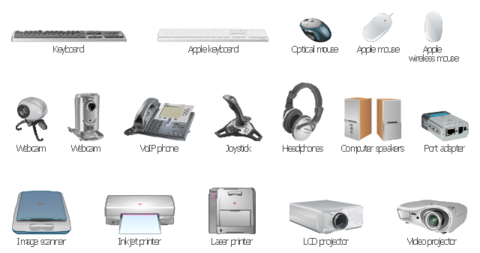
- Peripheral – Any device, such as
- a printer, attached to a computer
- to expand its functionality.
-
- internet packets – A formatted
- block of data sent over the
- networks and the internet.
- A packet contains the addresses
- of send and destination, the data
- and error checking.

-
- Wireless networks are another means by which data can be exchanged between a
- computer and a network, including the internet. A wireless network is any network
- servicing computers or other devices (e.g. mobile phones), in which the connections
- do not use cables of any kind. Wireless communication usually uses radio waves, but
- infra-red communication is also used.
- In wireless networking all devices using the network need to have a wireless networkinterface card through which they gain access to the network. The card is used to
- transmit data across the network and to receive incoming data from the network.
- Wireless networks have many advantages – probably the most important is mobility;
- people are no longer tied to desks and wires.
- Pie de imagen: The wifi symbol
-
- data – Any kind of information
- that has been formatted in a
- specifi c way. Different types
- of data include audio, video,
- images and monitoring signals,
- as well as text.
-
- Mbps – Stands for megabits per
- second. Approximately a million
- bits can be transmitted through
- the media in one second.
-
- Gbps – Stands for gigabits
- per second. Approximately a
- thousand million bits can be
- transmitted through the media in
- one second.
-
- Sun spot activity – From time to
- time there is the equivalent of
- a huge wave of flame released
- from the surface of the Sun.
- This releases millions of charged
- particles, some of which hit
- the Earth. These can cause
- disruption to data transmissions
-
- Geostationary satellite –
- A satellite orbiting the Earth at a
- height of 35,786 km does so at
- the same speed that the Earth
- is rotating. It therefore appears
- to be stationary above a single
- point on the Earth’s surface.
-
- next Wednesday page 20- 21- 24-25
-
- Byte – In computing and
- telecommunications, a byte is
- unit of digital information which
- commonly consists of eight bits.
- (See page 19 for a defi nition of
- bits.)
-
- Half-duplex transmission: allows two-way transmissions but the devices don’t transmit
- at the same time. A system being used to monitor and control manufacturing processes
- can use half-duplex transmissions. It will send a message to the control computer,
- which will respond with new settings, but they both cannot send messages at the
- same time. Some network systems use half-duplex to maximise bandwidth.
-
- Full duplex transmission: allows two-way communication at the same time.
- The telephone system, land or mobile, is an example of a full duplex system.
-
- 1 Simplex transmission: sends data in one direction only. A radio broadcast is a good
- example of simplex transmission
-
- In parallel transmission, a number of bits of data are transmitted simultaneously over
- an equal number of wires/channels. This allows the bits in a whole byte of information
- to be transmitted together. It has a short range, with an absolute maximum of around
- 5 metres.
- Parallel transmission used to be popular for connecting printers to computers but it is
- rarely used these days in computing because of its cost and limited range.
-
- serial transmission, bits are transmitted one at a time over a single wire/channel.
- This reduces the cost of the cable, but gives a slower rate of data transfer. There is also
- some additional complexity, as bytes have to be disassembled into individual bits for
- transmission and then reassembled after receipt. Serial transmissions can be used over
- large distances.
- ] U niversal
-
- universal serial bus (uSB) is a serial transmission method which was introduced to
- make many of the connections to a computer look the same. Nowadays USB is used in
- a wide variety of devices, such as mobile telephones, memory sticks and MP3 players.
- USB ports also supply power to some devices.
- The maximum theoretical transmission rate for USB 2.0 is 480 Mbps, but this is shared
- among all devices on a USB hub, so the rate for each device will be less than this.
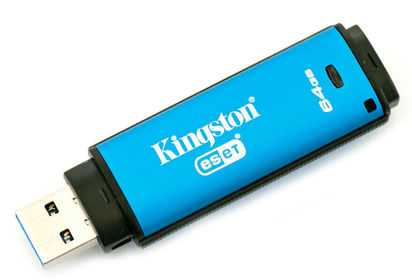
- Pie de imagen: cheeky picture of a mad ting usb drive
-
- Bi-directional transmission has several meanings within data communication, but it
- is essentially about transmitting in both directions. Most recently the term has been
- applied to fi bre optics. Using the current technology, light passes in one direction
- only, so you have to add extra fi bres to the bundle to carry a signal in the opposite
- direction.
-
- client-side processing is the use of a scripting language to create code on web pages
- which provides interactivity. The important point is that the interaction takes place
- within the web page and the code is downloaded to the user’s computer when the
- web page is opened by the user’s browser.
- A good example of a client-side interaction is a roll over (often called a mouseover),
- where some code is triggered when you move the mouse over a particular part of
- the web page. This might be something simple like the display of an advertisement,
- or it could be a demand for some data entry (e.g. fi lling in your details on a social
- networking website).
- Benefits of client-side processing include:
- • Speed: The interaction may be faster once the code has been downloaded with the
- page.
- • Security: It is more secure (than server-side processing) as all the action takes place
- in the downloaded page and nothing comes from the browser, which could cause
- corruption or security problems.
- Disadvantages of client-side processing include:• It is browser specific: Not all scripts work the same way on all browsers, so you may
- have to create different versions depending on the browsers used.
- • Computer speed: It can be affected by the speed of your own computer. As
- all of the activity is taking place on a downloaded web page, the speed of the
- download and the speed of processing will depend on your computer system. If the
- processing is complex or resource hungry, it may run slowly or cause other programs
- to run slowly on your system.
-
- ] Bi-directional transmission
- Bi-directional transmission has several meanings within data communication, but it
- is essentially about transmitting in both directions. Most recently the term has been
- applied to fi bre optics. Using the current technology, light passes in one direction
- only, so you have to add extra fi bres to the bundle to carry a signal in the opposite
- direction.
-
this can be my break slide tbh
- Q: What was the name of the hair salon next to the graveyard?
- A: Curl Up and Dye.
-
- A database is a system for managing a collection of data. Data about a particular type
- of thing – for example, customers or products – is stored in a table . You can think of a
- table as a grid. Every row in the table holds information about a single item; this is also
- called a record . Every column holds information about a property of the items in the
- table, such as a customer’s name or an item’s price – these properties are called fields
-
- table – A two-dimensional
- representation of data in a
- database.
-
- Record – A group of selected
- data which are associated in
- some way.
-
- Field – A single piece of data
- within a record.
-
- Primary key – A single unique
- key used to identify each record
- in a table.
-
- Foreign key – A field which can
- be used to cross-reference and
- access associated information
- across many tables.
-
- The DBMS allows you to create, maintain, search and sort data on a database. It allows
- different users to access the database at the same time, and can provide different
- levels of access to the data.
-
- Structured Query Language (SQL) is a high-level language which is used to undertake
- this management activity. It is normally in two parts:
- 1 data defi nition Language (ddL): This is the part which is used to defi ne the
- database structure.
- 2 data Manipulation Language (dML): This is the part used to add, delete, change
- and query the data which is held in the database structure.
- SQL is the language that generates the code used by the DBMS
-
- opportunist threats. People who fi nd an unattended computer which has been
- left logged in to a system may view, steal or damage information, programs or even
- hardware
-
- computer viruses. These are small programs which can replicate themselves and
- spread from computer to computer. They are never benefi cial; usually they will make
- some changes to the system they infect and, even if they do no real damage, they
- are undesirable. They arrive by attaching themselves to fi les or email messages.
-
- other malware. Examples of malware include: computer worms (essentially a
- computer virus which does not need to attach itself to a fi le or message); Trojan
- horses, which appear as some benign program allowing a hacker full access to a
- system; spyware; adware; and various other nasties. Malware is never benefi cial.
-
- Trojans are malicious programs that perform actions that have not been authorised by the user. These actions can include:
- Deleting data
- Blocking data
- Modifying data
- Copying data
- Disrupting the performance of computers or computer networks
- Unlike computer viruses and worms, Trojans are not able to self-replicate.
-
- this type of threat which attempts to gain access to passwords,financial details and other such privileged information. Often this is done by email
- messages pretending to come from trusted websites, instant messaging or social
- networks. Normally they try to divert you to a website which looks original and which asks for information.
-
- this may be caused by a natural disaster (e.g. flooding),
- mischief or accidental mishap, and can result in losing all of a computer’s data.
-
- Physical barriers. These include turning off computers and locking offi ces when the
- systems are unattended to prevent damage by people, the environment (e.g. fi re,
- fl ooding, electrical interference) or theft.
-
- Password control of access. Passwords are sequences of characters, known only
- to the computer user, which allow access to a computer, network or application.
- Passwords should always be strong so that it is hard for someone else to guess them
- or work them out.
-
- Access levels. These can be set up to allow individuals to have access to only
- specifi c levels of an application and to prevent unauthorised users from accessing
- particular data.
-
- Anti-virus software. This is set up to intercept computer viruses before they can
- become resident on the computer. The software can isolate the virus, remove it and
- sometimes repair any damage. Equivalent security programs exist for other types of
- malware.
-
- Firewall. This is a piece of software that monitors all data arriving at your computer
- from the internet and all data leaving your computer. It stops anything that it thinks
- is harmful or unwanted (such as viruses, spam, Trojan horses and hackers).
-
- encryption. This is used to codify data so that it cannot be read by anyone who does
- not have the key to the code. An algorithm, sometimes known as a cipher, is applied
- to the data at the transmission end and the reverse is applied at the reception end.
-
- Backup and recovery. Making a backup of data is the only way of recovering from a
- total data disaster. Many individuals and organisations back up data to Flash ® solid
- state storage devices or magnetic tape at night. The tapes are stored safely in a
- separate place, so that they are not destroyed by any disaster which could destroy
- the master system (fi re, earthquake, etc.). Many types of backup exist, including:
- Full system backup of all data held for a specifi c purpose.
- Incremental backups of fi les or data that has been changed since the last full
- backup. This is faster than running a full back up every time.
- Backups to removable media, such as a removable hard drive (if you have a large
- amount of data), USB sticks, CDs and DVDs.
- It is also possible to back up data across a network (or across the internet) to a server in
- a completely separate location (for example, backing up data to the cloud).
-
- provides 8 principles that govern the way data about individuals is stored and used.
-
- introduced to protect from hackers and malicious use of viruses
-
copyright designs and patents act 1998
- protects creators of the original piece of work, art, music or pictures.
-
freedom of information act 2000
- provides individual the right to see information stored about them. data can also be accessed about public bodies.
-
8 principles of the data protection act
- The Data Protection Act controls how your personal information is used by organisations, businesses or the government.Everyone responsible for using data has to follow strict rules called ‘data protection principles’. They must make sure the information is:
- used fairly and lawfully
- used for limited, specifically stated purposes
- used in a way that is adequate, relevant and not excessive
- accurate
- kept for no longer than is absolutely necessary
- handled according to people’s data protection rights
- kept safe and secure
- not transferred outside the European economic a without adequate protection
- There is stronger legal protection for more sensitive information, such as:
- ethnic background
- political opinions
- religious beliefs
- health
- sexual health
- criminal records
Información
- Descripción
- BTEC ICT Diapositivas sobre The internet protocol , creado por Darude-Samstorm el 04/11/2015.
- Creado por
- Darude-Samstorm · nov 2015
- Actualizado
- 28 abr 2016
- Visitas
- 32
- Valoración