
Mind map
UNIX
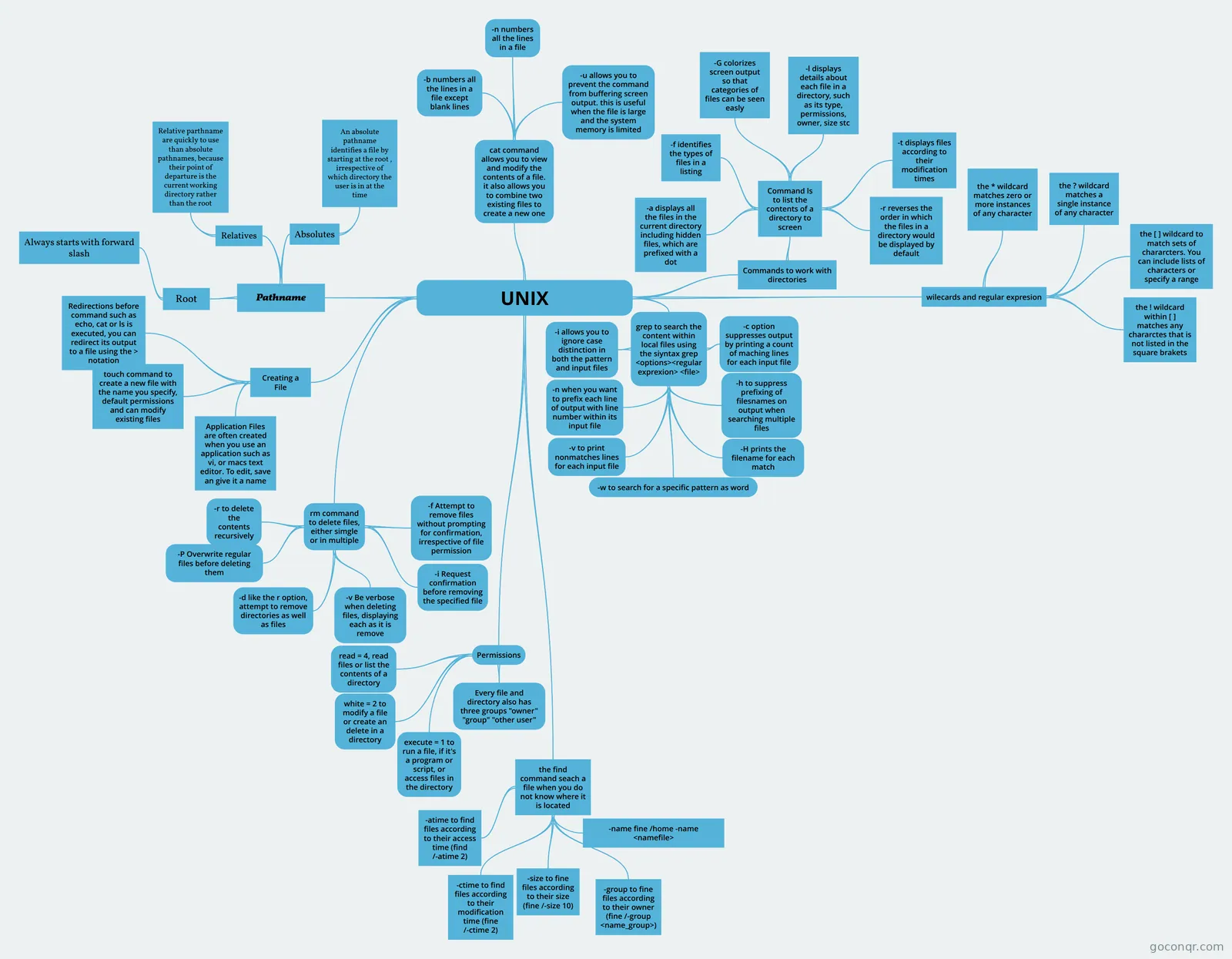
Mind map: UNIX commands and file management
Map content
UNIX
Pathname
- Root
- Always starts with forward slash
- Relatives
- Relative parthname are quickly to use than absolute pathnames, because their point of departure is the current working directory rather than the root
- Absolutes
- An absolute pathname identifies a file by starting at the root , irrespective of which directory the user is in at the time
- Root
Commands to work with directories
- Command ls to list the contents of a directory to screen
- -a displays all the files in the current directory including hidden files, which are prefixed with a dot
- -f identifies the types of files in a listing
- -G colorizes screen output so that categories of files can be seen easly
- -l displays details about each file in a directory, such as its type, permissions, owner, size stc
- -r reverses the order in which the files in a directory would be displayed by default
- -t displays files according to their modification times
- Command ls to list the contents of a directory to screen
cat command allows you to view and modify the contents of a file. it also allows you to combine two existing files to create a new one
- -b numbers all the lines in a file except blank lines
- -n numbers all the lines in a file
- -u allows you to prevent the command from buffering screen output. this is useful when the file is large and the system memory is limited
Creating a File
- touch command to create a new file with the name you specify, default permissions and can modify existing files
- Redirections before command such as echo, cat or ls is executed, you can redirect its output to a file using the > notation
- Application Files are often created when you use an application such as vi, or macs text editor. To edit, save an give it a name
rm command to delete files, either simgle or in multiple
- -r to delete the contents recursively
- -P Overwrite regular files before deleting them
- -d like the r option, attempt to remove directories as well as files
- -v Be verbose when deleting files, displaying each as it is remove
- -i Request confirmation before removing the specified file
- -f Attempt to remove files without prompting for confirmation, irrespective of file permission
Permissions
- read = 4, read files or list the contents of a directory
- white = 2 to modify a file or create an delete in a directory
- execute = 1 to run a file, if it's a program or script, or access files in the directory
- Every file and directory also has three groups "owner" "group" "other user"
wilecards and regular expresion
- the * wildcard matches zero or more instances of any character
- the ? wildcard matches a single instance of any character
- the [ ] wildcard to match sets of chararcters. You can include lists of characters or specify a range
- the ! wildcard within [ ] matches any chararctes that is not listed in the square brakets
the find command seach a file when you do not know where it is located
- -atime to find files according to their access time (find /-atime 2)
- -ctime to find files according to their modification time (fine /-ctime 2)
- -group to fine files according to their owner (fine /-group <name_group>)
- -size to fine files according to their size (fine /-size 10)
- -name fine /home -name <namefile>
grep to search the content within local files using the siyntax grep <options><regular exprexion> <file>
- -c option suppresses output by printing a count of maching lines for each input file
- -h to suppress prefixing of filesnames on output when searching multiple files
- -H prints the filename for each match
- -i allows you to ignore case distinction in both the pattern and input files
- -n when you want to prefix each line of output with line number within its input file
- -v to print nonmatches lines for each input file
- -w to search for a specific pattern as word