
Flashcards
Backups and Snapshot
Cards in this deck (18)
- 1Backing up Gaia system level configurationCreating a backup of the system level configuration in Gaia will preserve information such as static routes, interface IP address information, etc.
Run: CLI > save configuration
This will create a file with your current system level configuration in the home directory of the current user. - 2How to load a Gaia system level configuration backupHow to make a Gaia system level configuration backup: CLI > save configuration
To load the configuration, use the following procedure:
Copy the file into the home directory of the user you will log in as.
Run the following command using the name of the configuration file.
A message will display showing the current progress and any errors that are encountered.
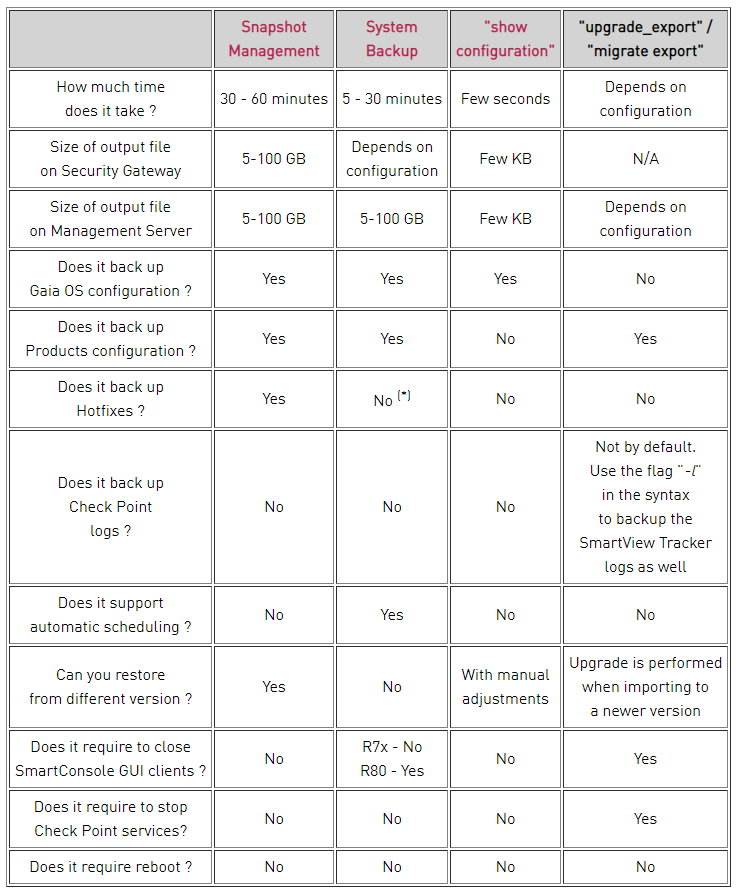
Then save config to commit the changes:
HostName > set clienv on-failure continue
HostName > load configuration
HostName > set clienv on-failure stop
HostName > save config - 3What are the available methods to backup a Checkpoint system running Gaia OS?The built-in Gaia backup procedures:
- Snapshot Management
- System Backup (and System Restore)
- Save/Show Configuration (and Load Configuration)
All methods can be used to backup your Security Gateways, Security Management and Multi-Domain Server.
All methods are appliance-specific and can only be restored on the same model of appliance. - 4Snapshot Management?The snapshot creates a binary image of the entire root (lv_current) disk partition. This includes Check Point products, configuration, and operating system.
A snapshot is a backup of the system settings and products. It includes:
◦ File system, with customized files
◦ System configuration (interfaces, routing, hostname, and similar)
◦ Software Blades
◦ Management database (on a Security Management Server or a Multi-Domain Server)
Starting in R77.10, exporting an image from one machine and importing that image on another machine of the same type is supported.
The log partition is not included in the snapshot. Therefore, any locally stored FireWall logs will not be saved. - 5System Backup (and System Restore)?System Backup can be used to backup current system configuration. A backup creates a compressed file that contains the Check Point configuration including the networking and operating system parameters, such as routing and interface configuration etc., but unlike a snapshot, it does not include the operating system, product binaries, and hotfixes.
- 6Save Configuration (and Load Configuration)?Allows saving Gaia OS configuration settings as a ready-to-run CLI script.
- 7migrate export?The migrate tool is located in the $FWDIR/bin/upgrade_tools/ directory.
This command backs up all Security Management configuration, independent of hardware, OS or Check Point version.
The output file does not include OS information. - 8eva_db_backup.csh and evs_backup?These tools are used to backup SmartEvent / SmartReporter Server R77.30 and lower
- 9mds_backup?This tool is used to perform advanced backup of Multi-Domain Security Management Server.
- 10Comparison of backup methods
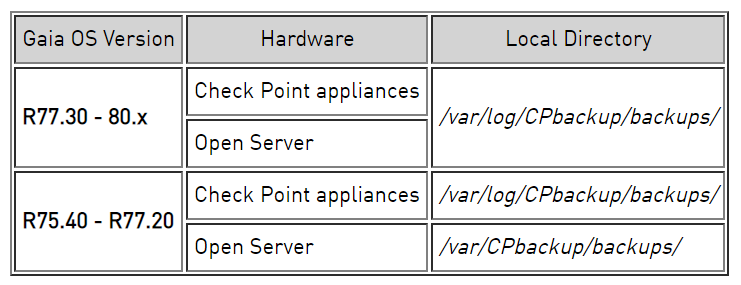
- 11The configuration is saved to a .tgz file in the following directory:Gaia's Backup feature allows backing up the configuration of the Gaia OS and of the Security Management server database, or restoring a previously saved configuration.
- 12How to create a backup (Clish)To save a backup locally:
add backup local
To save a backup on a remote server using FTP:
add backup ftp ip VALUE path /some/path/ username VALUE password plain
To save a backup on a remote server using TFTP:
add backup tftp ip VALUE
To save a backup on a remote server using SCP:
add backup scp ip VALUE path /some/path/ username VALUE password plain - 13Creating backup package. Use the command 'show _____ status' to monitor creation progress.HostName> add backup local.
Creating backup package. Use the command 'show backup status' to monitor creation progress. - 14How to restore from a backup (Clish)Use one of the following commands, depending on the backup type.
To restore a local backup:
set backup restore local
To restore a backup from a remote server using FTP:
set backup restore ftp ip VALUE path /some/path file VALUE username VALUE password plain
To restore a backup from a remote server using TFTP:
set backup restore tftp ip VALUE file VALUE
To restore a backup from a remote server using SCP:
set backup restore scp ip VALUE path /some/path file VALUE username VALUE password plain
Once restore is done, you must reboot and install policy in order to apply the new configuration. - 15Monitoring Backup and Restore Status (Clish)To show a list of local backups:
show backups
To show the status of a backup or restore operation being performed:
show backup status - 16Backup limitations that apply to all Gaia versionsRestore is only allowed using the same Gaia version on the source and target computers.
Restore is only allowed using the same appliance model on the source and target computers.
Once restore is done, you must reboot the machine and install policy in order to apply the new configuration.
The backup file name generated by the backup command should not be renamed and must not contain spaces.
Log files are not backed up by default for Security Management Servers
Log files are backed up by default for MDS backups.
Endpoint Security Server Database is not backed-up by Gaia backup. - 17Gaia Snapshot Image Management considerations- When Gaia creates a snapshot, all system processes and services continue to run. Policy enforcement is not interrupted.
- You can import a snapshot created on a different release or on this release. You must import it to the same appliance or open server hardware model.
- After importing the snapshot, you must activate the device license from the Gaia Portal or the User Center. - 18Configuring Snapshot Management - Gaia Clish (snapshot)To make a new image:
add snapshot VALUE desc VALUE
To export or import an image, or to revert to an image:
set snapshot export VALUE path VALUE name VALUE
set snapshot import VALUE path VALUE name VALUE
set snapshot revert VALUE
To show image information
show snapshot VALUE all
show snapshot VALUE date
show snapshot VALUE desc
show snapshot VALUE size
The parameters are:
snapshot VALUE: Name of the image
desc VALUE: Description of the image
Information
- Description
- User has deleted their subject information Flashcards on Backups and Snapshot, created by Deleted user on 30/05/2019.
- Created by
- Deleted user · May 2019
- Updated
- Jun 17, 2019
- Views
- 29
- History
-
- Created by brian gustavo triviño taborda · May 30, 2019
- Copied by brian gustavo triviño taborda · May 30, 2019
- Rating