
Mapa mental
Spreadsheet formulae
Contenido del mapa
Spreadsheet formulae
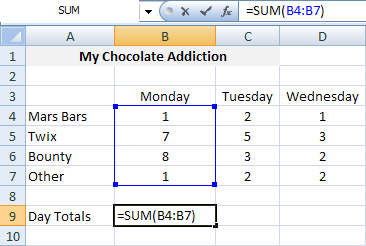
Functions are predefined formulas and are available in Excel.
- Functions are predefined formulas and are already available in Excel.
- For example, cell A3 below contains the SUM function which calculates the sum of the range A1:A2.
Addition Formulae
- The simplest Excel addition formula is made up of the = sign, followed by two or more numbers, with the + operator in between them. This is shown in the spreadsheet on the right.
- The excel addition formula in the example spreadsheet calculates the sum of the three numbers 2, 7 and 1 and returns the result 10.
- A B 1 = B1 + B2 + B3 2 2 7 3 1 As with all Excel formulas, instead of typing in the numbers directly, you can use references to cells containing numbers.
- Instead of using the + operator Excel provides a built-in Sum Function that can be used to perform addition in Excel. The format of this function is: =SUM( number1, [number2], ... )
Subtracting
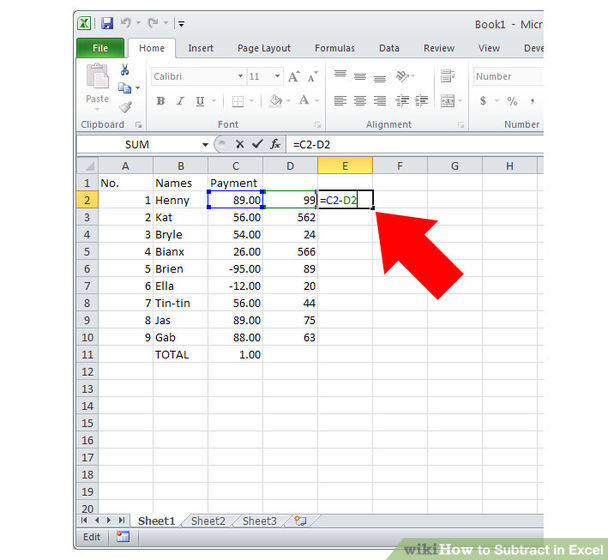
- The simplest Excel subtraction formula consists of the = sign, followed by two or more numbers, with the - operator in between them. This is shown in the spreadsheet on the right.
- The formula in the example spreadsheet subtracts the numbers 2 and 5 from the number 11 and returns the value 4.
- As with all Excel formulas, instead of typing in the numbers directly, you can use references to cells containing numbers.
- The Excel subtraction formula in cell A1 of the spreadsheet on the right subtracts the values in cells B2 and B3 from the value in cell B1. Again, the formula returns the value 4.
Multiplication
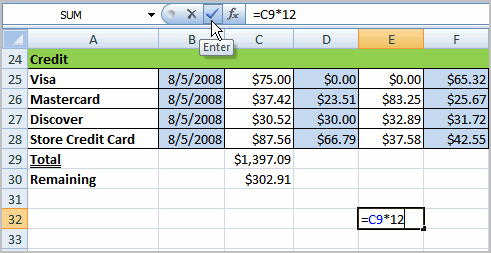
- The easiest way to perform multiplication in Excel is to use the * operator, as shown in the spreadsheet on the right. This formula consists of the = sign, followed by two or more numbers, separated by the * operator.
- As with all Excel formulas, instead of typing numbers directly into the formula, you can use references to cells containing numbers in your multiplication formula.
- Instead of using the * operator, as shown above, you can use the built-in Excel Product Function to perform a multiplication in Excel. The format of the Excel Product function is: =PRODUCT( number1, [number2], ... )
Divisionn
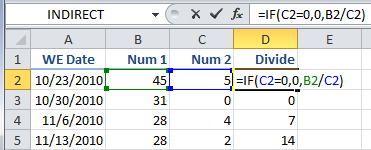
- The simplest way to divide in Excel is to use the / operator. An example of this is shown in the spreadsheet on the right. This formula consists of the = sign followed by two numbers that are separated by the / operator. This simple Excel division formula divides the number 15 by the number 4, and returns the result 3.75.
- As with all Excel formulas, instead of typing numbers directly into the division formula, you can use references to cells containing numeric values.
- An example of how to divide in Excel, using cell references, is shown in cell A1 of the spreadsheet on the right. This division formula divides the number in cell B1 by the number in cell B2.
Imágenes y archivos del mapa
Información
- Descripción
- GCSE (Spreadsheets) ICT Mapa Mental sobre Spreadsheet formulae, creado por 13woodfields el 10/06/2016.
- Creado por
- 13woodfields
- Visitas
- 2
- Valoración