
Sin título
Diapositivas del conjunto (10)
-
HCI - Human Computer Interface
- https://www.youtube.com/watch?v=bzFv09QrY6E (Enclavar)
- Pie de imagen: WHAT IS A HCI?
- Some hardware and software has been specially designed with a particular group of users in mind. However, the vast majority of ICT systems are used by a wide range of users. There are a number of factors to consider when creating a good user interface.
-
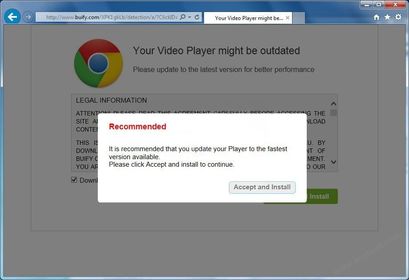
Signposting and pop-up information
- A good user interface will consist of consistent signposting and pop-up information.
- What this means is that all the aids to navigation such as the Next and Previous buttons, pop-up menus, icons, etc., all look the same from screen to screen and all appear in the same position on screen.
- Pie de imagen: Example of pop-up information
-
- On-line help is available for those that are not sure of how to use a particular feature. All software packages should have an on-line help facility where users can get help supplied by the package, rather than have to look through manuals or user guides.
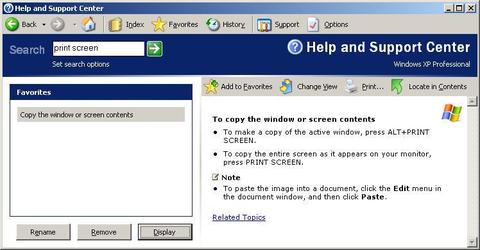
- Pie de imagen: EXAMPLE OF ON-LINE HELP
-
On-screen help for novice users
- Some help screens can be very off-putting and frequently use unfamiliar terms in their explanations. Help screens should explain things simply and giving the user examples best does this.
- Most users perform a variety of tasks using the software and are expert at some tasks whilst novice at others. Besides providing helps should the user need it, the software should recognise and anticipate the users' goals and offer assistance to make the task easier.
- Microsoft Office uses Wizards that help you through some of the more complex tasks. This form of assistance allow the users to accomplish their tasks in as short a period as possible.
-
- The layout has to be suitable for the user, for example a child or a computer expert. They will be performing totally different tasks so they will need a layout appropriate to the task.
- For children the User Interface should:
- - have minimum amount of text on the screen
- - use bright colours to attract young children to the package
- - have an uncluttered appearance
- - minimal use of keyboard
- - speech synthesis so that they can hear words
- Experts:
- - customisable, such as the screen.
- - minimal mouse movements
- - large working area, such as pull-down menus to keep screen large
- - large screen for complex interfaces, more can be seen
- - input devices, such as graphic pads. Selections can be made from tablet leaving actual screen clearer for a plan
- - design pull-down menus as avoids the need to move down through the menu more than is necessary
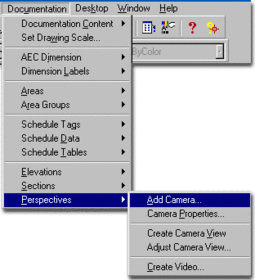
- Pie de imagen: Pull-down menu example
-
Differentiation in user expertise
- Users can be divided into:
- - novices are people who have never used the software before
- - experienced people who have used the software before but only know and use some of its features
- - experts are people who have many years experience of the software and know and use all its facilities
- Each of these users will have different needs for the user interface.
- The novice users priority will be ease of learning and easy access to help.
- The expert user will want to get the job done in the least possible time.
-
User interface & differentiation
- Here are some ways the human-computer interface can be used to differentiate between users:
- Provide short cuts for experts - they will often type at a high speed and will be able to memorise commands using a combination of keys and this will save them time over using the mouse and clicking on icons and pull-down menus. A novice user can use the mouse, so many packages provide an alternative interface.
- Increased numbers of ways of performing the same operation - user interfaces offer more than one way to achieve the same result and the choice is left to the user. For example, a novice user many prefer to use a drop down menu or click on an icon in order to print out a file whereas an experienced user may find it faster to issue a command using a sequence of keys such as Ctrl+P
-
- It should be clear to the user how to accomplish certain tasks. For a complex task the user can be guided through using a series of small steps. For example, the mail merge wizard in the word-processing package Word takes the user one step at a time through the process of creating a mail merge using their own data.
- Many websites simply use hotspots without telling the user to click on them. The user should never be left wondering what to do next.
- Forward and back buttons should always be positioned at the same place on the screen.
- Next buttons should be the same and positioned in the same place. If a user wants to flick quickly through a series of pages, it is annoying to have to position the mouse before clicking. It is much easier to keep the Next button in the same place so all the user has to do is click to take them to the next page.

- Pie de imagen: Example of a Next button
-
- People with special or particular needs will want and need to use computers, as do disabled people,. ICT systems can present these people with many new opportunities and make their lives more fulfilling.
- Users with a sensory impairment - the user many not be able to read the letters on the screen properly - use a font that is easy to read and make sure that the size of the font is large enough for these users to read.
- If a person is blind, then ICT can help them by use of a 'talking' computer where the words are spoken when typed in by the user, or output on the computer. Blind users can also use special Braille keyboards to enter data and they can use Braille printers to produce output in Braille with raised dots.
- Users with a physical disability - this usually affects the user's mobility. For example, they may not be able to use their arms or hands or many be unable to walk.
- People unable to write can use voice-activated systems to put data into the computer.
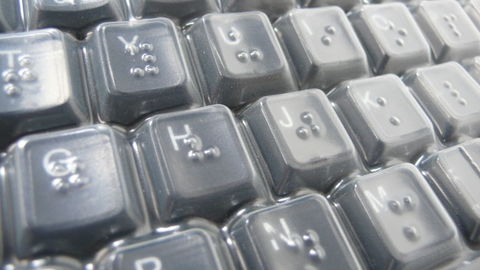
- Pie de imagen: Example of a Braille keyboard
-
Improvements of websites & systems
- Websites and other ICT systems are often designed to be used by the general public. This would include people of all ages, all nationalities, in different situations (work, leisure), with a range of disabilities, with different educational backgrounds and different ICT skills,
- What can be done to make a website more accessible for users:
- - plain, simple language
- - allow a user to change the size of the text
- - explain difficult words or phrases
- - translate the site into different languages
- - allow a user to have the webpage read out loud to them, it is ideal for people with sign impairment
- - allow a user to change the colour of the text and background
Información
- Descripción
- A-Level ICT Diapositivas sobre Sin título, creado por 09dohe1b el 29/01/2016.
- Creado por
- 09dohe1b
- Visitas
- 0
- Valoración