
Mind map
Student Guide for Personal Computer Maintenance
Map content
Student Guide for Personal Computer Maintenance
Maintaining your Notebook Computer
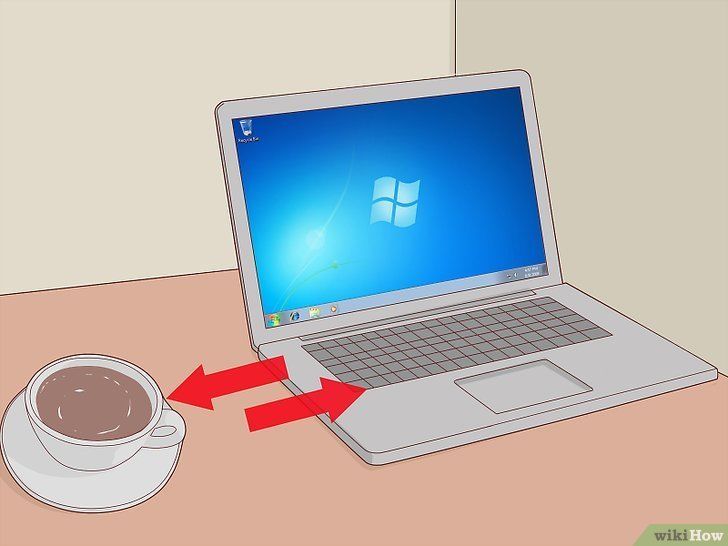
- Lack of maintenance could lead to such problems as:
- 1. Overall slowness to the system
- 2. Program may crash and fail to open
- There are tool available in Windows designed to optimize the performance of your notebook, as well as prevent problems in the future.
- In addition, there is software designed to protect your hard drive from viruses.
- Lack of maintenance could lead to such problems as:
McAfee VirusScan Enterprise
- We recommend each student installs this on their personal computer not only so they can protect themselves but everyone they interact with.
- • Access Protection. Configure access protection rules to prevent unwanted changes to your computer and enable the option to prevent McAfee processes from being terminated.
- • Alerts and Notifications. Configure how and when you receive detection notifications and alerts. See Configuring Alerts and Notifications for more information.
- • Quarantine Manager Policy. Configure the location of the quarantine folder and the number of days to keep quarantined items before automatically deleting them
- • Alerts and Notifications. Configure how and when you receive detection notifications and alerts. See Configuring Alerts and Notifications for more information.
- • Auto Update. Configure update tasks to get the most current detection definitions, scanning engine, and product upgrades.
- • Access Protection. Configure access protection rules to prevent unwanted changes to your computer and enable the option to prevent McAfee processes from being terminated.
- We recommend each student installs this on their personal computer not only so they can protect themselves but everyone they interact with.
Updating Microsoft Windows
- Click on Start, then All Programs, and then finally the Windows Update icon at the top of the list.
- 2. Click on Check for Updates. Windows will now check for all available updates for your computer.
- 3. If new updates are found, click on Install updates.
- 4. Windows will now download and install all necessary updates for your computer. Give it some time to finish. (This can take a while if there are many updates).
- 5. After you have installed all updates, perform a Windows Update every 2 to 3 weeks to keep your system up to date and enable automatic updating.
- Click on Start, then All Programs, and then finally the Windows Update icon at the top of the list.
Maintaining the Hard Drive
- Disk Cleanup
- To keep a PC running smoothly, regular maintenance is critical. The Disk Cleanup Utility can determine which files on your hard drive may no longer be needed and delete those files.
- addition to freeing up potentially significant amounts of hard drive space, using Disk Cleanup on a regular basis can improve system performance.
- • Click Start I All Programs I Accessories I System Tools I Disk Cleanup • Click on Start and search for Disk Cleanup Use the drop down menu to choose the drive you want to clean.
- The process of scanning your hard drives may take a few minutes When the scan is complete you will be presented with a list of temporary folder and the amount of space used by the each folder.
- Select: • Temporary Internet Files • Recycle Bin • Temporary files Click OK. NOTE The process of deleting your cached files can take a few minutes
- • Click Start I All Programs I Accessories I System Tools I Disk Cleanup • Click on Start and search for Disk Cleanup Use the drop down menu to choose the drive you want to clean.
- addition to freeing up potentially significant amounts of hard drive space, using Disk Cleanup on a regular basis can improve system performance.
- To keep a PC running smoothly, regular maintenance is critical. The Disk Cleanup Utility can determine which files on your hard drive may no longer be needed and delete those files.
- Disk Defragmenter
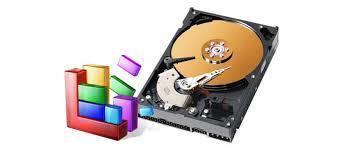
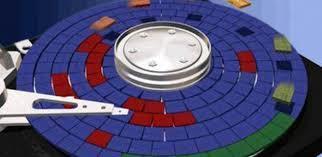
- Disk Defragmenter is used to organize files on the hard drive and optimize free space, improving the speed and performance of the computer. Some applications may fail outright if the disk becomes too fragmented.
- 1. To run Disk Defragmenter, click on Start I All Programs I Accessories I System Tools I Disk Defragmenter. NOTE You MUST have administrative rights in order to perform this process.
- 2. If your hard drive is partitioned (you have more than one drive), choose which drive you wish to defragment. In most cases, you will select C
- 3. Click on the Defragment disk button to begin the operation. 4. When defragmenting begins it will always analyze the hard drive first and then start the defragmentation
- process. It is recommended run this process at least once each month.
- 3. Click on the Defragment disk button to begin the operation. 4. When defragmenting begins it will always analyze the hard drive first and then start the defragmentation
- 2. If your hard drive is partitioned (you have more than one drive), choose which drive you wish to defragment. In most cases, you will select C
- 1. To run Disk Defragmenter, click on Start I All Programs I Accessories I System Tools I Disk Defragmenter. NOTE You MUST have administrative rights in order to perform this process.
- Disk Defragmenter is used to organize files on the hard drive and optimize free space, improving the speed and performance of the computer. Some applications may fail outright if the disk becomes too fragmented.
- Disk Cleanup
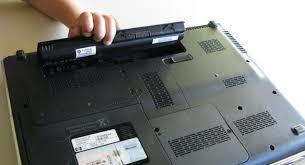
Maintaining the battery
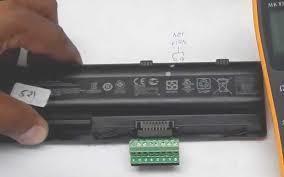
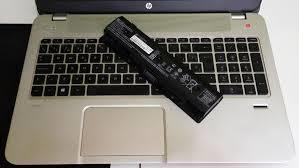
- Most laptop batteries will last at least four hours when fully charged. If not maintained, however, the battery will require charging more frequently. Following are tips for properly maintaining your battery for maximum performance.
- Use the battery as your power source until the low battery warning emerges Using your laptop with the AC adapter plugged into an electrical outlet will overcharge the battery. Overcharging decreases the life of the battery. Eventually the battery will be unable to hold a charge and will require a replacement. Condition the battery for maximum performance
- 1. Discharge the battery – use the battery until the low battery warning emerges. 2. Charge the battery – use the AC adapter until the battery is fully charged. Then immediately disconnect the AC adapter from the notebook. The procedure above insures both maximum performance and long life for the battery
- Use the battery as your power source until the low battery warning emerges Using your laptop with the AC adapter plugged into an electrical outlet will overcharge the battery. Overcharging decreases the life of the battery. Eventually the battery will be unable to hold a charge and will require a replacement. Condition the battery for maximum performance
- Most laptop batteries will last at least four hours when fully charged. If not maintained, however, the battery will require charging more frequently. Following are tips for properly maintaining your battery for maximum performance.
Images and files in the map













Information
- Description
- Mind Map on Student Guide for Personal Computer Maintenance, created by DIEGO FERNANDO MEJIA MARIN on 09/10/2018.
- Created by
- DIEGO FERNANDO MEJIA MARIN
- Views
- 0
- Rating