
Mind map
Windows administration II: networks and maintenance
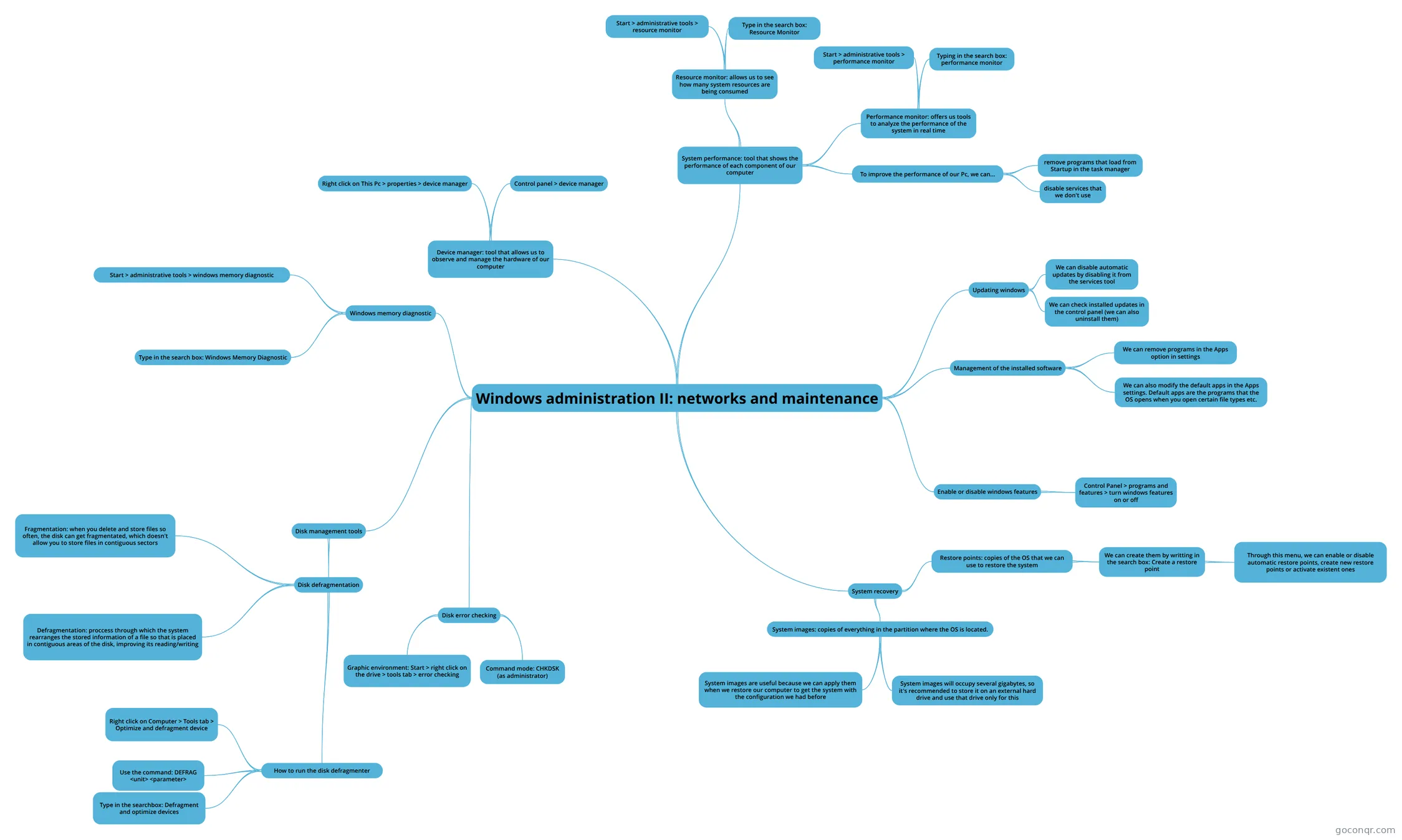
Mind map: Windows administration II: networks and maintenance
Map content
Windows administration II: networks and maintenance
Disk management tools
- Disk defragmentation
- Fragmentation: when you delete and store files so often, the disk can get fragmentated, which doesn't allow you to store files in contiguous sectors
- Defragmentation: proccess through which the system rearranges the stored information of a file so that is placed in contiguous areas of the disk, improving its reading/writing
- How to run the disk defragmenter
- Right click on Computer > Tools tab > Optimize and defragment device
- Type in the searchbox: Defragment and optimize devices
- Use the command: DEFRAG <unit> <parameter>
- Disk defragmentation
Disk error checking
- Graphic environment: Start > right click on the drive > tools tab > error checking
- Command mode: CHKDSK (as administrator)
Windows memory diagnostic
- Start > administrative tools > windows memory diagnostic
- Type in the search box: Windows Memory Diagnostic
Device manager: tool that allows us to observe and manage the hardware of our computer
- Right click on This Pc > properties > device manager
- Control panel > device manager
System performance: tool that shows the performance of each component of our computer
- Resource monitor: allows us to see how many system resources are being consumed
- Start > administrative tools > resource monitor
- Type in the search box: Resource Monitor
- Performance monitor: offers us tools to analyze the performance of the system in real time
- Start > administrative tools > performance monitor
- Typing in the search box: performance monitor
- To improve the performance of our Pc, we can...
- remove programs that load from Startup in the task manager
- disable services that we don't use
- Resource monitor: allows us to see how many system resources are being consumed
Updating windows
- We can disable automatic updates by disabling it from the services tool
- We can check installed updates in the control panel (we can also uninstall them)
Management of the installed software
- We can remove programs in the Apps option in settings
- We can also modify the default apps in the Apps settings. Default apps are the programs that the OS opens when you open certain file types etc.
Enable or disable windows features
- Control Panel > programs and features > turn windows features on or off
System recovery
- Restore points: copies of the OS that we can use to restore the system
- We can create them by writting in the search box: Create a restore point
- Through this menu, we can enable or disable automatic restore points, create new restore points or activate existent ones
- We can create them by writting in the search box: Create a restore point
- System images: copies of everything in the partition where the OS is located.
- System images are useful because we can apply them when we restore our computer to get the system with the configuration we had before
- System images will occupy several gigabytes, so it's recommended to store it on an external hard drive and use that drive only for this
- Restore points: copies of the OS that we can use to restore the system
Information
- Description
- Mind Map on Windows administration II: networks and maintenance, created by Marcos Cires Lopez on 16/03/2022.
- Created by
- Marcos Cires Lopez
- Views
- 3
- Rating