
Mind map
Git
Map content
Git
Git Commands
- git init
- turn git on for a folder
- git status
- return the status, if git knows the last version or if there has been a change and this change is not known by git
- git add <fileName>
- adds the file to the group of files that will be commited later
- git commit -m "Comentario"
- commits the file with a descripted comentari of the changes
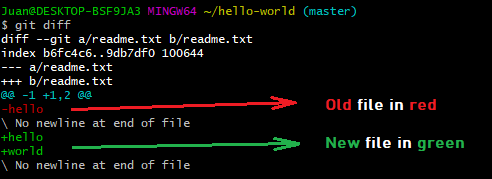
- git diff
- shows the differences between the versions
- git add .
- adds all the files to the group of files that will be commited later
- Configures global values to know who did the changes and how contact him
- https://www.atlassian.com/git/tutorials/setting-up-a-repository
- git config --global user.name "Your Name"
- git config --global user.email "Your Email"
- git config --global user.username "Your GitHub Username"
- git config --global --edit
- open the global configuration file in a text editor for manual editing
- shortcuts
- https://www.atlassian.com/git/tutorials/setting-up-a-repository
- git config global alias. <Alias> <Function>
- git config global alias. st status
- git remote add <RemoteName> <URL>
- creates a name to the refers to URL respoitory
- git remote add origin https://github.com/juansp92/hello-world.git
- creates a name to the refers to URL respoitory
- git push <RemoteName> <Branch>
- push the branch to the remote server (update the branch in github)
- git pull <RemoteName> <Branch>
- pull the branch from the remote server (the branch in github) to the local (our computer)
- git remote -v
- shows the RemoteNames and the URLs associated
- git clone <URL>
- clone a repository from github to the folder you are in
- MAKE SURE YOU ARE NOT INTO ANOTHER RESPOSITORY
- clone a repository from github to the folder you are in
- git log
- https://devhints.io/git-loghttps://medium.com/the-andela-way/exploring-the-git-log-command-9117b9ff3c2c https://devhints.io/git-log
- git log <RemoteRepository>/<BranchName>
- shows all the commits that have been made in the remote repository
- git log origin/master
- shows all the commits that have been made in the remote repository
- git log
- shows all the commits that have been made in the local repository
- git log --oneline
- shows the summery, the commits in one line
- git log --stat
- shows the statistics, the files that have been modifed and also the lines.
- git log -p
- displays the files that have been modified, location of the lines that have been added or removed and the actual changes that have been made
- Ignore files
- If there are some file that we don't want to commit we can tell Git to ignore those files
- touch .gitignore
- creates a file where we are going to write *.log to ignore all .log files. And has to be that name ".gitignore" because git recognize that file and knows that inside ".gitignore" there will be the files to be ignore
- Branches
- git branch <BranchName>
- creates a new branch
- git checkout <BranchName>
- switches the branch
- if the new files were not commited then those files will remain in local even though the banch was changed
- switches the branch
- git checkout -b <BranchName>
- creates and switches to a branch in one line
- git branch
- list the branches
- git branch -m <NewBranchName>
- rename the branch you are currently on
- git branch -d <BranchName>
- delete the specified branch
- git branch <BranchName>
- git merge <BranchName>
- merge a branch into the current branch
- git merge origin/master
- merge branch master in the remote repository origin into the local branch
- Download the remote code
- git pull <RemoteName> <BranchName>
- replace the local version with the remote version
- pull = fetch + merge
- fetch
- git fetch <RemoteName>
- fetch all branches from the repository
- download the code (or changes) at the remote but doesn't modify our local version. The donwload version is storage in a diferent place
- helps to checkout the changes before pulling them and modify the local version
- git fetch <RemoteName> <BranchName>
- fetch the specific branch
- git fetch --all
- fetch all register remotes and their branches
- git fetch --dry-run
- git fetch <RemoteName>
- git pull <RemoteName> <BranchName>
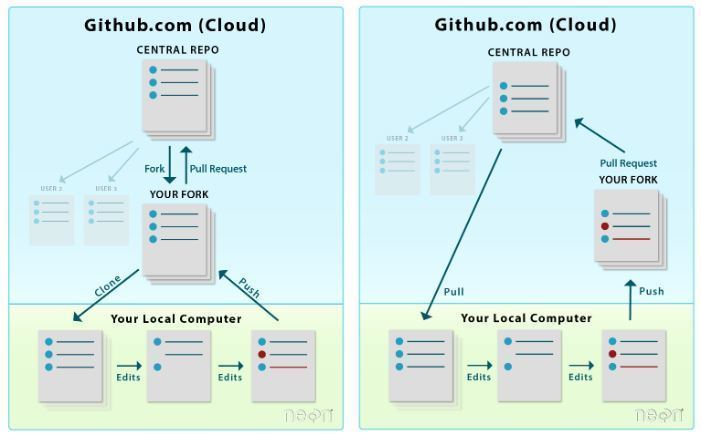
- fork
- fork means to create an independet copy of the original repository. If the original repository is deleted the fork remains.
- git remote show <RemoteName>
- gives detailed information about the configuration of the remote
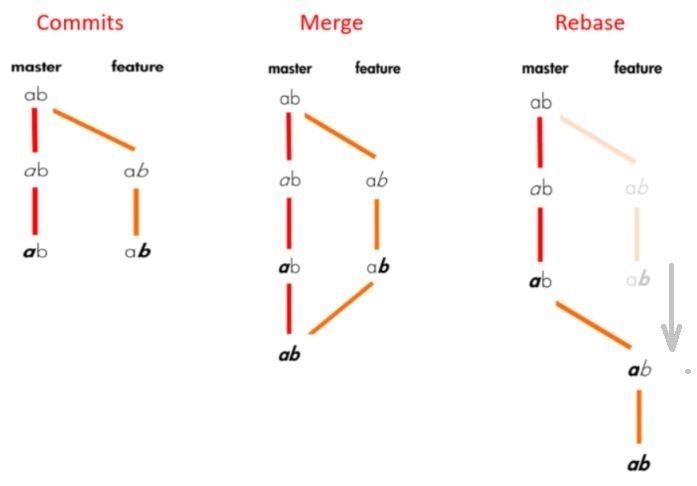
- git rebase <BranchName>
- https://medium.com/datadriveninvestor/git-rebase-vs-merge-cc5199edd77c
- integrates the branch you currently are to the specific branch
- git init
funciones
- commit
- saves the project's current status
- commit
La tecla tab sirve para autocompletado. Si se escribe: cd as y se presiona tab se autocompletará el nombre de la carpeta que empieza con "as", si hay más de una carpeta que empieza con as no ocurrirá nada, abría que presionar nuevamente tab (doble tab) y entonces arroja todas las carpetas posibles para que luego elijamos una
<command> --help
- explains the use and options of a specific command
Terminal Commands
- List the items in a folder
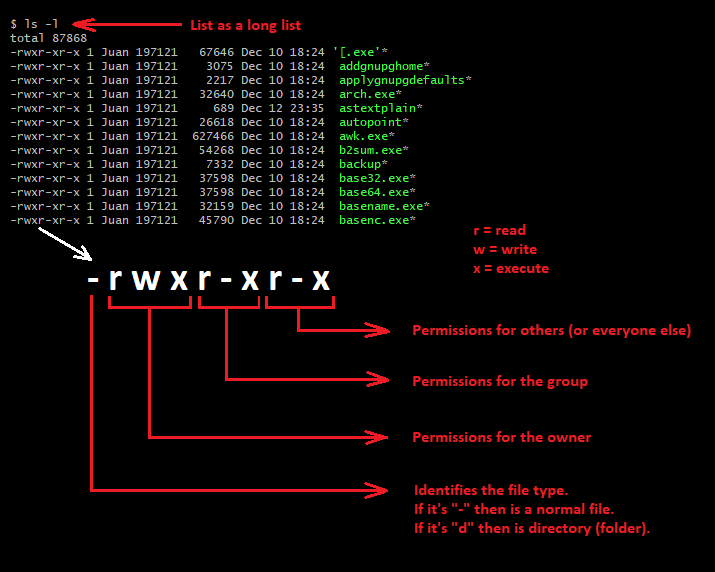
- ls -l
- list a long list with a many information
- https://ryanstutorials.net/linuxtutorial/navigation.php
- list a long list with a many information
- ls
- list just the file's name, won't list hidden files
- ls -a
- list all files, also hidden files
- ls <folder>
- list all files inside that folder
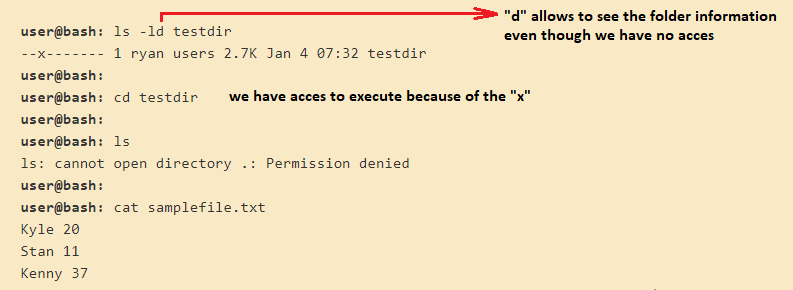
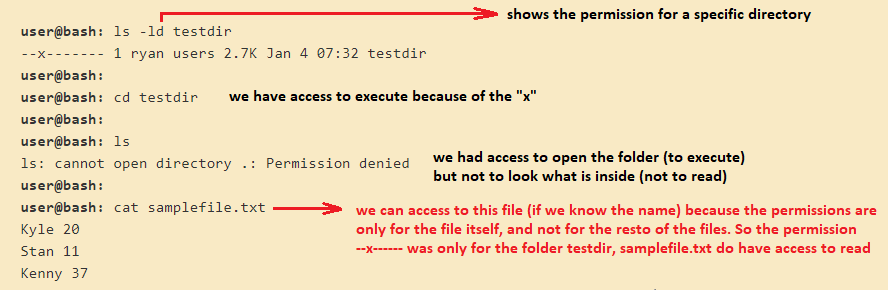
- ls -ld
- view the permission for a specific directory
- ls -l
- Files
- touch file1 file2 file3
- creates new files
- vi <fileName>
- CREATES a new file and open it in vi editor or EDITS a file if it exists
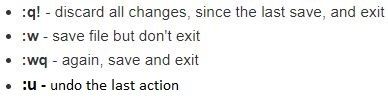
- At vi editor use 'AltGr + C ' to use the command line
- CREATES a new file and open it in vi editor or EDITS a file if it exists
- cat <fileName>
- shows the content of a small file
- less <fileName>
- shows the content of a large file
- use "q" to quit
- "spacebar" and "b" to move up and down
- shows the content of a large file
- show files with a filter
- * represents 0 or more characters
- b* = files that begin with "b"
- *b = files that end up with "b"
- *.txt = all.txt files
- ? represents a single caracter
- ?i* = files whose second letter is an "i"
- [ ] represents a range of characters
- [sv]*= files whose first letters be an "s" or "v"
- *[0-9]* = files with numbers
- [^a-k]* = files whose first letter don't be any letter from "a" yo "k"
- * represents 0 or more characters
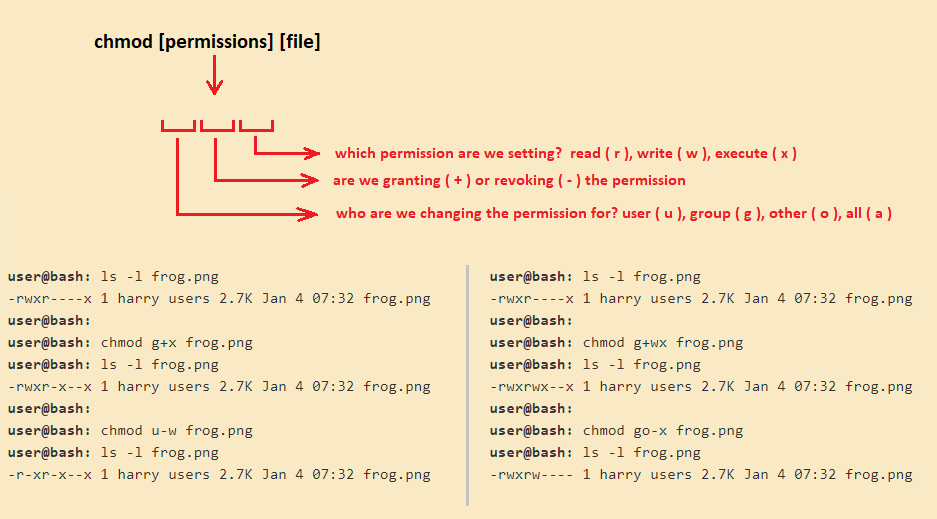
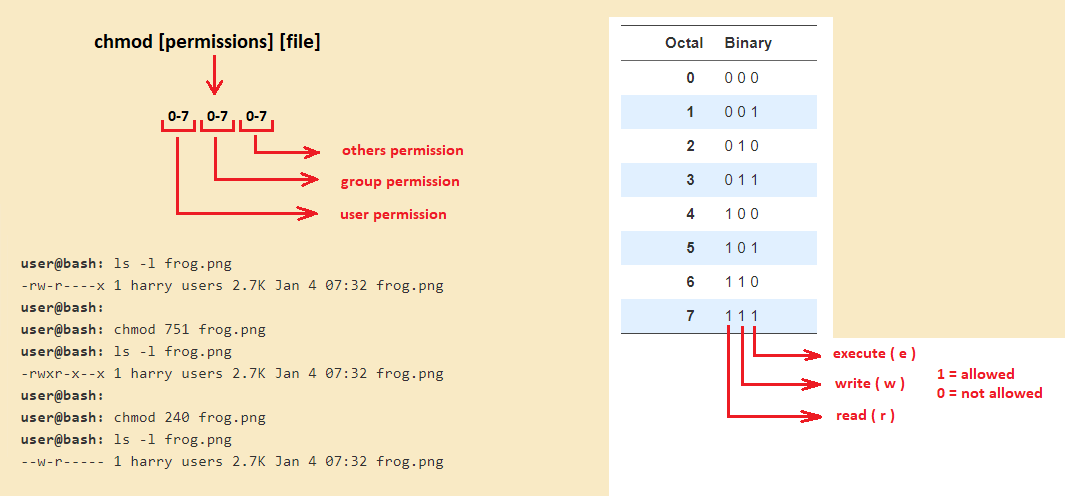
- change permission
- gives permission to read, write or execute files
- touch file1 file2 file3
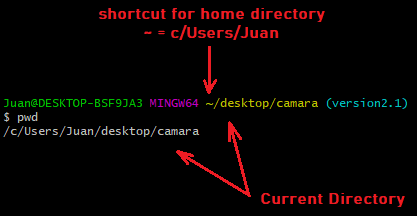
- pwd
- returns the Print Working Directory (current directory)
- file <fileName>
- specify what tipe of file it is
- Folders
- cd <folderName>
- change directory, goes foward the folder's name
- cd
- change directory, goes back in the root
- mkdir <folderName>
- creates a new folder
- rmdir <folderName>
- remove the specified folder
- cd ..
- goes back to the previous folder
- cd <folderName>
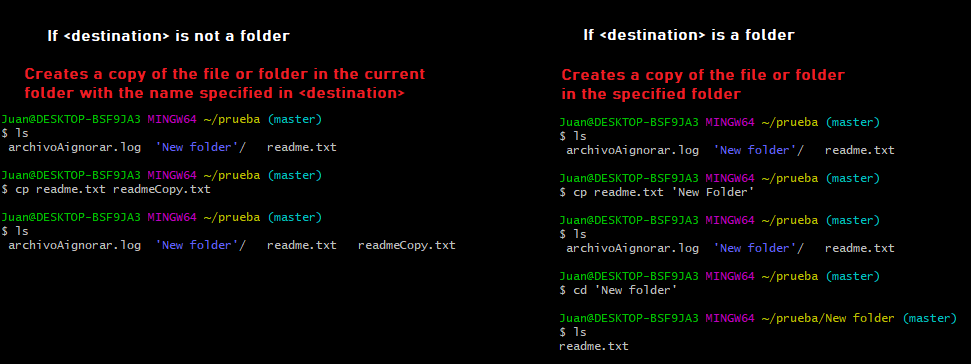
- Copy a file or folder
- cp <file> <destination>
- If <destination> is a folder it'll copy the file into the folder <destination> with the same filename. If <destination> isn't a folder it'll create a copy of the file in the same folder with the name specified in <destination>.
- cp <file> <destination>
- Move a file or folder
- mv <file> <destination>
- moves the specified file to the <directory>
- mv <file> <destination>
- Remove a file and folders
- rm <file>
- remove the specified file or empty folder
- rm -r <folder>
- remove the specified folder and all the files inside
- rm <file>
- List the items in a folder
Images and files in the map
Information
- Description
- Mind Map on Git, created by Juan Sánchez on 10/02/2020.
- Created by
- Juan Sánchez
- Views
- 2
- Rating