
Flashcards
A2 IT System Life Cycle

Cards in this deck (100)
- 1MaintenanceChanges made to a system after its implementation
- 2Requirements specificationWhat a user needs a new system to do
- 3System specificationThe hardware and software needed to run the system
- 4Design specificationIllustration of how the system will look, what the data structures will be and how the system will work
- 5Stages of system life cycleAnalysis
Design
Development and testing
Installation
Documentation
Evaluation and maintenance - 6AnalysisInvolves finding out how the current system works and what requirements of the client are for the new system
- 74 methods of researchQuestionnaires
Interviews
Observations
Document specification - 8QuestionnairesA set of written questions with choices of answers
- 9When interviews are appropriateWhen information is required from a large number of users
Results need to be quantified
When interviews are not an option due to time constraint - 10What questionnaires should be likeQuestions asked in a way that required info can be easily extracted from users
Provide multiple choice answers
Questions don't take too long
Include opinion ratings and open questions as well
Anonymity - 11InterviewsDirect conversations between the analyst and the clinet
- 12When interviews are appropriateWhere there is a single end user or a small group where questions require a large detailed answer in response and follow up questions can be asked
- 13What interviews should containQuestions should be planned and designed to elicit required info
Vary depending on how the interviewee is
Logistics (schedule) should be planned
Honesty must be achieved at its best - 14ObservationInvolves the analyst watching the process that take place within an organisation to find out how the system works and what everyday tasks need to be completed
- 15When observations are appropriateWhen the analyst wants to extract what the requirements specifications are from the end user and have a good understanding on the inputs processes and outputs or the organisation
When analyst has time to spare - 16What observation should be likeSitting with users to understand the tasks they are carrying out
Wandering around offices to see how information is shared throughout the organisation
Understand the inefficiencies of the current system to improve on - 17Document analysisExisting documents withing the organisation that contains information about the current system
- 18When document analysis is appropriateWhen the analyst needs examples that show output info to give an indication of what inputs are needed as well as the processes. Should be used with other methods as it doesn't show what the new system should and should not include
- 19Requirements specification (summary)Created by analyst
Contract between developer and client
Identifies what the system must do - 20Design specification (summary)Created by the designer
Shows what the system looks like
Describes how the system works
Specifies the data structure used - 21System specification (summary)Created by the designer
Identifies the software and hardware needed for the system to run
Identifies the minimum hardware needed to run - 22What requirement specifications should includePurpose and main objectives
Data that must be output
Data that needs to be input
Validation and verification rules
Processes required
Data that needs to be stored
Functional requirements
Deadlines for each milestone in the project - 23How system specification is drawn upMinimum software needed for the system needs to be identified
With that, the minimum hardware needed can be established as well as recommended hardware for the system to run more smoothly - 24What the design specification should includeFlowcharts
Data flow diagrams
Data collection forms
Screen layouts
Validation routines
Data dictionary
House style
Screen sizes
Connectivity diagram
Purpose of calculations - 25DFDData flow diagram which shows how data moves around a system
- 26System flowchartAn overview of how a system works in a diagrammatic format
- 27State what this symbol is and its purpose (DFD)Data flow
This is the data that is flowing throughout the system - 28State what this symbol is and its purpose (DFD)Process
This is an action that uses or manipulates data
- 29State what this symbol is and its purpose (DFD)Data store
This is a place where data is stored. This could be a hard disk, cloud storage or paper file, for example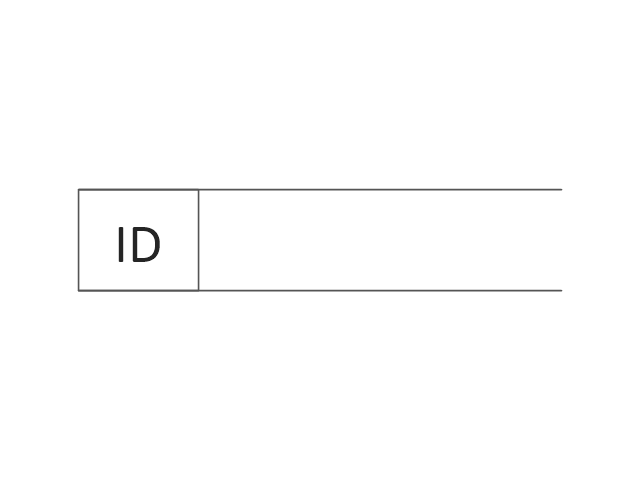
- 30State what this symbol is and its purpose (DFD)External entity
This is where the data originates or is destined
- 31The levels of DFDLevel 0
Level 1 - 32Level 0 DFDThe diagram shows the whole system and the data flows between the whole system and its external entities
- 33Level 1 DFDThis shows the flow of data within part of a system or if the system is small, the whole system. Other parts of the system are considered the external entities
- 34State this element and its purpose (System flowchart)Terminator
The start and end of a flowchart - 35State the element and its purpose (System flowchart)Arrow
Shows the direction of the flow - 36State the element and its purposeProcess
An activity within the system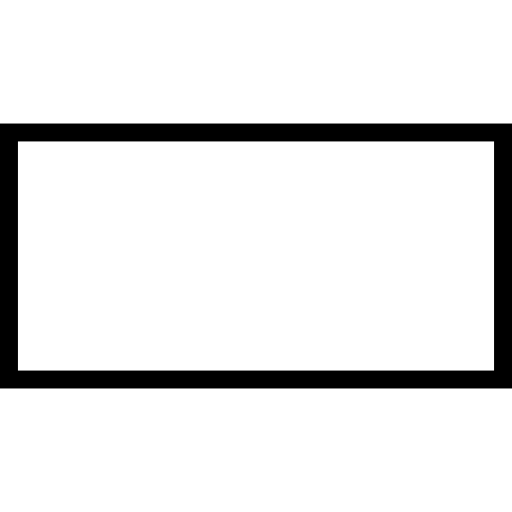
- 37State the element and its purposeDecision
A decision that has to be made with different output routes based on the result of the decision
- 38State the element and its purposeInput/output
Input data or output data for the system
- 39Data collection formsDocuments that are used to collect data without the use of a computer
- 40Design rules of data collection formsAvoid colour as document may be printed in black and white
Include instructions about how to complete the form
Give clear instructions about where the form should be returned
Identify which questions are optional or not
Provide enough space to answer
Use tick boxes for multiple choice
Make it clear how many options are allowed to be ticked
Ensure font is consistent
Avoid cluttering of information
Ensure font style and size is legible
Explain any scales - 41Screen layoutsThe screen uses will be asked to input data and where output data will be displayed
- 42Design rules of screen layoutsUse colour sparingly and appropriately
Ensure fonts are consistent
Avoid clutter of too much info
Provide enough info
Ensure font size and style is legible
Include instructions on how to complete form
Identify which questions are optional or not
Provide enough space to answer
Use tick boxes for multiple choice
Use drop down boxed for multiple choice lists for only one response - 43Validation routinesValidation rules should be used wherever possible and be appropriate in order to reduce the number of possible data errors
- 44Lookup checks should use ....... in the input formDrop down boxes
- 45Error messagesThese occur when the validation rule says that this data cannot be inputted. Should be positive and guide the user what to do
- 46Hardware and software for a new systemIf the application is a small one, it may be able to run and existing software and hardware. If it has additional software such as a database solution, it will require more
- 47Test dataData that will be used for testing a system
- 48Alpha testingInitial testing of the software by a limited group of people
- 49Beta testingA sample of users test a pre-released version of the software
- 50Black box testingTesting of inputs and outputs to a system or part of a system with no consideration for the workings of the system
- 51White box testingTesting the whole system in terms of structure and logic covering all paths through the system
- 52Types of test dataValid
Invalid
Extreme valid
Extreme invalid - 53Valid dataData that will be accepted by the validation rule
- 54Invalid dataData that will not be accepted by the validation rule
- 55Extreme validData that will only just be accepted by the validation rule because it is at the limit of acceptability
- 56Extreme invalidData that will only just not be accepted by the validation rule because it is just beyond the limit of acceptability
- 57Test data is used within...Test queries
- 58Who carries out alpha testingThe developers or a specialized team of testers
- 59When is alpha testing carried outTakes place close to the end of the development stage right before it is ready for the user. Can take a while because each time an error is found, testing has to be repeated
- 60Who are beta testersReal customers that have been selected to test an early release of the application. This is so that the system can be tested on how it would function with real input data not test data
- 61What happens when bugs are found in beta versions of systemNew beta versions are created and released
- 62Where does white box testing usually take placeWith small program modules carried out by the development team in order to ensure that each module works and can test pathways black box testers would not know about.
- 63What does white box testing focus onWhether detailed designs such as validation rules have been developed correctly
- 64What does black box testing includeInvolves testing the system where inputs are tested to see if they produce the expected output
- 65Who are the testers in black box testingSpecialists or the end users as no knowledge of the system inner working is required and will be focused on meeting the user requirments
- 66Importance of testingErrors are to be expected and need to be found and fixed in order to ensure that the system is error free for the user. A test plan will identify all the tests needed for every scenario in the software
- 67What are test plansIdentifies what is being tested, the type of test, the input data that should be used to test it, the expected result of the test and space to record the actual result
- 68InstallationThe development stage where the design is implemented
- 69Four methods of installationParallel
Plunge (direct)
Phased
Pilot - 70Parallel runningThis is when a new system and an old system are run at the same time
- 71Advantages of parallel changoverLess risky as if the new system fails, they can rely on the old system
Accuracy of the new system can be tested against the old system - 72Disadvantages of parallel changeoverDuplication of data means additional staff are needed and can increase costs
There may need to be extra hardware to be installed
Data may be input differently into the two systems, data is not accurate in both - 73Direct changeoverWhen a date is chosen for the old system to stop running and the new system to start running
- 74Advantages of direct changeoverCheaper to implement as no duplication of work
Data being used is consistent as only using one system
There is no need for the new system to be compatible with the old system - 75Disadvantages of direct changeoverRisky method as if new system doesn't work there is no fallback
Training to use the new system has to be done in advance and some users can forget how to use the new system - 76Phased implementationParts of the new system will be introduced one at a time
- 77Advantages of phased implementationIf there are any errors, this will only affect part of the system that has changed
End users can be trained to use each phase of the new system and spend time getting used to it - 78Disadvantages of phased implementationDelays can occur waiting for each phase to be running successfully
Users will be using two different systems and can get confused as to which parts of each system they should use
Both systems need to be compatible with each other - 79Pilot implementationTakes place when part of an organisation starts to use the new system while the rest of the organisation continues to use the old system
- 80Advantages of pilot implementationIf there are any errors, they will only affect the pilot group that are using the system
Any errors found by the pilot group can be fixed before they system is installed
Pilot group can train the rest of the employees to use the new system - 81Disadvantages of pilot implementationSlower method of changeover because rest of the organisation has to wait until the pilot has been completed
Users in the pilot group may experience errors while users not in the pilot group can feel excluded
Both old and new system need to be compatible - 82Technical documentationAn overview of the structure of the system, how it was put together and how it works
- 83What does the technical documentation include (1)A data dictionary to show how data has been structured within the system
Programming codes or macros will be annotated to explain their purpose. Validation rules will be listed
Purpose of calculations in the system
Buttons and links will be listed
Files used by the system are listed
Flow charts to show how different parts of the system work and other diagrams e.g. entity relationship diagrams - 84What does technical documentation contain (2)Installation guide for the installation team and also in case the system has to be installed again in the future. Results of each test. Backup routines are detailed to show where the files are stored, how they're configured and how to restore from backup. Software and hardware requirements. Security settings as well as which users have certain privileges
- 85What is user documentationA user guide giving instructions to the user. Can be electronic or in a printed format
- 86What user documentation should include (1)Front cover that clearly identifies the name of the system and the whole guide should have a header/footer with page numbers
A contents page to include links to pages
An introduction to the purpose of the user guide
Software and hardware requirements - 87Main part of the user guideInstructions on how to use the system. This should include written instructions together with screenshots of the system or photographs of hardware. Arrows can be used to point to parts of screenshots or photographs. Bullets or numbering should be used to break instructions down into manageable tasks
- 88What a user documentation includes (2)A glossary will show an alphabetical list of any technical terms that have been used within the user guide and a definition of each term. A troubleshooting section that includes a table of common problems with a description of what caused it and what are the solutions. An index will be included at the end to refer to popular terms
- 89Why technical documentation is neededRequired so that anybody carrying out future maintenance on the system will be able to understand how the system was developed and configured.
- 90Why user documentation is neededNeeded so that can learn how to use the new system or look up how certain features are supposed to work
- 91EvaluationWill consider how the project team and end users worked together so that lessons can be learned for future projects
- 92Methods of evaluationUsers will be given questionnaires to find out what they think of the new system and how they feel it is improving their workflow. Selected users will also be given specific tasks to complete that will be observed and even interviewed about their interaction with the system
- 93Three categories that evaluation focus onUser requirements
Ease of use
Efficiency - 94User requirementsThe requirements specification will be considered in turn to determine if it has been fulfilled and if not, actions will be taken to ensure they do in the long run
- 95Ease of useRequirements specification should have specified how easy the new system should be to use. This can be subjective however. If there are any issues, plans can be made to simplify the process y adding additional features to the software if necessary
- 96EfficiencyIt is expected that the new system should work more efficiently than the old system and will be evaluated on how the new system is working for them
- 97Perfective maintenanceIdea is to always be looking to improve a system to make the system perform better or do additional tasks
- 98Adaptive maintenanceSystem need to adapt to changes. There could be changes to internal procedures within an organisation or changes over which the organisation has no control
- 99Preventative maintenanceRequired to prevent problems arising within a new system and can apply to both hardware and software
- 100Corrective maintenanceWhen errors or bugs are found within a new system they need to be corrected. This will be the responsibility of the original developers, although it may be different people that carry out the maintenance
Information
- Description
- AS level IT Flashcards on A2 IT System Life Cycle, created by Sean Byrne on 11/09/2017.
- Created by
- Sean Byrne · Sep 2017
- Updated
- Sep 24, 2017
- Views
- 5
- Rating