
Mind map
A2 IT System life cycle
Map content
A2 IT System life cycle
Analysis
- Involves finding out how the current system works and what are the requirements of the client are for the new system
- Methods of research on current systems
- Questionnaire
- Used when information is required from a large number of users when it would be impractical to interview them all
- Large results means large sample size for the results to be quantified
- Not suitable when there are only a small number of users or opinions are needed from the client
- Also used if the time for an interview cannot be scheduled
- Must be asked in a way that allows to extract the required information and be analysed correctly. The questionnaire should only be long enough to get all necessary info otherwise respondents may not return it
- Should include multiple choice questions, ratings and open questions and written in a way that doesn't threaten the users way of work
- This means that the analyst gets a balanced amount of quantitative and qualitative answers. Questionnaires should also be returned anonymously
- Should include multiple choice questions, ratings and open questions and written in a way that doesn't threaten the users way of work
- Must be asked in a way that allows to extract the required information and be analysed correctly. The questionnaire should only be long enough to get all necessary info otherwise respondents may not return it
- Also used if the time for an interview cannot be scheduled
- Not suitable when there are only a small number of users or opinions are needed from the client
- Large results means large sample size for the results to be quantified
- Used when information is required from a large number of users when it would be impractical to interview them all
- Interviews
- Involve a direct conversation between the analyst and the client
- Perfect for single end users as this allows questions to be asked where conversations can take place as well as follow up questions
- Questions should be designed to elicit certain information and should be based depending on who is being interviewed
- Logistics of an interview need to be planned as interviews can be time consuming
- Honesty is important but difficult to achieve because end users may not want to admit they take shortcuts
- E.g. if management is being interviewed, ask about the entire organisation. If employees are being interviewed, ask about what they require of the system
- Logistics of an interview need to be planned as interviews can be time consuming
- Questions should be designed to elicit certain information and should be based depending on who is being interviewed
- Perfect for single end users as this allows questions to be asked where conversations can take place as well as follow up questions
- Involve a direct conversation between the analyst and the client
- Observation
- Involves the analyst watching the process that take place within an organisation to find out how everyday tasks are completed
- Includes sitting with users and understanding the tasks they have to complete with an opportunity to ask questions to extract information
- Used to create a requirement specification
- Can also include wandering around the office throughout the day to see how information is shared
- Includes sitting with users and understanding the tasks they have to complete with an opportunity to ask questions to extract information
- Disadvantages
- When being observed, employees may act differently or be more efficient which can lead to inaccurate results
- This is because the analyst needs a real example of how long a task takes and its inefficiencies
- Some users may not like being observed which could explain the difference in working
- This is because the analyst needs a real example of how long a task takes and its inefficiencies
- This method is very time consuming
- When being observed, employees may act differently or be more efficient which can lead to inaccurate results
- Advantages
- By observing users directly, this allows the analyst to get first hand experience about any of the inefficiencies in order to improve on
- Most insightful method of finding out how an organisation works
- By observing users directly, this allows the analyst to get first hand experience about any of the inefficiencies in order to improve on
- Involves the analyst watching the process that take place within an organisation to find out how everyday tasks are completed
- Document analysis
- Existing documents within an organisation can tell an analyst a lot about the information that is currently being used
- What document analysis is used for
- Shows output information and give an indication of what data is being collected
- Can identify the inputs and processes of a system
- Possible to estimate the amount of data required
- Can identify the inputs and processes of a system
- Shows output information and give an indication of what data is being collected
- Drawbacks
- Cannot be used by itself but with other methods of research
- Only shows the data that is currently output and not the process or any additional data inputs and does not show what the organisation needs in the new system
- Cannot be used by itself but with other methods of research
- Questionnaire
- Specifications
- Requirement specification
- What a user needs a new system to do
- Characteristics
- Created by the analyst
- Contract between developer and client
- Identifies what the system must do
- Include
- The purpose of the system
- The main objectives of the system
- Data that must be output from the system
- Data that needs to be input to generate an output
- Validation and verification that is required
- Processes that need to take place to convert input to output
- Data that needs to be stored
- Functional requirements
- Deadlines for each milestone in the project
- System specification
- The hardware and software needed to run the system
- Characteristics
- Created by the designer
- Identifies the hardware and software needed to run the system
- Identifies the minimum hardware and needed to run the system
- Only software required should be specified
- Different software for different users
- Needs to consider how much storage space is going to be required for the data being used by the system
- Analyst will recommend higher than minimum specifications to run the software smoothly
- External hardware that is needed should also be specified
- Design specification
- Illustration of how the system will look, what the data structures will be and how they system will work
- Characteristics
- Created by the designer
- Created so that users feedback can be incorporated into the final designs
- The developer will then use these designs
- Flowcharts
- Data flow diagrams
- Data collection forms
- Screen layouts
- Validation routines
- Data dictionary
- Will also include
- House style (font, size, colour)
- Screen size
- Connectivity diagram
- Purpose of calculations
- Connectivity diagram
- Screen size
- House style (font, size, colour)
- Requirement specification
Design
- DFD
- Data flow diagram which shows how data moves around a system
- Used to describe how a current system works
- Elements
- Data flow
- This is the data that is flowing throughout the system
- Process
- This is an action that uses or manipulates data
- Data store
- This is a place where data is stored. This could be a hard disk, cloud storage or a paper file, for example
- External entity
- This is where the data originates or is destined
- Data flow
- Levels
- Level 0
- The diagram will show the whole system and the data flows between the whole system and any external entities such as customers or suppliers
- Data flow is being represented and not physical objects
- The diagram will show the whole system and the data flows between the whole system and any external entities such as customers or suppliers
- Level 1
- The flow of data within part of a system, or if whole system if it is a small system
- Other parts of the system are treated as external entities
- Each flow of data must be linked to a process, as something has to happen to the data before it is passed on
- Ignore how data is processed and focus on data movements
- Level 0
- Data flow diagram which shows how data moves around a system
- System flowchart
- An overview of how a system works in a diagrammatic format
- Shows the processes that take place within and the decisions that are made
- Focuses on the logic of the system, rather than the data within the system
- Shows the processes that take place within and the decisions that are made
- Elements
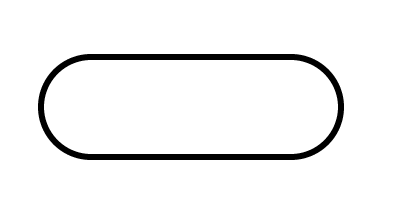
- Terminator
- The start and end of the flowchart
- Arrow
- Shows the direction of flow
- Process
- An activity within the system
- Decision
- A decision that has to be made with different output routes based on the result of the decision
- Input/output
- Input data or output data for the system
- Terminator
- Steps to creating a flowchart
- Start and end with a terminator
- Identify the first process that must take place
- If user input is required and be specific of what data is required
- Continue to add processes until a decision from the user is required
- Ensure that yes or no routes are created and consider where the routes go
- Continue to add processes until a decision from the user is required
- If user input is required and be specific of what data is required
- Identify the first process that must take place
- Start and end with a terminator
- An overview of how a system works in a diagrammatic format
- Data collection forms
- Documents that are used to collect data without the use of a computer
- Include: membership application forms, questionnaires, job applications or reply slips.
- When designing a data collection form it should:
- Avoid colour as the document may be printed in black and white
- Include instructions about how to complete the form
- Give clear instructions about where the form should be returned
- Identify which questions must be answered and which are optional
- Provide enough space for each answer
- Use tick boxed for multiple choice lists
- Make it clear how many options are allowed to be chosen from a multiple choice list
- Ensure all fonts are consistently used
- Avoid cluttering the form with too much information or too many questions
- Ensure the font size and style are legible
- If the respondent needs to complete a scale, the explain what the scale represents
- When designing a data collection form it should:
- Include: membership application forms, questionnaires, job applications or reply slips.
- Documents that are used to collect data without the use of a computer
- Screen layouts
- A screen that can be used to ask the user for data to be input or to display information to the user or a mixture of both
- Should:
- Use colour sparingly and appropriately
- Different colours could be used for questions and responses or for different types of data
- Colours that the user expects should be used e.g. green for good
- Different colours could be used for questions and responses or for different types of data
- Ensure font is consistent
- Avoid cluttering the screen with too much information
- Try to fit all the information into one screen
- Ensure font size and style are legible
- If the screen required input
- Include instructions on how to complete the form
- Identify which questions are mandatory and which are optional
- Provide enough space for each answer
- Use tick boxes for multiple choice lists that can have more than one response
- Use drop down boxes or option buttons for multiple choice lists that can only have one response
- Use colour sparingly and appropriately
- Validation routines
- Should be used wherever possible and be appropriate in order to reduce the number of possible input errors
- Used so that calculations and output data do not require validating
- Drop down boxes should always be used instead of lookup validation checks
- When designing a validation rule, identify the input data, the type of validation and the error message that appears
- Error messages should be positive and guide the user what to do
- When designing a validation rule, identify the input data, the type of validation and the error message that appears
- Drop down boxes should always be used instead of lookup validation checks
- Used so that calculations and output data do not require validating
- Should be used wherever possible and be appropriate in order to reduce the number of possible input errors
- Hardware and software for a new system
- The designer will need to decide what hardware and software required
- If the application designed is a small one, existing hardware and software may be sufficient
- If not, the designer will need to state the minimum software and hardware requirements to run the system
- Additional software or hardware may also need to be stated. Particularly the case if a database solution is being developed or if the existing hardware doesnt have the necessary space to run
- If not, the designer will need to state the minimum software and hardware requirements to run the system
- If the application designed is a small one, existing hardware and software may be sufficient
- The designer will need to decide what hardware and software required
- DFD
Development and testing
- Test data
- Data that will be used for testing a system
- Enough has to be created to ensure that the system can cope under the pressures of large amounts of data in everyday use
- Types of test data
- Valid (Normal)
- Data that will be accepted by the validation rule
- Invalid
- Data that will not be accepted by the validation rule
- Extreme invalid
- Data that will only just be accepted by the validation rule because it is at the limit of acceptability
- Extreme invalid
- Data that will only just not be accepted by the validation rule because it is just beyond the limit of acceptability
- Valid (Normal)
- Types of test data
- Enough has to be created to ensure that the system can cope under the pressures of large amounts of data in everyday use
- Requires test queries
- Records created for each test data type
- If more than one criteria is required, it is important to use test data that fills in all criteria and some only parts
- Records created for each test data type
- Data that will be used for testing a system
- Alpha testing
- Initial testing of the software by a limited group of people
- Carried out by the developers or a specialized team of testers before a system is delivered to the user
- Takes place close to the end of the development stage
- Can take a long time as when error is found, testing has to be repeated until corrected
- Beta testing
- When software is being made available to a large number of consumers
- Beta testers are real customers who have been selected to test an early release of the product
- Takes place after alpha testing
- Uses real world data
- As bugs are found, new beta versions are released
- A sample of users test a pre-released version of the software
- Black box testing
- Selecting input data and checking that the expected output data matches the actual output data
- Assumes no knowledge or understanding what is happening inside the system or "black box"
- Can include the whole system or part of a system
- Can be carried out by specialist users or end users
- Will focus on if requirement specifications are met
- Can be carried out by specialist users or end users
- Can include the whole system or part of a system
- Assumes no knowledge or understanding what is happening inside the system or "black box"
- Testing of inputs and outputs to a system or part of a system with no consideration for the workings of the system
- Selecting input data and checking that the expected output data matches the actual output data
- White box testing
- Testing the whole system in terms of structure and logic covering all paths through the system
- Involves the same process of input and output data but the structure and the logic of the program is known to the tester
- Usually takes place with small program modules and is carried out by the software developers who coded the programs
- This is to ensure each module works as intended
- They are able to test certain pathways unlike black box testers
- Focuses on detailed designs such as validation rules
- They are able to test certain pathways unlike black box testers
- This is to ensure each module works as intended
- Usually takes place with small program modules and is carried out by the software developers who coded the programs
- The importance of having a test plan
- No program is created without errors and these errors need to be corrected
- Done so that the system is working reliably and behaving as expected
- Test plans minimize errors by ensuring all pathways in a system and types of data have been tested
- Without test plans, errors can be left undiscovered
- Will also cover the users requirements
- Without test plans, errors can be left undiscovered
- Test plans minimize errors by ensuring all pathways in a system and types of data have been tested
- Done so that the system is working reliably and behaving as expected
- No program is created without errors and these errors need to be corrected
- Test plans
- Identifies and includes:
- What is being tested
- The type of test data
- The input data that should be used to test it
- The expected results
- Space to record actual results
- It is also important to test calculations as well as inputs
- Identifies and includes:
- Test data
Installation
- The development stage where the design in implemented
- Parallel changeover
- When a new system and an old system are run at the same time
- Advantages
- Less risky as if either system fails, there is a back up system
- Accuracy of the system can be tested against the old system
- Less risky as if either system fails, there is a back up system
- Drawbacks
- Duplication of data input means additional staffing costs
- There may need to be additional hardware installed to run both systems at the same time
- Data may be input differently in both systems, creating different outcomes
- There may need to be additional hardware installed to run both systems at the same time
- Duplication of data input means additional staffing costs
- Direct changeover
- When a date is chosen for the old system to stop running and the new system to start running
- Advantages
- Cheap to implement as there is no duplication of work
- Data being used will be consistent as only one system is in use
- There is no need for the old system to be compatible with the new system
- Data being used will be consistent as only one system is in use
- Cheap to implement as there is no duplication of work
- Drawbacks
- Risky method as any errors in the system could lead to the system failing with no backup
- All training will need to be done in advance to use the new system and can cause some users to forget what they learned
- Risky method as any errors in the system could lead to the system failing with no backup
- Phased implementation
- Parts of the new system will be introduced one at a time and takes place where a large system can be separated into sections/functions
- Advantages
- If there are any errors, it will only affect part of the system
- End users can be trained how to use each phase of the new system and spend time using that phase before being trained in the next phase
- If there are any errors, it will only affect part of the system
- Drawbacks
- Delays can occur waiting for each phase to be running successfully before the next phase can start
- Users will be using two different systems and can get confused which one to use
- This can lead to data being updated in the wrong system
- Both old system and new system must be compatible with each other
- This can lead to data being updated in the wrong system
- Users will be using two different systems and can get confused which one to use
- Delays can occur waiting for each phase to be running successfully before the next phase can start
- Pilot implementation
- Takes place when part of the organisation starts to use the new system while the rest uses the old system
- Advantages
- If there are any errors, they only affect the pilot group
- Any errors found by the pilot group can be fixed before the system is implemented for all users
- Pilot group can train the rest of the users the new system
- Any errors found by the pilot group can be fixed before the system is implemented for all users
- If there are any errors, they only affect the pilot group
- Disadvantages
- Slower method of changeover because the rest of the organisation has to wait until the pilot is done
- Some users may not want to try the new system, other users may be annoyed that they were not chosen to test the new system first
- Both old and new system must be compatible with each other in order to share data
- Some users may not want to try the new system, other users may be annoyed that they were not chosen to test the new system first
- Slower method of changeover because the rest of the organisation has to wait until the pilot is done
- Parallel changeover
- The development stage where the design in implemented
Documentation
- Technical Documentation
- An overview of the structure of the system
- How it was put together
- How it works
- Includes
- A data dictionary to show how data has been structured within the system
- Programming code or macros will be annotated and explained
- All validation rules are listed with their criteria used for successful input and the error messages they generate
- The purpose of calculations in the system and explaining how they work
- All buttons and links are listed as well as their purpose
- Flow charts to show how different parts of the system work and other diagrams that are used during design and development e.g. ERD
- An installation guide for the installation team in case the system has to be installed again
- Results of testing will be recorded
- Backup routines will be detailed to show where files are stored, how they are configured and how to restore from backup
- All security settings will be documented to show which groups have access to each part of the system and the permissions they have been granted
- Purpose
- Required so that anybody carrying out future maintenance on the system can understand how the system was developed and configured
- Unlikely that the person who developed the system provides future maintenance and so they will not be familiar with the system
- Need documentation to remember the structure of the system
- An overview of the structure of the system
- User documentation
- A user guide giving instructions to the user
- Can be electronic or printed format
- Front page that identifies the name of the system and include headers and footers
- Contents page should be included with page numbers/hyperlinks
- An introduction to the purpose of the user guide
- All software and hardware requirements are listed
- An introduction to the purpose of the user guide
- Contents page should be included with page numbers/hyperlinks
- Front page that identifies the name of the system and include headers and footers
- Can be electronic or printed format
- Includes
- Main part includes instructions on how to use the system
- Written instructions together with screenshots of the system or photographs of hardware
- Arrows used in screenshots and bullets or numbering to break instructions down into manageable tasks
- Written instructions together with screenshots of the system or photographs of hardware
- A glossary which shows an alphabetical list of the technical terms used with their definition
- Troubleshooting section on how to solve most common problems
- Description of what caused the problems and how to overcome the problem
- Index will be included at the end of the user guide with page numbers for each popular term
- Main part includes instructions on how to use the system
- Purpose
- Can learn how a system works as well as certain features
- Troubleshooting section important to understand and overcome any problems
- A user guide giving instructions to the user
- Technical Documentation
Evaluation and maintenance
- Maintenance
- Changes made to a system after its implementation
- Perfective
- Idea is to always be looking for ways to improve the system
- Could be caused by new technology that has emerged
- Idea is to always be looking for ways to improve the system
- Adaptive
- Internal and external changes in an organisation may cause systems to change accordingly
- Necessary for the system to remain useful and efficient
- Can be caused by new tech or changes in policies and laws
- Internal and external changes in an organisation may cause systems to change accordingly
- Preventative
- Required to prevent problems that may occur in a system and reduce system downtime
- Can apply to both hardware and software
- Examples
- Hardware regularly cleaned
- Data regularly checked for consistency and integrity
- Corrective
- When errors or bugs are found in the software that need to be fixed
- Responsibility of the original developers
- Released as patches that users can download and install
- Needed for the system to produce accurate outputs and remain efficient
- Evaluation
- Evaluations consider how the project team and end users worked together so that lessons can be learned for future projects
- Users are given questionnaires to find out what they think of the new system and how they feel it is improving workflow/productivity
- Selected users will be asked to perform certain tasks in order to observe the effects of the new system
- Users may also be interviewed
- Selected users will be asked to perform certain tasks in order to observe the effects of the new system
- Three criteria of evaluation
- Ease of use
- If there are issues with the ease of use, plans can be made to adjust and implement more features to the software
- User requirements
- Each user requirement checked to see if it is fulfilled, if not the system can be adjusted to meet this criteria
- Efficiency
- It is expected that the new system will be more efficient than the old one, if not, changes will be made accordingly
- Ease of use
- Maintenance
Images and files in the map




Information
- Description
- AS level IT Mind Map on A2 IT System life cycle, created by Sean Byrne on 28/09/2017.
- Created by
- Sean Byrne
- Views
- 2
- Rating